

ASUS motherboard Bluetooth can fail at pairing or disappear from Windows entirely. For pairing trouble, check the antenna and accessory mode first. For a missing radio, check board support, its BIOS controller and the Bluetooth driver.
Working Wi-Fi doesn't mean Bluetooth is set up correctly too. The accessory, the antenna connection and the Bluetooth driver each need the right setup, even on a motherboard that combines wireless features.
In this guide
1. Check the antenna and accessory before changing drivers
Attach the supplied antenna using the motherboard manual's instructions. Some boards have threaded connectors; others use a different fitting. Check the attachment type before applying force.
Place the accessory near your PC with a clear signal path. A keyboard working there but failing at your desk suggests reception or interference. If Device Manager has no Bluetooth category, use the hardware and driver checks later.
When Windows lists the device but refuses the final connection, follow the Try connecting your device again repair for that exact pairing message.
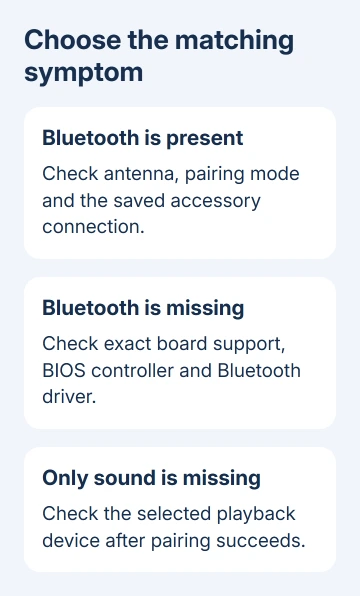
Charge the accessory or replace its batteries, then put it into pairing mode. Disconnect it from another nearby computer or phone if it keeps reconnecting there. Being powered on isn't always the same as being discoverable.
ASUS says to check motherboard Bluetooth support and whether its controller is enabled. It also recommends keeping Bluetooth devices nearby without obstructions.
For an accessory connected to Windows but absent from the playback choices, use the Bluetooth headphones missing from sound output checks. A sound-output problem differs from a radio that can't pair.
2. Rebuild the accessory's pairing
On Windows 11, open Settings > Bluetooth & devices > Devices. Find the accessory, open its options and choose Remove device. Confirm removal, then make the accessory discoverable again.
Return to Bluetooth & devices, select Add device > Bluetooth and choose the accessory. Complete any displayed pairing code. A keyboard may require the code to be entered on the keyboard itself.
On Windows 10, open Settings > Devices > Bluetooth & other devices. Select the accessory and choose Remove device. Then use Add Bluetooth or other device > Bluetooth to pair it again.
Try using the accessory for its usual task. Type in a text field for a keyboard, move a mouse or play sound through the chosen audio output. The saved entry alone doesn't confirm that every function is working.
If another Bluetooth device pairs successfully, follow the failing accessory's own pairing instructions. If nothing pairs, continue with the motherboard radio. The Windows Bluetooth pairing instructions cover the available device types.
3. Confirm that this exact board includes Bluetooth
Find the full motherboard model, including any WIFI suffix or model revision. Check its Technical Specifications on the product's support page and find the Bluetooth entry. Similar motherboard names can describe different wireless hardware.
If the specifications don't include Bluetooth, installing a driver won't add an onboard radio. Use a compatible Bluetooth adapter instead. For a separate USB adapter, follow its manufacturer's driver instructions.
For a board that includes Bluetooth, right-click Start, select Device Manager and expand Bluetooth. Find the radio entry rather than an individual paired accessory. Its manufacturer can vary between board models or hardware revisions.
If the radio is disabled, choose Enable device from its right-click menu. If it has a warning symbol, check its error details and driver. If the whole category is missing, check the BIOS and the model's driver package.
Keep a wired keyboard or mouse available if your only input devices depend on this Bluetooth radio. Driver removal can disconnect them before the replacement driver is installed.
4. Enable the motherboard controller in BIOS when needed
Restart the PC and press Delete during startup to enter the motherboard firmware settings. On the ASUS example in the support instructions, F7 switches from EZ Mode to Advanced Mode.
Open Advanced > Onboard Devices Configuration and look for Bluetooth Controller. Set it to Enabled if it is disabled. Press F10, review the listed change and confirm saving before returning to Windows.
That path is the example given for the ROG STRIX Z790-E GAMING WIFI. Your board can organize the control differently. Use its manual if the option isn't present instead of changing unrelated wireless or security settings.
Once Windows starts, check Device Manager again. If the radio returns, retry the accessory pairing. If the firmware control was already enabled and the radio is still missing, move to the exact motherboard's Bluetooth driver.
A BIOS update isn't the first step for this symptom. Enabling an existing controller setting is different from flashing firmware. If a firmware update is needed later, use the instructions on that model's support page.
5. Install the Bluetooth driver for the right radio
Open the ASUS Download Center and search for the full motherboard model. Choose the board's driver downloads and the operating system you use. Find its Bluetooth package, rather than installing only the wireless-network driver.
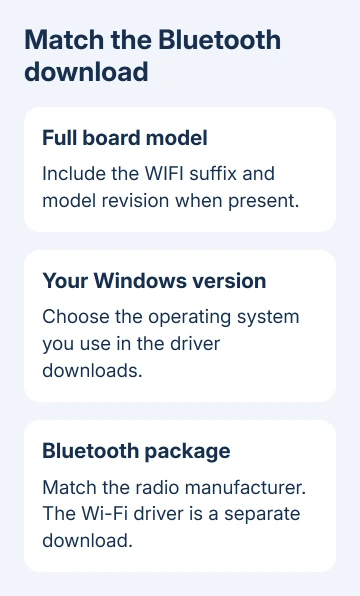
Match the package to the radio manufacturer. Don't select Intel because a different ASUS board uses it. The same model can contain Bluetooth hardware from different makers, as the support instructions explain.
Save the replacement package first, while the current driver is still installed. Extract it if needed, start the included setup program and restart when requested. After restarting, check for the radio in Device Manager and retry pairing.
If reinstalling is necessary, right-click the Bluetooth radio in Device Manager and select Uninstall device. Follow the driver-removal instruction for that device, then install the matching downloaded ASUS package and restart.
I'd use the board's support package before a third-party driver tool. That way, the download matches your hardware. Replace only the relevant driver so you'll know whether that package restored Bluetooth.
6. Run the Windows check and prepare a useful support report
Use the Bluetooth troubleshooter through Get Help where Windows offers it. The Windows Bluetooth repair steps provide that route and checks for missing or nonworking Bluetooth.
If the radio works but the connection keeps dropping, compare the Bluetooth disconnection checks. Note whether moving the accessory close to the antenna changes the result.
For a radio still missing or showing an error, open support for the exact motherboard. Give ASUS the model, Windows version, Bluetooth manufacturer, driver version and Device Manager error. Say whether the BIOS controller is enabled.
Ask whether that radio needs a model-specific driver or hardware service. If a second accessory works, give the accessory maker its failed pairing details instead. That gives the maker of the failing device the details they need.
The Short Version
For visible Bluetooth, check antenna reception and pairing. For a missing radio, confirm board support, its controller setting and the matching driver. Give support the full motherboard model and device error.
Checked November 15, 2026.






