Windows 11's Try connecting your device again error means the PC found the accessory, but pairing didn't finish. On a new desktop, attach its wireless antenna. On a laptop, remove the failed pairing and restart pairing on the accessory.
The same message can appear with a weak radio signal, an accessory already connected elsewhere, or a Bluetooth driver fault. A separate Code 31 warning in Device Manager needs driver repair, even when the accessory works through USB.
In this guide
1. Check reception before replacing a working device
Place the charged accessory beside your computer. Temporarily turn off Bluetooth on the phone or tablet you normally connect it to, then use the accessory's pairing button rather than simply switching its power on.
A flashing pairing light usually differs from the light that shows it's connected. Follow the accessory's manual for that pattern. Windows can list a nearby device while still being unable to complete its connection.
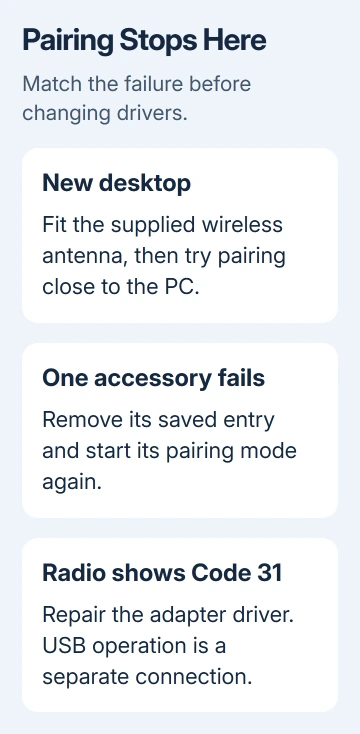
For a desktop supplied with a Wi-Fi antenna, fit it to the matching rear connectors as the computer or motherboard manual shows. Using Ethernet for internet access doesn't remove the need for a Bluetooth antenna.
Owners report successful antenna fixes in the pairing-error discussion after seeing this exact pairing message. The original poster later confirmed the same result.
On the affected desktops, the wireless antenna was needed for Bluetooth too. Seeing a device name didn't mean reception was good enough to pair. This external-antenna check applies to PCs supplied with one, rather than ordinary laptops.
Retry once after fitting the antenna. If pairing finishes and your mouse or controller works, the antenna fixed it. For an ASUS board that still struggles, use the motherboard-specific checks.
2. Remove the failed pairing and add it from scratch
Open Start > Settings > Bluetooth & devices > Devices. Find the accessory, select its three-dot menu, and choose Remove device. If no saved entry exists, continue with the accessory's pairing mode.
Switch the accessory off, then start its documented pairing sequence. Choose Add device > Bluetooth in Windows and select its name when it appears. Complete any code confirmation shown on both devices.
This clears the old pairing, which may no longer match the accessory. A controller used with another console, or headphones paired again to a phone, may need a fresh connection instead of repeatedly selecting its existing entry.
Microsoft recommends rebuilding the pairing in its Bluetooth connection instructions. If pairing now completes, use it briefly before changing drivers.
For a keyboard that displays a code, follow the prompt about where to type it and whether to press Enter. Closing that prompt or typing on a different keyboard can leave pairing unfinished even though Windows found the device.
If Windows still gives the same message, note whether it happens with one accessory or several. A lone failing headset points toward its own connection; a mouse and controller failing together point toward the PC.
3. Restart Bluetooth and run the Windows connection check
In Settings > Bluetooth & devices, switch Bluetooth off, wait 10 seconds, then turn it on. Retry the accessory. Use your touchpad or connect a wired pointer first if Bluetooth controls your mouse.
If that changes nothing, save your work and select Start > Power > Restart. A restart reloads Windows and the adapter driver; closing the Settings window alone doesn't do that.
Open Get Help from Start, search for Bluetooth connection troubleshooting, and follow its automated check. This is the current Windows 11 troubleshooting route, rather than an old Control Panel diagnostic download.
Try pairing again to check the result. In the pairing-error discussion, the older troubleshooter reported that it had repaired the radio status, but pairing still failed. Check the accessory itself before accepting that diagnostic result.
I'd check a second known-working accessory now. When neither completes pairing, spend the next few minutes on the PC's adapter. If only one fails, compare that accessory with another computer or phone it supports.
4. Match the radio warning to its driver repair
Right-click Start, choose Device Manager, then expand the Bluetooth category. Open the radio adapter's Properties. The adapter usually has a maker's name, rather than the name of your headphones or controller.
Read Device status on the General tab. With Code 31, the required device drivers haven't loaded successfully. Moving the accessory closer won't repair that driver-loading failure.
For that warning, follow the Bluetooth driver-error checks, keeping the exact code. A USB dongle with its own warning hasn't provided a working alternative to the internal radio.
Open the adapter's Driver tab and record its provider, date, and version. If pairing stopped directly after a driver update, select Roll Back Driver if enabled. Complete its prompts, restart Windows, and compare pairing.
Without a rollback option, download the Windows 11 Bluetooth package for your exact laptop, motherboard, or USB adapter from its maker. A Wi-Fi driver package and a Bluetooth package can be separate downloads.
Complete that package's installation, then restart Windows. Avoid choosing an unrelated driver because its date is older. An older driver that matches your adapter can help; a random radio's driver can create another problem.
When pairing still fails
If two accessories fail only on this PC after the matching driver is installed, ask the PC or motherboard maker to check the Bluetooth radio and antenna connection. Include your recorded driver version and full Device status message.
If the accessory fails with another compatible computer or phone too, ask its maker about its pairing reset and firmware. USB operation checks the wired connection, so working USB leaves the accessory's Bluetooth connection unchecked.
Send support the exact pairing message, Windows version from Win + R > winver, adapter name, and whether another accessory connects. Those details let them distinguish a radio fault from a device-specific pairing failure.
The Short Version
Attach a desktop's supplied wireless antenna, rebuild the accessory's pairing, then restart Bluetooth. Check the PC's radio driver when several devices fail, and treat a Code 31 warning as a separate driver problem.
Checked November 16, 2026.