
Opening DNA Game > EM.exe directly has fixed Duet Night Abyss's launcher fatal error for several players. Try that first when the game is already installed and the message names UE4-EMLauncher.
A launcher crash before the game downloads needs another route because EM.exe isn't there yet. Owners also got past that failure by changing their connection, though the disconnect-and-reconnect trick failed for some.
1. Open EM.exe when the game is already installed
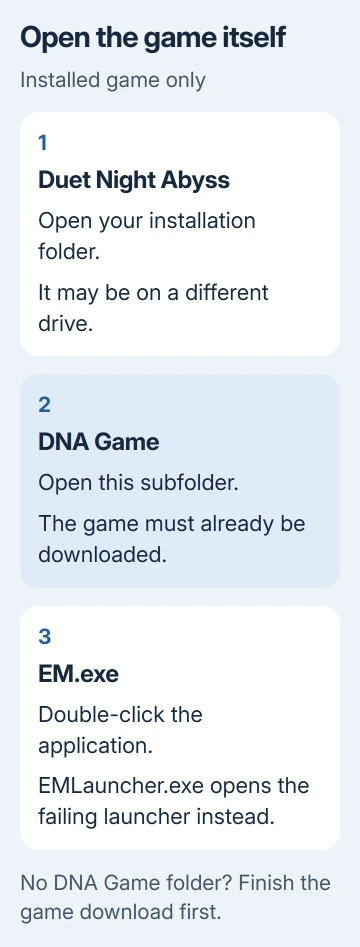
Close the failed launcher and open File Explorer. Go to your Duet Night Abyss installation folder, open DNA Game, and double-click the EM.exe application.
One common path is C:\Program Files (x86)\Duet Night Abyss\DNA Game. Yours can be on another drive. Use the location you selected during installation.
In the October 2025 reports, several owners on the game's Steam discussion confirmed that this let them play again. This opens the game itself, skipping the crashing launcher.
Check that you reach the game's login screen, then load your character. If a different login error appears, save that message for support. The launcher is no longer the part that's failing.
If File Explorer hides extensions, look for EM with the type Application. EMLauncher.exe is the launcher, so opening it brings you back to the same crash.
I'd try the installed executable first rather than download the entire game again. One owner reported that reinstalling helped only temporarily, while other players could keep launching through EM.exe.
2. Check whether only the launcher was installed
If the main folder contains EMLauncher.exe but no DNA Game folder, the launcher may never have finished downloading the game. EM.exe can only work once the game files are installed.
Check the drive or custom folder you originally chose for the game download. The launcher and the game may have been placed in different locations, so check both locations before deciding the files are missing.
Use the game-directory guide if you installed through a store and need to locate its files. Store installations can use a different folder structure from the standalone launcher.
Don't download a separate EM.exe from a file-sharing page. Use the executable delivered with your own game installation. If the game files are missing, try the connection check next to get the download working.
3. Try opening the launcher before reconnecting
Completely close the launcher. Disconnect Wi-Fi, or unplug the Ethernet cable if your PC uses a wired connection. Open the DNA launcher while the PC is offline.
Once its window is open, reconnect your internet connection. Accept a reconnect prompt if one appears, then attempt the download or press Start if installation is complete.
This sequence helped some players get past startup. Other owners reported that the launcher crashed again as soon as they reconnected, or that Start did nothing. If that happens, try a different connection in step 4.
4. Change the connection route if startup still fails
Players in the longer launcher-crash thread reported success with a VPN when reconnecting normally failed. If you already have a trusted VPN, connect it before opening the launcher.
Close the launcher first, change the connection, and reopen it. Check whether the download or game now starts. Note which connection works so you can tell support.
One owner could reinstall and get back into the game through a VPN, then hit the same fault without it. Others still couldn't get the offline method to work.
If you're unfamiliar with VPN settings, the Windows VPN controls can help you check an existing connection. I wouldn't pay for a VPN just for this error; the successful reports are mixed with failures.
5. Separate a game crash from UE4-EMLauncher
If EM.exe opens but the game itself crashes, save that new error for support. That's a different fault from UE4-EMLauncher; bypassing the launcher again won't necessarily fix it.
For a message that specifically mentions DirectX, use the Windows DirectX checks. Press Start, enter dxdiag, and check DirectX Version on the first page.
Microsoft's guidance puts modern DirectX updates in Windows Update. On Windows 11, use Settings > Windows Update; on Windows 10, use Settings > Update & Security > Windows Update.
If the launcher still fails, email Duet Night Abyss support at dna_cs@dna-panstudio.com and ask for help with the launcher crash.
Send the full UE4-EMLauncher message, installation location, whether EM.exe exists and what happened with each connection.
The Short Version
Use DNA Game > EM.exe for an installed game. Without those files, try opening the launcher offline, then reconnecting. A VPN helped some owners when that failed, but continuing crashes need the exact message sent to game support.
Checked November 7, 2026.

Isaac Smith is the founder and editor of PC Glance, a website that covers computers, laptops, and technology. He is a tech enthusiast and a computer geek who loves to share his insights and help his readers make smart choices when buying tech gadgets or laptops. He is always curious and updated about the latest tech trends.