
For a TOTK 1.2.1 black screen with TOTK Optimizer on Suyu, first turn off Remove Depth of Field and apply the change. That fixed the startup black screen for one owner, although another owner on 1.2.1 reported no improvement.
This workaround is for that emulator and mod setup. For a loading screen that never finishes, the optimizer's troubleshooting steps call for reinstalling the game's update.
1. Match the failure to the game and mod setup
Check the Tears of the Kingdom version in your emulator. This fix was reported for 1.2.1, also written as 1.21 in the discussion. Note the version you see, plus your emulator's name and optimizer version, before making changes.
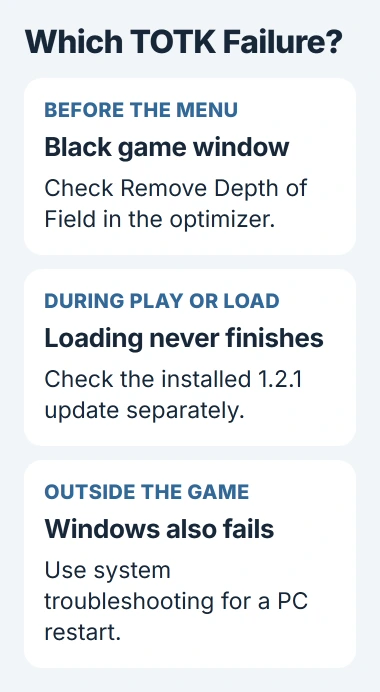
Note when the picture disappears: before the title menu, while loading your save or after teleporting. A black window at startup needs different checks from a loading screen that never finishes.
The original issue and its follow-ups are about Suyu and TOTK Optimizer. A later maintainer reply also names Sudachi. These reports don't confirm the fix for every emulator, a native PC port or an unmodified console.
If Windows itself turns black outside the game window, follow the Windows blank-screen checks. If the computer reboots, the unexpected restart guide covers that problem.
If your desktop and other apps still work, keep checking the game window. You don't need to reset Windows to try a change in one game's graphics mod.
2. Disable Remove Depth of Field in the optimizer
Close the game before changing its mod settings. In your optimizer version, find Remove Depth of Field and switch it off. Apply your settings to the emulator installation you use.
Depth of field blurs parts of a scene depending on focus. Switching off Remove Depth of Field stops the mod from removing that blur. It's easy to misread the setting because you're turning off an option that removes an effect.
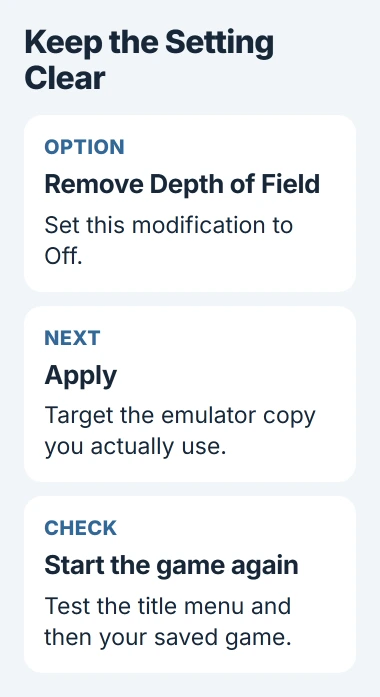
Launch the game and see whether the title screen appears. If it does, load your save and try the action that failed before. Reaching the menu is one step; you still need to check that your save loads.
The owner confirmed the setting affected versions 1.0 and 1.2.1, then reported a separate loading fault after teleporting. Another owner said the depth-of-field change didn't help their 1.2.1 setup.
If this change doesn't help, note the result and move on to checking the update. Reapplying the same setting won't help you explain which of the two problems you're still having.
3. Confirm the change reached the emulator you use
A portable emulator keeps its setup separate from a normal installation. The optimizer's project instructions say to select the emulator executable, the file that starts it, then apply your settings when using portable mode.
Check that the file path points to the copy you launch. If you have an old emulator folder and a newer portable copy, Apply can finish successfully while changing the wrong installation.
Select that copy's executable in the optimizer, apply again, then open the game through that emulator. You can use the optimizer's Launch button, but the mod doesn't need you to start the game that way.
I'd check that path before changing several graphics options. Otherwise, it can look as though every setting has failed when the changes went to a different copy of the emulator.
If you can't find the control, check the instructions for your optimizer version. A similarly named graphics option in another app may do something different.
4. Reinstall the installed update for an endless load
The optimizer troubleshooting page explains how to reinstall an update in the older Yuzu/Suyu emulators. Use it only when those controls match your emulator.
Find the save location in your emulator's instructions and back up your saves first. Have your own valid 1.2.1 update dump ready, the update file you'll use to reinstall it after removal.
- Close the game and return to the emulator's game list.
- Right-click Tears of the Kingdom and use its command to remove the installed update, leaving the base game and saved data alone.
- Use Install to NAND to reinstall your existing 1.2.1 update file. NAND here means the emulator's internal console-storage area.
- Check that the game's displayed version returns to 1.2.1, then start it again.
Reinstalling the update fixed that owner's loading problem after an interrupted Suyu session. That was a separate fix from the depth-of-field switch, so note which problem each change helps.
If the version stays unchanged or installation shows an error, deal with that first. You'll need a successful update installation before another attempt to load the game tells you anything useful.
5. Stop when the remaining problem needs emulator support
The maintainer linked the problem to how Suyu and Sudachi handle the game, then closed the issue. That wasn't a fix for every affected setup: an owner had already reported that the workaround didn't help.
If neither check helps, collect your emulator log, update version and mod list. Note where loading stops, whether your desktop still responds and whether the game works with mods disabled.
On Windows, Start > dxdiag opens the graphics diagnostic tool. Microsoft's diagnostic instructions explain how Save All Information collects the system and display details you may need to send support.
Send those details to the project's support channel so they can check the log for your emulator version. Deleting saves, downloading random fix packs or reinstalling Windows again won't give them that information.
The Short Version
For the Suyu case, turn off Remove Depth of Field and apply it to the right installation. Reinstalling the update addresses a separate endless load. The depth-of-field change didn't help every owner; report a remaining failure with the log.
Checked November 4, 2026.

Isaac Smith is the founder and editor of PC Glance, a website that covers computers, laptops, and technology. He is a tech enthusiast and a computer geek who loves to share his insights and help his readers make smart choices when buying tech gadgets or laptops. He is always curious and updated about the latest tech trends.