GTA 4 can stop launching after a FusionFix update when its Vulkan graphics component doesn't work with the GPU. If the failure started after choosing Vulkan, check that route first.
A first-time installation that never opened needs the game folder and package checked instead.
The launcher message GTA IV exited unexpectedly doesn't identify one cause by itself. Check your game and FusionFix versions, plus what changed last. Use that history to choose between an installation repair and a graphics workaround.
In this guide
1. Match the failure to the last change
Close the game and launcher before changing files. Copy your existing mod files and settings to a backup folder outside the game directory so a failed change can be undone.
Think back to the last successful launch. Did FusionFix work until an update? Did you select Vulkan and restart? Or did the game stop immediately after the first time you copied in the mod?
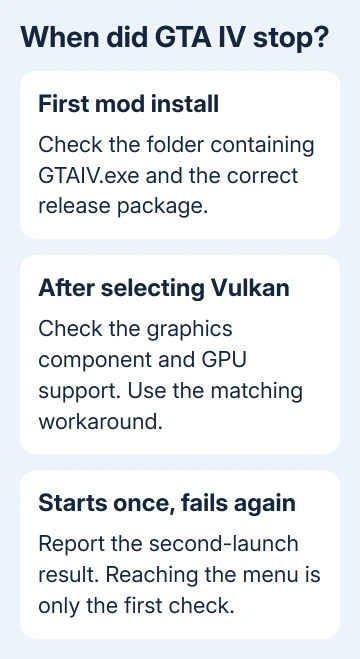
If GTA IV worked until Vulkan was selected, go to step 3 after checking the package version. If this is the first installation, start with the folder check in step 2. You don't need to change every Windows gaming setting for either check.
An error naming a missing file is also useful. Copy its exact name before closing the dialog. A missing component, a launcher sign-in failure, and an exit with no message should be reported as different results.
I'd keep the first repair small. Changing the game, graphics driver, launcher, and mod together hides which change got it working. It also makes a change harder to undo if things get worse.
2. Put the complete package beside GTAIV.exe
Open the game's actual install folder. In Steam, right-click Grand Theft Auto IV: The Complete Edition, then choose Manage > Browse local files. Locate the folder containing GTAIV.exe.
FusionFix is made for Grand Theft Auto IV: The Complete Edition. Its installation instructions put the contents of GTAIV.EFLC.FusionFix.zip in that executable's directory, rather than leaving the whole archive inside another folder.
Open the FusionFix project page and follow its installation section to the current release. Choose the named release package, rather than GitHub's source-code archive.
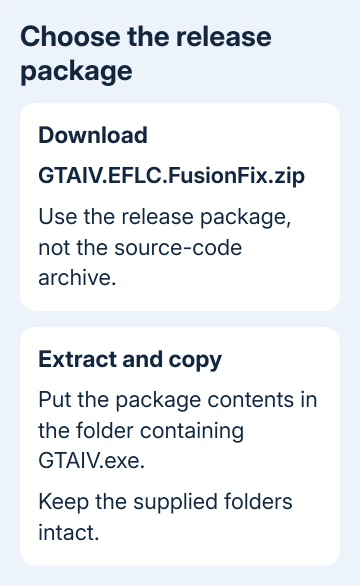
Extract the archive, then copy its contents into the game directory with the supplied folder structure intact. Those files need to sit in the folder with GTAIV.exe, rather than inside an extra folder you've copied there.
The project also offers its installer through fusionfix.io. Use the install method described for the release you're downloading. Don't combine steps for an old package with newer files because their names look familiar.
If your executable is an older downgraded version, check the release's legacy instructions and add-on requirements. The Complete Edition steps don't cover every older version of GTAIV.exe.
Once the folder and package match, launch normally through your game library. If the game still exits, the timing of the failure determines whether the Vulkan route is relevant.
3. Follow the confirmed Vulkan workaround carefully
In a FusionFix launch report, an owner with Intel Iris Xe graphics could no longer start the game after updating.
A contributor connected the failure to newer bundled DXVK support.
DXVK translates the game's graphics instructions into Vulkan, a graphics system used by the GPU.
The proposed repair used an older build: take d3d9.dll from its x32 folder, rename it to vulkan.dll, and replace the game's existing file.
A related report identifies DXVK 2.6.2 for this check. Use the project's release archive, open x32, and copy that d3d9.dll to a temporary folder before renaming it.
Preserve the game's existing vulkan.dll in your backup first. Copy the renamed replacement into the folder containing GTAIV.exe, then try launching. The x32 choice matters because this workaround is for the game's 32-bit graphics component.
This is a version-specific repair for installations that already have the Vulkan component and fail after using it. Don't add vulkan.dll to an unrelated setup just because this search result mentions it.
The owner in the first report got the game to start, but couldn't then select Vulkan. Another owner reported a successful launch followed by lighting problems and stutter, and later said the error returned after restarting.
Treat reaching the menu as the first result, then close and relaunch once. If the error returns, the workaround hasn't given you a lasting repair. Include that result and your GPU model when asking for help.
4. Avoid mixing graphics files from different releases
The current project README describes a different package arrangement from the October crash reports: its release ZIP doesn't include vulkan.dll. Its d3d9.dll passes the game's graphics instructions to the Windows version of that file.
That change means an older report's file list isn't a checklist for every current install. Read the instructions attached to the release you're using before replacing files to make your folder look like an older video.
If a current install contains a vulkan.dll left by an older graphics setup, keep that history in your support report. Don't assume downloading a new ZIP has removed every old mod or graphics file from the directory.
Use a separate backup to preserve files you're changing. Restoring a large group from the Recycle Bin can mix versions again, especially when an update replaced or removed components.
If the problem is a Windows-level crash affecting other games too, the checks for games crashing after a Windows update address that wider pattern.
A FusionFix-only failure needs its own file history first.
5. Separate a Windows block from a mod crash
If Windows shows a security notification or a file disappears after extraction, open Start > Settings > Privacy & security > Windows Security > Virus & threat protection > Protection history.
Check whether the event actually names the file you installed. If the file was blocked, check the recorded reason. If the game just exits with no matching event, keep checking the mod. Keep protection enabled while checking the event.
The Protection History page explains the recorded actions.
If no event matches the file, continue with the mod installation checks rather than changing antivirus settings.
For a misplaced installation, the steps to find a game directory on PC help you reach the executable before copying mod files.
Send the repeatable failure to its project
For a repeatable FusionFix failure, use its GitHub issue form. Include the game executable version, mod version, GPU, Windows version, graphics choice, and whether a second launch fails after the first succeeds.
Attach the crash information the issue form requests. For a launcher sign-in or ownership error that also affects an unmodified game, use Rockstar Support and give the exact launcher message instead.
The Short Version
Check the executable folder and release package first. After a Vulkan-related update failure, the older x32 DXVK replacement has helped owners launch, but some reported more problems afterward. Match files to your installed release.
Checked November 10, 2026.