Unwanted scrolling on a Razer Naga Pro can come from its tilt-button assignments. Disable the left/right repeat-scroll actions in Synapse; two owners confirmed this stopped the movement.
For a wheel that won't scroll at all, try it with Synapse closed. Check rotation, middle click and left/right tilt separately: each is a different input, and a working click doesn't tell you whether rotation works.
In this guide
1. Separate wheel rotation, clicking and tilting
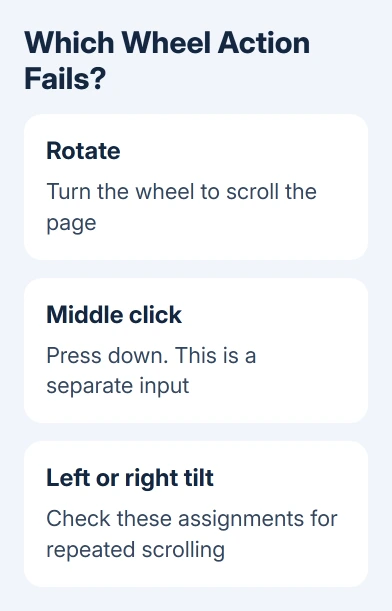
Open a long document or webpage and click inside it. Turn the wheel, press it once, then tilt it left and right if those controls have assignments. Notice which action responds, and whether scrolling continues after you let go.
Rotation moves through the page; pressing the wheel gives a separate middle click. Tilting uses two more assignments that can repeat scrolling. Treating these as one button makes it easy to change the wrong control.
Try scrolling in another everyday app before changing a game profile. If only one game won't scroll, its button assignments can be responsible. Unwanted movement across several apps needs a mouse or Synapse check.
Write down your mouse's exact model. Naga Pro, Naga V2 Pro and Naga V3 Pro are different models. The V2 Pro's adjustable wheel features, in particular, don't apply to every original Naga Pro.
2. Disable repeat-scroll tilt assignments for phantom scrolling
Use this step when pages move by themselves or keep moving after a tilt. It won't fix a wheel that physically won't turn. You'll lose the tilt actions you disable, but you can still turn the wheel and check scrolling separately.
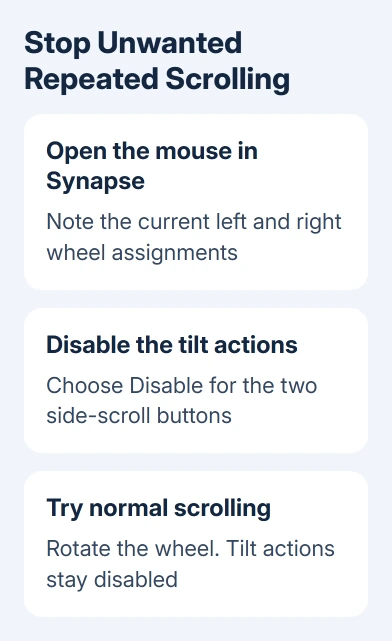
Open Synapse, select your Naga Pro, and check what the wheel's left and right buttons are set to do. Note their current actions before changing them, so you can restore the tilt functions if the change doesn't help.
Select each tilt assignment and set it to Disable, then save or apply the change using your Synapse version's control. The reported troublesome assignments were Repeat scroll up/down on the scroll wheel left/right buttons.
This repeat-scroll workaround fixed the unwanted scrolling for two owners, including one who identified their mouse as a Naga Pro. Those buttons will no longer perform their assigned actions; this doesn't repair a damaged wheel.
Use the same apps long enough to see whether the unwanted movement returns. In that thread, opening or closing Synapse had sometimes stopped the problem only briefly. A short pause followed by more scrolling means the problem remains.
3. Compare the wheel with Synapse fully closed
Save your work, close Synapse from its notification-area menu, and test the same wheel action again. Closing its main window may leave the application running. Use its exit control rather than only minimizing the window.
One owner whose left/right button assignments weren't working found that quitting Synapse restored the saved bindings. Support suggested repairing Synapse, but the owner didn't report whether that helped.
If the wheel works while the app is closed and fails when it opens, report that comparison to support. They can then try to reproduce the failure with Synapse open. You can keep the app closed for now if the controls you need still work.
If neither state helps, move to the connection and hardware checks. Don't keep reinstalling Synapse just because the mouse has its name in the app. The problem may follow the mouse even when that software isn't running.
For a mouse that loses its cursor and buttons as well as scrolling, use the Razer disconnect checks. When all those controls fail together, check the connection before changing wheel assignments.
4. Remove a hub or receiver problem from the connection
Charge the mouse, then plug its receiver straight into a computer USB socket instead of through a hub. If you normally use a dock, try without it. A powered light on the dock doesn't mean that every input is reaching Windows.
Connect the mouse's compatible data cable directly to a PC USB socket and try the same document. If scrolling works through the cable but not the receiver, or the reverse, tell support before considering an internal repair.
The Windows mouse hardware checks include another USB port and bypassing a hub. These changes check the connection without deleting profiles or opening the mouse.
If turning the wheel still does nothing while the pointer, side buttons and middle click respond, record that difference. The computer is receiving some mouse input, but that doesn't mean that the wheel's rotation sensor is healthy.
5. Clear accessible debris, then compare another computer
Switch off the mouse and disconnect its cable before cleaning. Use compressed air gently around the wheel's gaps to clear loose debris. Keep the can upright and follow its directions; don't pour cleaning fluid into the wheel opening.
The maker's support staff recommend compressed air for a Naga Pro wheel that jumps or skips. If it changes nothing, repeated cleaning isn't a reason to dismantle the mouse. Have a stiff, loose or damaged wheel checked for a physical fault.
Try ordinary scrolling on a second computer, initially without Synapse running if possible. That avoids immediately loading the same software setup. Check rotation separately from customized tilt actions.
If it works there, return to the first computer's software and profiles. If rotation fails on both but the buttons work, report that to support. That helps support narrow down the problem, though it doesn't identify a broken part.
For movement that jumps backward rather than stopping entirely, the scroll-wheel jumping checks cover that behavior. A direction problem and a missing input can need different follow-up work.
6. Ask for software repair or a wheel assessment
For a Synapse-dependent failure, request the repair procedure for your installed app version. Include the mouse model, affected profile and the result with Synapse closed. Save custom assignments before reinstalling.
For a wheel that fails on another computer after the direct-connection and debris checks, request a hardware or warranty assessment. Include the serial number and purchase date, plus whether rotation, middle click or tilt is affected.
I'd stop short of opening the wheel assembly while a support or warranty route is available. A temporary software workaround and a physical repair solve different problems, and you can't choose between them just from this symptom.
The Short Version
Disable repeat-scroll tilt actions for unwanted scrolling. Compare Synapse closed for missing bindings, then check a direct connection, debris and another PC. Tell support which wheel action fails.
Checked November 10, 2026.