A Bloxd.io camera that won't turn while the mouse works outside the game often means the game hasn't captured mouse movement. Click inside the game after closing its menus.
Pressing Esc releases that capture, so moving the mouse alone won't always start it again.
A pointer that also won't move on the desktop is a different problem. Check the mouse or touchpad first in that case. If the whole game is frozen, work on the browser session rather than only mouse capture.
In this guide
1. Click back into the game after leaving a menu
Close any open menu or chat field, then click inside the play area. Move the mouse and check whether the view turns. During play, you're looking for camera movement rather than a pointer moving across the screen.
First-person browser games use pointer lock, which hides the pointer and sends mouse movement to the game camera. A hidden pointer during play is normal; a camera that never responds is the part to fix.
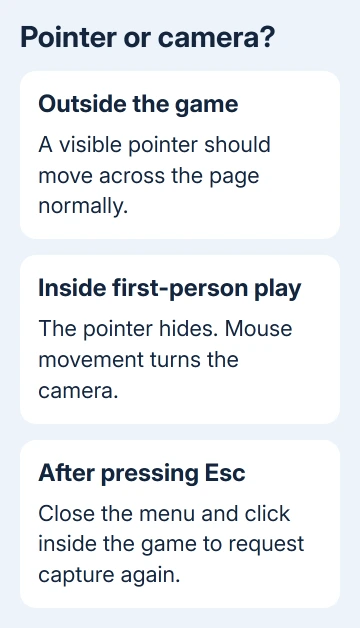
The browser needs an action such as a click before a page can capture the mouse. Moving the mouse over the page isn't the same action, particularly after you've pressed Esc to release it.
Try a deliberate click after switching back from another tab or window, too. If turning works again, the mouse hardware wasn't the cause. Continue playing without changing its Windows sensitivity or installing a new driver.
If the camera still won't turn, check whether the pointer moves on another tab. If it moves there, Windows or macOS is receiving input from your mouse or touchpad, and the problem is in the game.
2. Open the game directly in its own tab
If you're playing inside a game collection page or another app, open https://bloxd.io directly in a normal browser tab. Join a game there, close its menus, and click in the play area again.
A game on another site can run inside a restricted frame. A frame is a page displayed within another page, and its host can prevent pointer lock even when the browser supports it.
Don't type developer commands or paste scripts to get around that restriction. Comparing the direct site avoids changes to either the game or your computer.
If the direct site works, keep using it or report the problem to the app or site that embeds the game. If it fails there too, continue with the browser and permission checks.
The game page is animated and changes as it loads, so use the address itself to reach it rather than trying to match a static picture of a particular lobby.
3. Check a blocked permission if your browser shows one
On the Bloxd.io tab in Chrome, select View site information, the controls icon beside the address. Select Site settings and look for a blocked mouse or keyboard control permission if your browser shows one.
Google's site permission guide explains how to change a setting for the current site.
If Reset permissions is available, it resets preferences you've changed for that site; reload afterward.
Only approve mouse control for the game you meant to open. Resetting permissions can also make the site ask again about other permissions, so you'll need to choose those again too.
Chrome withdrew its planned keyboard-lock and pointer-lock permission rollout. Advice about a mandatory Chrome 131 prompt doesn't apply to every current browser.
If no such permission appears, skip it. Don't enable experimental flags to manufacture a setting from an old screenshot. Return to clicking inside the game, testing the direct site, and updating the browser.
If your school manages the browser and a setting is disabled, ask its administrator to check it. Ask about permission for this site to capture mouse input rather than asking to remove school management from the device.
4. Update Chrome and compare without extensions
Open Chrome's menu and choose Help > About Google Chrome. Let it check for updates and select Relaunch if offered. On a Chromebook, install available ChromeOS updates through its system settings instead.
Return to the direct game page, join again, and click into play. Check both camera turning and keyboard movement. Updating can help because the browser supplies the features the game uses to control the camera.
If the failure remains, open Extensions > Manage Extensions from Chrome's menu. Temporarily turn off extensions that modify web pages or input, then reload Bloxd.io and compare the result.
If that restores control, turn one extension back on, reload the game, and check camera turning. The extension that brings back the fault is the one to update, remove, or configure for the site.
I'd try this before clearing all browsing data. It lets you compare the same account and game session without immediately removing saved site information.
A browser that hangs entirely needs the broader Chrome freezing checks. If only the game camera is stuck and the browser responds, don't start with a complete browser reset.
5. Check whether movement fails outside Bloxd.io
Switch to another tab and move the pointer across its page. On a laptop, compare the touchpad with a connected mouse if both are available. The result tells you whether the game is the only place movement is missing.
If one device works and the other doesn't, check that device's power, cable, receiver, or touchpad setting. Pointer lock can't repair an input device that also fails outside the browser.
If movement works but aiming is far too slow, that isn't the same fault as no camera movement. Check the game's available sensitivity controls and any mouse DPI button before replacing hardware.
When speed changes across other games as well, the Windows mouse sensitivity checks cover settings saved for individual apps and the pointer itself.
Leave those alone when camera control returns with a click.
Report a repeatable game-only failure
If the direct site fails in an updated browser with extensions off, report it through Bloxd.io's official help or community route linked from the game. Include the browser version, operating system, and game mode.
Say whether keyboard movement works, whether the pointer moves outside the game, and whether the fault starts after Esc, a menu, or switching tabs. Those details let support reproduce the failure instead of guessing at mouse hardware.
For a managed school device, give those results to the administrator as well.
There isn't a confirmed universal Bloxd.io setting that repairs every camera freeze, so describe the exact failure rather than repeatedly changing unrelated permissions.
The Short Version
Click inside the game to restore mouse capture, then compare the direct site and an updated browser without extensions. Check a blocked permission only if it exists. A mouse that also fails outside the game needs device checks.
Checked November 10, 2026.