
Yes, a MacBook Air can run games that support its chip, macOS version and hardware. Start with the Mac version of the game in the App Store or its developer's store. A Windows download doesn't become compatible just because the Air is new.
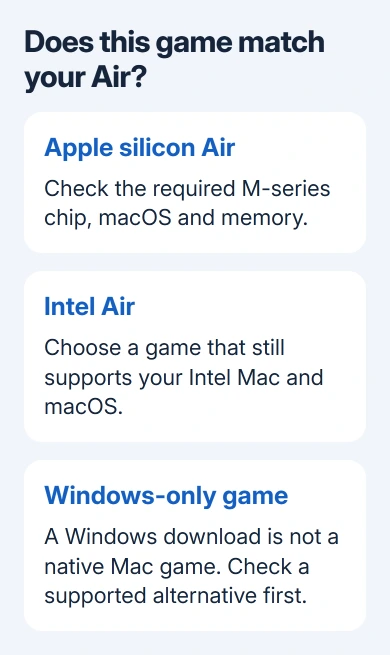
An Apple silicon Air and an Intel Air need different compatibility checks. Check demanding games' requirements before paying, then reduce graphics settings if needed. A game can be compatible and still run slowly on your Air.
Match the game's requirements to your Air
Choose About This Mac from your Mac's Apple menu. Note your model, memory and macOS version. Apple silicon models show Chip with an M-series name; an Intel model shows an Intel processor instead.
Compare those details with the game's requirements. A requirement for an M-series chip excludes an Intel Air even if it has enough storage. A minimum macOS version can also rule out a Mac that otherwise appears powerful enough.
Memory and free storage aren't interchangeable. Memory is the working space available while a game runs; storage is the space its files occupy. Clearing downloaded movies can make room to install a game, but it doesn't add memory.
Check the graphics requirement too. Don't treat a MacBook Air as equivalent to any machine with the word Mac in its name. If the requirements name a particular chip or graphics processor, check how yours compares.
I'd check the developer's requirements for the specific game before comparing benchmark videos. A video from a different chip, graphics preset or game update can give you the wrong expectation for your Air.
Download a compatible Mac game
Open the App Store on your Mac and search for the game. Read its listing and compatibility information, then choose Get or its price to download it. When you're asked to confirm a purchase, it uses the Apple Account signed in to the store.
On systems with the Games app, you can also browse there. Open a game's page to review its information, download it and launch it from Library. Apple says the Games app lets you download games and launch them from its library.
On a Mac without that app, use the App Store or the game's own Mac launcher. You don't need the newer Games library to run a compatible game that's already in Applications.
Apple Arcade is another option, through the Arcade section in the App Store or Games app where available. Your subscription covers compatible games in the Arcade catalog. It doesn't include every paid game listed in either app.
Not every Arcade game is available on every Apple device. Check the Mac listing even if you already play the title on your iPhone. Support for one device doesn't automatically mean the game has a Mac version.
If an installation fails because the disk is full, deal with Mac storage space before retrying. Leave room for the installer and later updates too. Start with the storage space listed in the game's requirements.
Understand Steam, iPhone games and Windows-only titles
A Mac-compatible Steam game still has its own hardware and operating-system requirements. Owning it in your library doesn't mean every version of that game works on your current Mac.
Older 32-bit Mac games are a common trap. macOS Catalina 10.15 and later don't run 32-bit apps, and Steam itself has ended support for Catalina. Avoid downgrading your working Mac to follow outdated game instructions.
Some iPhone and iPad games are offered on Apple silicon Macs. Their App Store labels say Designed for iPhone, or the equivalent Designed for iPad label. Installing Games won't unlock a mobile title that's unavailable for Mac.
Windows-only titles need a different route. Boot Camp is for supported Intel Macs and its official installation instructions cover Windows 10. It isn't an option on an Apple silicon Air, and Windows 10's standard support has ended.
Check each game before using a compatibility tool, a virtual machine (another operating system running inside macOS), or cloud gaming. Support for its launcher doesn't mean every game works, especially with online anti-cheat systems.
For a Windows-only title, check its developer's platforms and the service's current game list. Pay for an alternative route only after checking that specific game, rather than relying on the MacBook model alone.
Improve performance after the game launches
Start in the game's graphics or video settings. Reduce resolution or its render scale, then lower demanding effects such as shadows. Change one setting, return to the same scene and compare how movement feels.
A lower resolution gives the graphics processor fewer pixels to draw. If movement feels smoother, you've found a useful change without adjusting macOS. If it doesn't, check the developer's troubleshooting information for that game.
Quit other heavy apps while playing and put the Air on a firm desk. Getting a game to launch doesn't tell you how well your Air will handle a long session or the game's highest graphics settings.
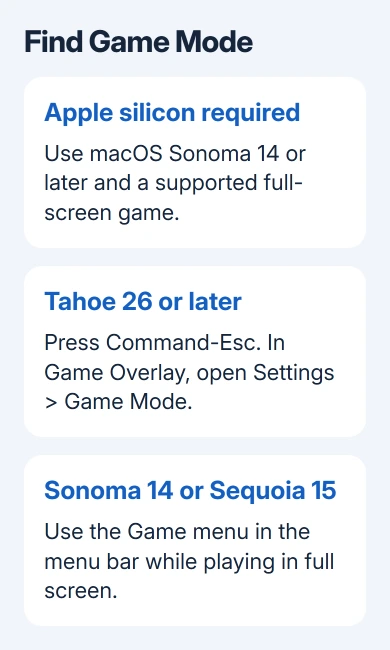
Game Mode can prioritize compatible full-screen games on Apple silicon. It requires macOS Sonoma 14 or a newer release. Enter the game's macOS full-screen mode; a borderless window option inside a game isn't always the same thing.
In macOS Tahoe (version 26) and newer releases, press Command-Esc while the game is full screen to open Game Overlay. Open its Settings, then Game Mode. The game icon in the menu bar also opens the overlay.
On macOS Sonoma 14 or Sequoia 15, open Game from the menu bar to enable or disable Game Mode. Reveal that bar by moving the pointer up to the display edge. This feature isn't available on Intel Macs.
When one game still won't work
Check whether other compatible games launch. If only one game fails, ask its developer for help before trying a general Mac reset. Send the chip, memory, macOS version, game version and exact error to the game's support team.
For a Mac that becomes unresponsive outside games too, follow the Mac freezing checks before blaming one title. If everyday apps freeze too, changing one game's graphics settings won't address the wider problem.
The Short Version
A MacBook Air runs compatible Mac games. Match the exact chip and macOS requirements, choose the Mac download, and adjust graphics after it launches. Apple silicon models can also use Game Mode with supported full-screen games.
Checked November 9, 2026.

Isaac Smith is the founder and editor of PC Glance, a website that covers computers, laptops, and technology. He is a tech enthusiast and a computer geek who loves to share his insights and help his readers make smart choices when buying tech gadgets or laptops. He is always curious and updated about the latest tech trends.