

A Mac that freezes is either stuck in one app, with the spinning wheel over that window, or stuck as a whole, with nothing answering but the pointer. The first takes seconds to fix with Force Quit.
The second needs a forced shutdown, then a hunt for the cause. That hunt usually ends at memory pressure, a nearly full startup disk, software that loads at login, or a display adapter. Apple's safe mode tells you which side you are on.
Which freeze is it
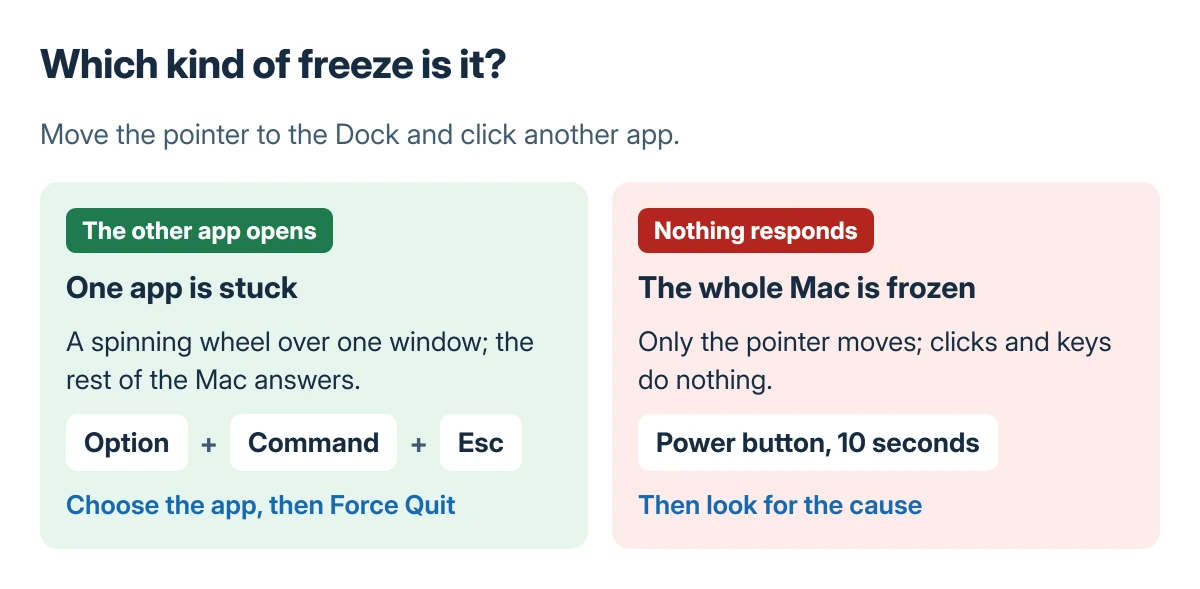
Move the pointer over the Dock and click another app. If that app comes forward, only the first one is stuck. Press Option, Command and Esc together, pick the stuck app in the list and choose Force Quit.
Status: Apple's pages on Force Quit, unexpected restarts, safe mode, memory and Apple Diagnostics checked 23 October 2026, with Ask Different owner threads. Nothing was changed on a Mac.
If nothing clicks, the keyboard does nothing and only the pointer moves, the whole Mac is frozen. Our Force Quit guide covers a single stuck app in full. Everything from here on deals with the whole-system kind.
Get out of a full freeze
Apple documents the way out when even Force Quit cannot be reached. Keep the power button down for up to 10 seconds, until the Mac switches off, then press it again. On a laptop with Touch ID, that button is the power button.
Unsaved work in open apps is lost, so give the Mac a few minutes first. A Mac that ran out of memory sometimes recovers by itself once the system frees space.
Restarted or frozen?
A Mac that restarts by itself and then reports a problem on the next start has had a kernel panic, not a freeze. Apple says those restarts are usually caused by installed software or connected devices.
Its page on a Mac that restarted because of a problem has you unplug every device and test again. If the Mac is an M4 Mac mini on Tahoe, our page on the M4 Mac mini freezing or restarting reads the panic log.
Check memory pressure
Open Activity Monitor from Applications, Utilities, and click Memory. Apple's reading of the Memory Pressure graph is simple. Green is fine, yellow means the Mac might eventually need more RAM, and red means it needs more RAM.
Keep Activity Monitor open and use the Mac normally. If the graph climbs into red before a freeze, sort the list by Memory. Look for one app or browser tab that keeps growing, quit it, and see whether the freezes stop.
Apple adds that free memory alone does not make a Mac faster. A near-full memory figure with a green graph is normal; the color of the pressure graph is what counts.
Keep space free on the startup disk
macOS swaps memory onto the startup disk when RAM runs short. With the disk nearly full there is nowhere to swap, and the whole system can lock up.
One owner's MacBook froze every other day while the logs said WindowServer could not map memory. The accepted answer advised keeping several gigabytes free on the boot volume.
The asker later found the cause: Spotlight had been indexing a mounted disk image until the drive ran out of space. Check System Settings, General, Storage, and our page on a Mac running slowly for freeing space.
Start in safe mode
Apple states that safe mode helps show whether the trouble is "caused by software that loads as your Mac starts up". It stops some software, such as startup items, from loading.
On Apple silicon, shut down and keep the power button down until the startup options show. Choose the startup disk, keep Shift held, and pick Continue in Safe Mode. On an Intel Mac, hold Shift from power-on until the login window appears.
Either way, Safe Boot shows in the menu bar. Keep working in safe mode until a freeze would normally have hit.
If the freezes stop, the culprit loads at startup. One owner traced an iMac where only the pointer moved to old kernel extensions carried over in a migration, and updating them ended it.
Remove recently added items in System Settings, General, Login Items and Extensions, one at a time, restarting normally between each.
Freezes only after sleep or with a monitor
A MacBook Pro that froze on waking had a tidy owner fix on Ask Different. Turning hibernation off with sudo pmset -a hibernatemode 0 deleted the sleep image, and sudo pmset -a hibernatemode 3 turned it back on.
A second owner replied that this cured their 2018 MacBook Pro. That thread comes from Intel models on older macOS, so on Apple silicon check for a macOS update first and test overnight with the dock unplugged.
Freezes only with an external monitor attached point at the adapter. An accepted answer about a MacBook Air that froze with an ultra-wide monitor blamed a passive Mini DisplayPort to HDMI adapter and recommended an active one.
Test the hardware
When safe mode freezes too, run Apple Diagnostics. Shut down and disconnect everything except the keyboard, mouse, display and power. On Apple silicon, hold the power button until Options appears, then press Command and D.
On Intel, hold D while the Mac starts. Note any reference code, because Apple asks for it when you book service. In macOS Tahoe 26 and later you choose which part to test.
When nothing works
A Mac that freezes in safe mode with nothing connected, after Diagnostics, needs Apple or an authorized repair shop. Bring the reference code and say whether the pointer still moves in a freeze.
A pointer that freezes along with everything else points more toward hardware than software.
The Short Version
Click another app in the Dock: if it responds, Force Quit the stuck one. If only the pointer moves, hold the power button for 10 seconds. Then watch memory pressure, free up disk space, try safe mode, unplug adapters and run Diagnostics.
Where to Next
Freezes tied to one moment, waking from sleep, plugging in a display or opening one app, narrow things down fast. Describe that moment for your model in the comments, and I'll name the check that fits it.

Isaac Smith is the founder and editor of PC Glance, a website that covers computers, laptops, and technology. He is a tech enthusiast and a computer geek who loves to share his insights and help his readers make smart choices when buying tech gadgets or laptops. He is always curious and updated about the latest tech trends.