
Force quitting on a Mac closes a frozen app. Press Option + Command + Esc, select the frozen app and choose Force Quit. This targets the app without immediately restarting the computer.
Try Command + Q first if the app still responds. A normal quit gives it a chance to save work; forcing it closed can discard unsaved changes.
Try the app's normal quit command first
Bring the affected app forward, then press Command + Q or choose Quit from its menu beside the Apple menu. Wait to see whether it closes or presents a save prompt.
Apple says normal quitting lets the app finish necessary work, including saving changes. Use force quit when that route is unresponsive, rather than as the default way to close every app.
Status: Mac app-closing controls verified against Apple's support article and Activity Monitor guide on 22 October 2026. No app or process was stopped here.
Apple states in its Activity Monitor guidance that a forced exit can lose open-file data and affect processes using that app. Save work in other responsive apps before escalating to a whole-Mac restart.
Close the unresponsive app from Force Quit
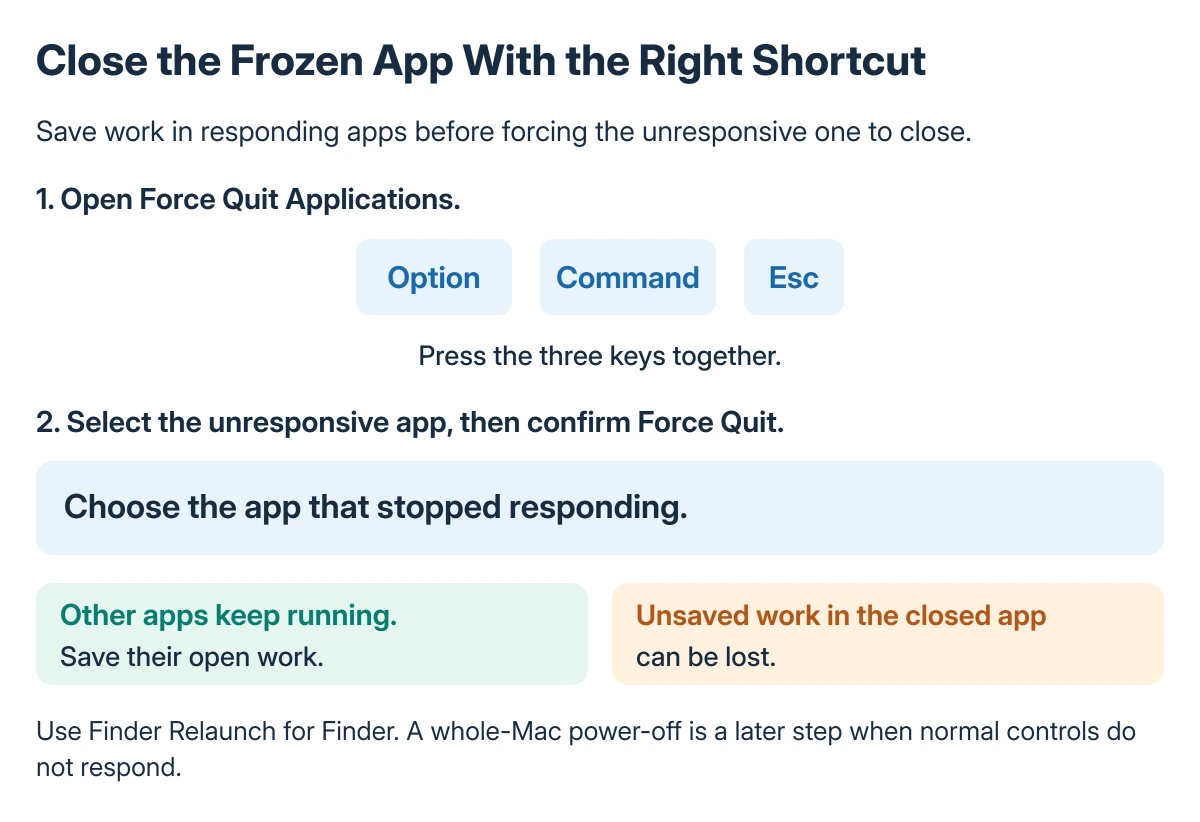
Press Option + Command + Esc together. The Apple menu's Force Quit command opens the same window if using the menu is easier.
Select the app that is not responding, then click Force Quit. Check its name before confirming so the wrong open document is not closed.
Apple documents both ways to open this window in its force-quit instructions. Reopen the app afterward and check any recovered document before continuing to edit.
A recovered copy may be offered by the app, but recovery is not guaranteed. Check the actual contents rather than assuming the last screenful was saved.
Finder uses Relaunch
Finder stays open as part of the Mac's normal interface. In the app-selection window, choose Finder, then Relaunch, if its windows have stopped responding.
That restarts Finder rather than shutting down macOS. If the specific problem is a frozen Contacts window, use the Contacts hang troubleshooting after reopening the app instead of repeatedly closing it.
Use Activity Monitor when the process needs identifying
Open Activity Monitor, select the relevant entry in its Process Name list and use the stop control near the upper-left corner. Choose Quit or Force Quit in the confirmation.
Apple's Activity Monitor guide distinguishes those choices. Quit waits for a safe exit; Force Quit ends the process immediately.
Stay with the app being diagnosed. Background processes can support other apps, and a familiar-looking process name is not a reason to terminate it.
Restart only when the app will not close
If force quit fails, try Apple menu > Restart. When the Mac cannot restart normally either, Apple specifies holding its power button for up to 10 seconds, until it turns off.
For a laptop with Touch ID, hold that button to power off. Press and release it afterward to turn the Mac on again.
A power-off ends more than one stuck app. If the Mac repeatedly freezes or restarts by itself, follow the Mac freeze and restart checks rather than treating forced shutdown as a repair.
A recurring hang in one app belongs with its developer. Report the app and macOS versions and describe what happens just before it stops responding. For a whole-system hang, give those details to Apple Support.
The Short Version
Try Command + Q, then Option + Command + Esc for an app that will not respond. Select the app carefully and choose Force Quit. Finder offers Relaunch instead.
Use a normal restart before a forced power-off, and preserve responsive work first.
Where to Next
Inspect the recovered document before resuming work. A repeatable freeze needs its cause addressed before another long editing session.

Isaac Smith is the founder and editor of PC Glance, a website that covers computers, laptops, and technology. He is a tech enthusiast and a computer geek who loves to share his insights and help his readers make smart choices when buying tech gadgets or laptops. He is always curious and updated about the latest tech trends.