
Opening your Dropbox folder in Finder doesn't tell you whether the syncing app is running. Launch Dropbox from Applications, then check its menu-bar status; an app that quits, a hidden icon and a stalled transfer need different next steps.
If the app disappears as soon as you open it, try one restart before reinstalling. Keep the Dropbox folder and any unsynced work intact while you repair the application.
1. Open the app and identify what actually fails
Open Finder > Applications > Dropbox. Look near the clock for its menu-bar icon, then select that icon to open the status panel. Opening the Dropbox folder in Finder is a separate action.
If only the symbol is missing, follow the Dropbox menu-icon checks. They cover menu-bar permission and crowding. Continue here when the application won't stay open or its panel won't load.
Check the public Dropbox service status for Desktop Application and Website. An incident can affect access even when your Mac's installation is healthy. Read the incident details before changing anything.

That page reports service problems, not the state of your files. Green indicators can't tell you whether your app is signed in, syncing is paused or your latest edit reached the account.
When you need a file urgently, use its web copy if available. Check its contents first: edits made on your Mac while syncing was stopped may still be saved only on the Mac.
2. Quit the stuck app, then restart the Mac
If the Dropbox panel responds, open its profile menu and choose Quit. Reopen Dropbox from Applications and see whether the panel now stays open. This lets the stuck app start fresh.
For an unresponsive app, use Option + Command + Esc, select Dropbox if listed and choose Force Quit. Apple's Mac app troubleshooting recommends reopening, restarting and checking updates for apps that fail to open.
Save work in your other responsive apps before restarting the whole Mac. Use Apple menu > Restart, then open Dropbox again after signing in. Notice whether it closes immediately or shows its panel first.
Use the Mac force-quit guide to find Dropbox in Activity Monitor if the ordinary app list doesn't help. Select Dropbox itself, since stopping an unfamiliar background service can create another problem.
If one restart brings the panel back, read the sync status before returning to work. If Dropbox immediately crashes again, continue with the account-access and installation checks instead of restarting repeatedly.
3. Allow the genuine Dropbox Keychain request
A Couldn't start Dropbox message can follow a denied Keychain request. Keychain stores your sign-in details on the Mac. Dropbox needs access to check your account and protect its preferences.
Dropbox says in its installation guidance that denying that request prevents startup. When the genuine installed app requests access, choose Allow or Always Allow. Always Allow remembers the permission.
Read the requesting application's name before approving. If this is a managed work Mac or the prompt asks for a password you don't have, let the administrator handle it instead of changing unrelated Keychain entries.
Open Dropbox again and check whether the startup message clears. If it opens, check syncing next. If the Keychain error returns, include the prompt's exact wording when you contact support.
4. Match the app version to a supported Mac
Use Apple menu > About This Mac to read the macOS version. The desktop requirements currently list macOS 11 Big Sur or later for the full Mac application.
The same page lists a simplified app for macOS 10.13 through 10.15. Downloading the installer again won't give those older macOS versions the full current app's features.
Use a current stable Dropbox release. If the crashing installation is an early-access or beta build, switch to the stable version offered by the developer. Also install supported macOS updates through Software Update.
If your security software blocked Dropbox, review its event or permission entry with your administrator. Allow the verified app through that control so you can keep protection enabled.
5. Reinstall the application while keeping the folder
Before removing the app, save unfinished documents and keep copies of important files that haven't synced. Note your account and any custom folder location so setup points back to your existing account and files.
Quit Dropbox, then open Finder > Applications and move the Dropbox application to Trash. The uninstall procedure separates removing the app from removing its data folder. Keep the folder containing your files.
Get the current desktop installer through the installation guide, open it and follow the prompts. Choose the account you used before and check syncing. Ask IT for help if your work Mac restricts installation.
Once setup finishes, open the menu-bar panel and check whether Dropbox stays running. Read its sync status too; a Finder shortcut alone can't tell you whether your latest changes reached the account.
6. Read the sync state before escalating
Look at the bottom of the panel. Indexing means Dropbox is preparing files to sync. For Syncing paused, choose Resume. Your files are up to date means the app has finished its current sync work.
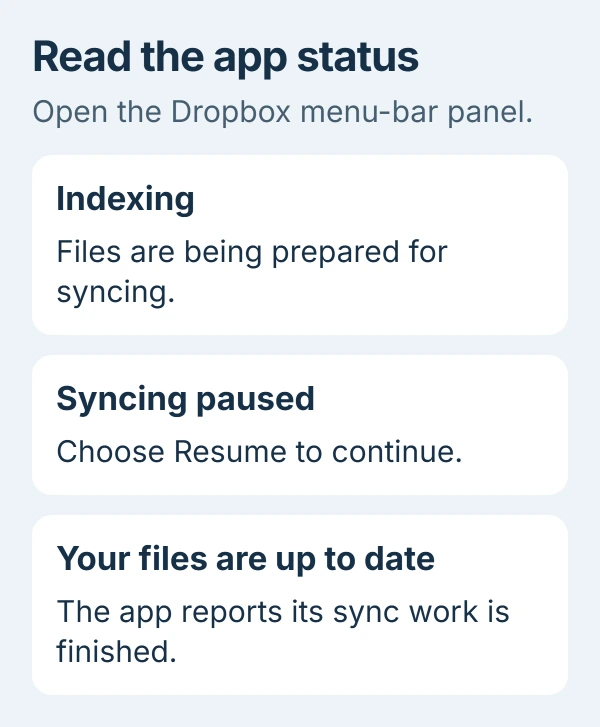
The sync-status reference explains these labels. For a listed file error, use See issues. If Dropbox stays running but a file won't transfer, use that file's error to decide what to fix next.
If Dropbox crashes while handling a large file collection, support may suggest selective sync to sync fewer folders. Review the choice first: unchecked folders are removed from your Mac, while their cloud copies stay in your account.
If crashes continue, tell Dropbox Support or IT your macOS version, app build, error and what happened with the Keychain prompt. Explain what reinstalling changed. Get help before an advanced reinstall removes saved preferences.
The Short Version
Launch the desktop app and separate a missing icon from a crash. Restart once, resolve a denied Keychain request, check version support and reinstall only the app if needed. Read its sync status after startup returns.
Checked November 5, 2026.

Isaac Smith is the founder and editor of PC Glance, a website that covers computers, laptops, and technology. He is a tech enthusiast and a computer geek who loves to share his insights and help his readers make smart choices when buying tech gadgets or laptops. He is always curious and updated about the latest tech trends.