
A Dropbox shared folder won't appear on your computer until you've joined it with your desktop app's account. Accept its invitation in that account first. For a folder already on dropbox.com, check this computer's sync settings instead.
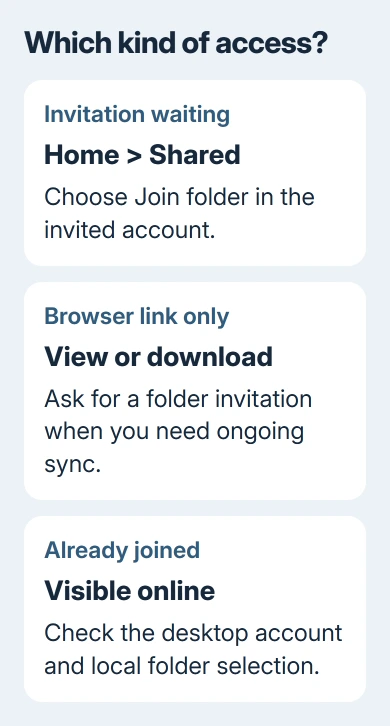
Opening someone's files through a browser link doesn't make you a shared-folder member. That difference explains why a folder can be readable online without appearing in File Explorer or Finder.
1. Join the folder with the account that received it
Sign in to dropbox.com, then choose Home > Shared. Find the invitation, hover over its folder and select Join folder. A verified email address is needed to accept a shared-folder invitation.
After joining, open the folder in your account and check its files. Dropbox's folder-joining guide explains how to join. The folder can then sync through the desktop app connected to that account.
If the invitation opens Request access, send the request using the intended account. The owner needs to approve it. Forwarding an invitation to someone else doesn't automatically give them permission to join.
Have the sender confirm the invited email address, especially with separate accounts for work and home. An invitation to your work address doesn't give a separate personal account access, even if the names are similar.
If Shared contains no invitation, have the owner share the actual folder with the right address again. Reinstalling the desktop app won't help if your account hasn't joined the folder.
2. Compare the desktop account with the web account
Click the Dropbox icon near the Windows clock or in the Mac menu bar. Open its round account menu and check which account is selected. Compare that account with the one where the folder opens on the website.
With linked personal and work accounts, check the matching Dropbox folder on the computer. A folder can belong to one side of that setup while you're browsing the other side in Finder or Explorer.
Open the folder through the desktop app rather than an old pinned shortcut. An Explorer shortcut can point to a different location; Microsoft's File Explorer guide explains how pinned folders work.
If the whole Dropbox location is missing on Windows, use the Dropbox File Explorer setup. That covers installing the app, finding its saved folder path and restoring a shortcut.
When the correct account and local Dropbox folder are open, search there for the shared folder's current name. Ask its owner whether it was renamed or moved before assuming its contents disappeared.
3. Separate a shared link from a synced folder
Look at what the sender actually provided. A view-only link lets its recipient view or download files. It doesn't add the shared folder to their own Dropbox account for ongoing syncing.
Downloading a copy is fine when you only need the current documents. It isn't the same as syncing a folder: later edits by the sender won't update that downloaded copy automatically.
To keep the shared files in your desktop Dropbox folder, ask the owner for a folder invitation to your Dropbox email address. Specify whether you need to edit the files or only read them so they can choose the appropriate permission.
I'd settle this before changing any sync settings. A working browser link can make the desktop app look broken when the missing piece is simply the kind of access you were given.
If an invitation won't join because the account is full, address that next. If you've joined and can see the folder in your account online, check whether this computer is set to sync it.
4. Check space in the Dropbox account
A shared folder can use storage in each member's account. The sender having plenty of room doesn't mean your account has enough available space to accept it. Read the joining error rather than checking only free space on the computer.
For example, a folder can fit within your plan's total allowance but still exceed the space left after your existing files. Online-only storage on the computer doesn't increase your Dropbox account's allowance.
Free account space by reviewing files you no longer need, choose a suitable plan, or ask the owner to share a smaller folder. Don't delete shared work just to make the invitation fit; changes can affect the other members.
For read-only access or a download, ask for a view-only link instead. The shared-folder space explanation describes why that access doesn't consume the recipient's account storage in the same way.
Once the invitation is accepted, confirm the folder appears online. If it still won't appear on the computer, check the desktop app next rather than trying to accept the invitation again.
5. Restore a folder excluded on this computer
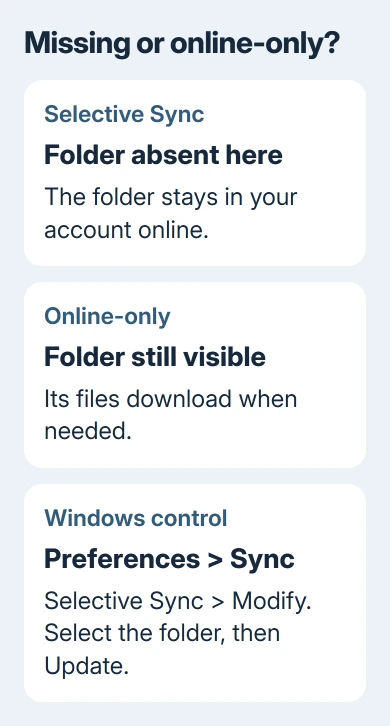
Selective Sync can hide a cloud folder from one computer while leaving it in your Dropbox account. An online-only folder is different: it remains visible locally even though its contents download when needed.
Open the desktop app's account menu, then Preferences > Sync. Check the folder-selection controls available for your installation. On Windows, Selective Sync > Modify opens the list; select the wanted folder and choose Update.
On Mac, open the menu-bar icon, then your avatar or account menu and Preferences > Sync. Under Select folders to sync to this Mac, choose Modify, select the folder and click Update.
The folder-selection reference gives both sets of controls. Follow the labels in your app rather than searching for the Windows heading on a Mac.
Allow the app to finish syncing, then check for a known file inside the restored folder. If the folder appears but its newest files don't, read the app's sync status for a paused transfer, storage warning or connection error.
For a Mac app that won't stay open, follow the Dropbox startup repairs. Keep unsynced documents safe while repairing the app; don't replace the shared folder with a new empty folder of the same name.
6. Ask for the access or sync repair you actually need
When the web account also lacks the folder, ask its owner to confirm your membership and the folder's current location. A folder you removed may still be available under Shared > Folders, with Join folder offered again.
If it exists online but stays absent locally, contact Dropbox Support through its Help Center. Give them the operating system, desktop app version, account type, exact sync message and whether that same account can open the folder online.
Those details help support tell whether the problem is your access or syncing on this computer. For a team account with restricted sharing or sync controls, ask the team administrator to check the folder's membership and policy first.
The Short Version
Join the shared folder in the same account the desktop app uses. Distinguish a browser link from folder membership, check account storage, then restore local visibility if the folder exists online.
Checked November 9, 2026.

Isaac Smith is the founder and editor of PC Glance, a website that covers computers, laptops, and technology. He is a tech enthusiast and a computer geek who loves to share his insights and help his readers make smart choices when buying tech gadgets or laptops. He is always curious and updated about the latest tech trends.