
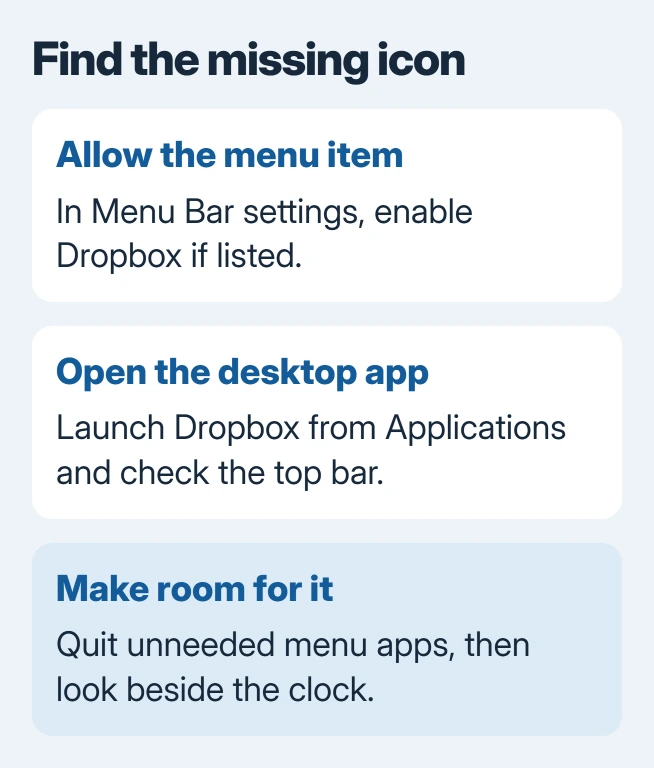
The Dropbox icon can vanish from a Mac's menu bar while its folder still opens in Finder. In System Settings > Menu Bar, enable Dropbox under Allow in the Menu Bar if listed. This lets the app display its menu item.
If Dropbox is not listed, open the desktop app first. An inactive app and an icon hidden by other menu items need different checks.
Enable Dropbox's menu item in System Settings
On macOS 27 or Tahoe 26, open System Settings > Menu Bar. Find Allow in the Menu Bar, then turn on Dropbox's switch if it is off. Look for the Dropbox symbol near the clock afterward.
Apple documents that application list in its Menu Bar settings reference. On an older macOS release without this section, continue with the app and space checks.
Status: Dropbox's icon guidance, Apple's Menu Bar settings and an owner outcome reviewed November 2, 2026. No Dropbox account or Mac setting was changed.
Owners report that enabling Dropbox in this list restores its icon. One found the permission disabled after reinstalling the app, while missing file-status ticks remained a separate problem.
For an enabled switch, try disabling it briefly, then enabling it again. A later owner confirmed that this restored their icon and stopped Dropbox opening only its Finder folder.
Do not treat a restored menu symbol as proof that every file has synced. Check the app's status once it is accessible.
Launch the desktop app, then check the top of the screen
Open Finder > Applications > Dropbox. Sign in if the app requests it. Dropbox states that the menu icon requires its desktop app to be installed and running in its missing-icon guide.
On a Mac, look near the clock along the display's upper edge. The Dropbox folder in Finder and an app icon in the Dock are separate from that status control.
Move the mouse to the screen's top boundary if the whole menu is hidden. Apple says that reveals an automatically hidden bar. A bar absent only from another screen needs the Mac display and Spaces checks.
If Dropbox is absent from Applications, install the desktop app from Dropbox's own download instructions. Use the intended account when signing in, then return to the menu-item check.
Make room when other icons crowd it out
Save unfinished work, then quit a few other apps that place icons in the menu bar. Dropbox documents crowded menus as another reason its symbol can disappear.
Once Dropbox becomes visible, hold Command and drag its icon toward the right side of the menu bar. The vendor recommends that position because it is less likely to be hidden as other apps add items.
This changes the icon's position, not the location of the Dropbox folder. Leave the folder where it is; moving synced files does not create more menu-bar space.
For several unrelated icons disappearing together, the wider Mac menu-icon guide addresses that different symptom. A lone Dropbox icon does not establish a system-wide failure.
Read the sync status after the icon returns
Click the Dropbox symbol and read the sync status along its window's lower edge. Dropbox's sync-status reference explains messages about indexing and files that cannot sync.
If the icon disappears again after relaunch, send Dropbox Support the macOS and app versions. Include whether its Menu Bar switch exists, whether the folder opens and whether quitting other menu apps helps.
Keep locally stored files intact during that check. A missing icon does not call for account unlinking or removal of the synced folder.
The Short Version
Check Dropbox's permission to appear in Menu Bar settings, confirm its desktop app is running, then free space among the other icons. Once the symbol is visible, use its status panel to check syncing separately.

Isaac Smith is the founder and editor of PC Glance, a website that covers computers, laptops, and technology. He is a tech enthusiast and a computer geek who loves to share his insights and help his readers make smart choices when buying tech gadgets or laptops. He is always curious and updated about the latest tech trends.