
Your Mac's menu bar sits on one screen and never shows on the other. It used to appear on both. Now your external display has no menu at all, and you keep dragging the pointer back.
I would check one switch in Desktop & Dock, then sign out of your account and in again. It decides whether every display gets its own menu bar.
On Ask Different the question dates from January 2024, on macOS Sonoma, with an answer accepted the same day. It has 10,501 views.
The missing menu bar
The asker put it plainly: "My menu bar on my extended screen is never shown now." It had always been there before.
They also found a workaround on their own. "It works ok on my main display if I change my main display to my external screen." So the menu bar was alive, just stuck to one screen.
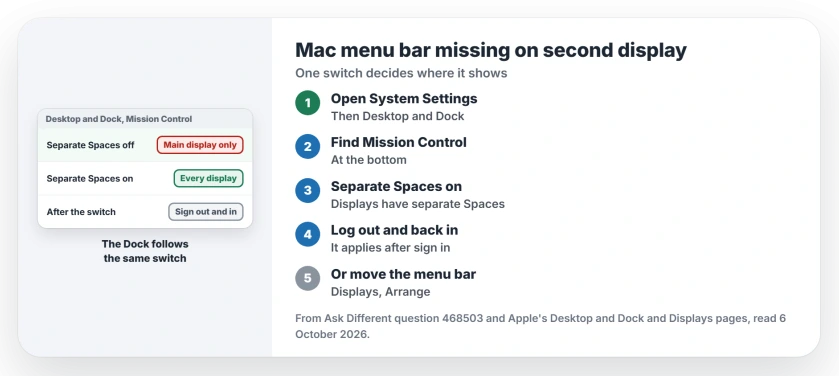
Status: checked 6 October 2026. The menu bar showed only on the main display. Turning on Displays have separate Spaces and logging out and in brought it back on every screen.
Their auto-hide setting was not the cause. It was set to hide the menu bar in full screen only.
1. Switch on separate Spaces
Open System Settings, then Desktop & Dock. Scroll to Mission Control at the bottom and switch Displays have separate Spaces on.
The accepted answer explains why it matters: "Without separate Spaces the menu bar will only ever appear on the Primary screen". With it on, the menu appears "at the top of whichever Space is active".
Owners report it working in the comments.
Apple's Desktop & Dock page describes the switch as one that will "Set up separate spaces for each display (if you use Spaces and have multiple displays)." It also notes that with it off, "the Dock appears only on the main display."
For a Dock that retreats between uses, check automatic hiding and the reveal edge as well as which display can show it.
2. Sign out, then sign in
The switch does not apply straight away. A later commenter added: "Note: it doesn't take effect until you sign out and in again."
Pick Log Out in the Apple menu and sign in once more. An owner confirmed it "Works in macOS Sonoma 14.5".
Ours: if your menu bar vanished from the second screen right after a macOS update, check this switch first. Our black wallpaper page found the Tahoe update turning it off on some Macs.
3. Or make the external display your main one
If you want the menu bar on the external screen only, move it there. Apple's Displays settings let you "relocate the position of the menu bar" under Arrange.
Open System Settings, then Displays, then Arrange. Drag the thin white bar onto the external display's picture. That display becomes your main one, with the menu bar and the Dock.
This is the asker's own workaround. I would use it when you mainly work on the big screen.
Planning to turn that screen to portrait and cannot find Rotation in Displays? The missing rotation page covers hubs, the built-in screen and mirroring.
The menu bar is there, but icons are missing
That is a different fault. On a notched MacBook, icons can hide behind the notch, and our menu bar icons page sorts out which case you have.
A full-screen app also hides the menu bar by design. Push the pointer against the top of the screen and it slides down.
Why does my Dock only show on one screen?
The same switch controls it. Apple says that with Displays have separate Spaces off, the Dock appears only on the main display.
The Command-Tab switcher tags along with the Dock, so it can pop up on the screen you are not using.
Lost a whole window rather than the menu bar, say after unplugging a display? Sequoia's Center command pulls it back, and older macOS has a few owner tricks.
The Short Version
- No menu bar on the second screen often comes from separate Spaces being off.
- Switch Displays have separate Spaces on, in Desktop & Dock.
- Sign out and in again for it to take effect.
- A macOS update can switch it off.
- Or drag the menu bar to the external display under Displays, Arrange.
- Missing icons behind the notch are a separate problem.
Where to Next
Open Desktop & Dock, switch Displays have separate Spaces on, then sign out and in again.
Which macOS version are you on, and did the switch turn itself off after an update? Tell me in a comment.

Isaac Smith is the founder and editor of PC Glance, a website that covers computers, laptops, and technology. He is a tech enthusiast and a computer geek who loves to share his insights and help his readers make smart choices when buying tech gadgets or laptops. He is always curious and updated about the latest tech trends.