
To extend a display on Mac, open System Settings > Displays, select the external screen, and change Use as to Extended display. This gives the monitor separate desktop space instead of repeating the Mac's picture.
After that, arrange the display tiles to match the screens on your desk. The setting controls which edge the pointer crosses when moving between them, so a reversed arrangement can make a working second screen feel inaccessible.
Connect the monitor and select its role
Connect the monitor to power and to a compatible video port on the Mac. Choose the correct input on the monitor if it has several. Keep a MacBook's lid open while setting up a two-screen workspace.
Apple documents the connection and model limits in its external-display guide. If the screen never appears in Displays, use the Mac monitor-detection checks before changing desktop arrangement.
Status: Apple's Displays controls checked November 2, 2026. A separate-port owner example uses a 2019 Intel MacBook Pro; no monitor was connected for this guide.
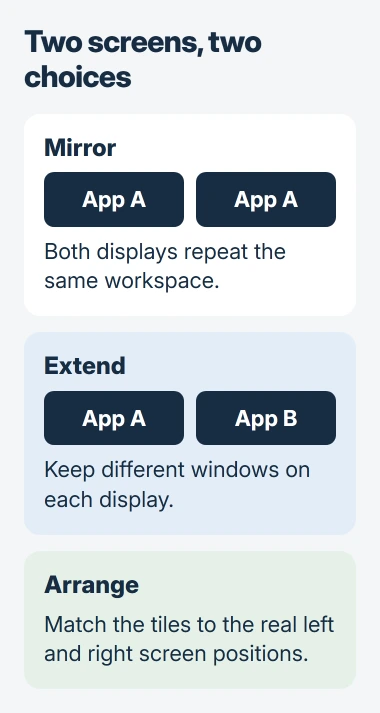
Choose Apple menu > System Settings > Displays, then select the monitor's name or tile. In Use as, choose Extended display. Leave the built-in screen as the main display unless you want the external screen to take that role.
Apple says Use as controls mirroring, extension and the main-display role in its Displays settings reference. Those are different choices within the same control.
Match the arrangement to the desk
Open Arrange in Displays. Move the display tiles so the screen physically on the left also sits on the left in the arrangement. Align their relative height, then confirm the layout if a Done button appears.
Move the pointer across the adjoining edge and drag an ordinary window onto the other screen. A different window remaining on each display confirms an extended workspace. Identical wallpaper alone does not establish mirroring.
If the pointer exits the wrong side, correct the tiles rather than reconnecting the cable. Apple states that Arrange changes screen positions and the menu-bar location; it is separate from choosing resolution or brightness.
For a menu bar that appears on only one display, inspect the separate Spaces setting. That controls menu-bar behavior and does not replace selecting an extended desktop.
When two external monitors still show the same picture
Check whether Displays lists both external monitors separately. A dock that sends the same image to two outputs can prevent independent desktops even though both panels light up.
One owner using a 2019 16-inch MacBook Pro solved this by moving two monitors to separate Mac ports and leaving another on the existing hub. Their accepted Ask Different report describes that working arrangement.
That result applies to their Mac and hub. It does not mean every Mac supports three external monitors or that every Thunderbolt dock needs one Mac port per screen. Check the Mac's specifications and the dock's macOS support together.
For a laptop, the supported display count can also depend on whether its lid is open. Use Apple's model-specific requirements before buying an adapter; matching connector shapes alone does not establish independent display support.
If the extension control is missing
Apple's extend-or-mirror instructions say a laptop or iMac needs an external screen connected to show these options. A Mac mini or Studio needs more than one display.
If the expected displays are connected but a separate tile is missing, record the Mac model, macOS version, dock model and cable route. Ask Apple or the dock manufacturer whether that exact setup supports independent extended screens.
For an older Mac using System Preferences, the display controls have a different layout. Use the matching macOS edition in Apple's guide rather than searching for a System Settings menu that the older release does not have.
The Short Version
Select the external monitor in Displays, choose Extended display, and arrange its tile to match your desk. Verify by moving a window across. Two external screens stuck on the same picture need a Mac-and-dock compatibility check.

Isaac Smith is the founder and editor of PC Glance, a website that covers computers, laptops, and technology. He is a tech enthusiast and a computer geek who loves to share his insights and help his readers make smart choices when buying tech gadgets or laptops. He is always curious and updated about the latest tech trends.