

You press Command-Tab while working on your big monitor, and the row of app icons appears on your MacBook's own screen instead. It is not random. I would look at where your Dock was last shown, because the switcher follows it.
Asked in November 2013, the Super User question has 82,152 views, and owners have kept adding to it ever since. A comment from 2023 reads "Still the same in 2023", and a recent one says a fix "Still works with Tahoe".
Why the switcher jumps screens
The accepted answer says it in one line: "The App Switcher tends to follow where the Dock is located". With the Dock at the bottom, it shows on "the monitor where the dock was most recently activated".
Auto-hide makes this easy to trigger by accident.
Apple says that "To show the hidden Dock, move the pointer to the edge of the screen where the Dock is located". Brush the bottom edge of the other screen, and the Dock and the switcher both move there.
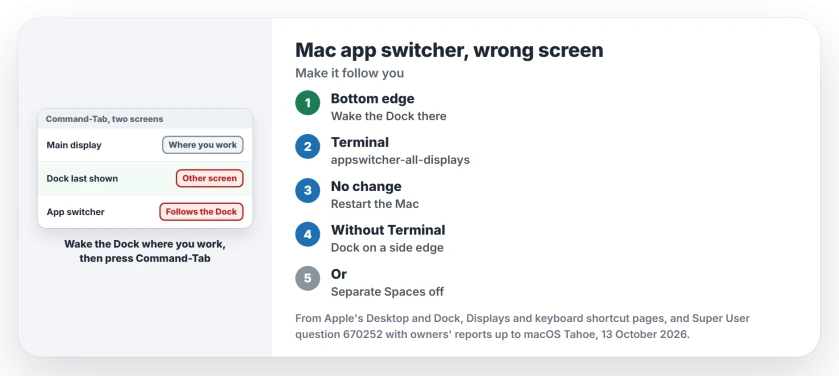
Status: compared on 13 October 2026 with Apple's Desktop and Dock settings and owners' reports up to macOS Tahoe. The switcher follows the Dock; one Terminal line shows it on every display.
Apple's shortcut list describes Command-Tab only as "Switch to the next most recently used app among your open apps". It says nothing about which screen. System Settings offers no switch for it either.
The quick move: wake the Dock where you want it
Move the pointer to the bottom edge of the display you work on. Wait for the Dock to appear there. Then press Command-Tab.
Reported working by owners. One wrote that the switcher "will pin to the display" once the Dock pops up on it. Another replied "didn't understand how it suddenly changed to the other monitor", which is the usual story.
If your Dock never hides, click the Downloads stack in the Dock on that display. One owner found that "even just clicking on it seems to work".
Show it on every screen with one Terminal line
This is the second most voted answer, and the one owners keep confirming. Open Terminal and run these two lines:
defaults write com.apple.dock appswitcher-all-displays -bool true
killall Dock
The first line asks the Dock to draw the switcher on all displays, and the second restarts the Dock, which takes a second while your apps stay open.
Owners keep confirming it. The answer has 270 votes. Owners confirmed it on Big Sur, Monterey, Sonoma and Sequoia, and the newest comment under it reads "Still works with Tahoe". We found no report yet for macOS 27, so test it once after you update.
I would use this one, since it ends the guessing on every screen.
One owner noticed "a short delay between the app switcher appearing on the internal vs on the external display". In their setup, HDMI through a USB-C adapter made the gap bigger than a direct USB-C link.
If the command does nothing
Restart your Mac. One owner's experience. One M1 owner on Monterey first wrote "Doesn't work for me either", then came back after a restart: "can confirm it works now".
If the Dock itself also misbehaves, one owner found that restarting it alone helps. Our page on striped Dock icons uses the same killall Dock line.
To undo your change, run the first line again with false at the end instead of true. Then run killall Dock.
Keep it on one screen without Terminal
Two settings pin the Dock, and the switcher with it, to one place.
Put your Dock on a side edge. One owner moved it to the right of the main monitor, and the switcher "has not jumped back since". A commenter explained why: "the dock doesn't appear on the edge between adjacent screens". So it cannot wander across.
Or turn off Displays have separate Spaces. It sits in System Settings, Desktop & Dock, under Mission Control. Apple's Desktop & Dock page says that with it on, "the Dock is available on all displays". Turned off, the Dock stays on the main display.
That costs more than it looks. Apple adds that Split View on your other displays and Stage Manager both need the option on.
The menu bar then shows on one screen only, as our page on the missing menu bar explains.
I would keep separate Spaces on unless you never use Stage Manager. Ours: we have no Mac on hand, so this route is Apple's description, not a test. Log out and back in if the Dock does not move straight away.
The Short Version
- The Command-Tab switcher shows on the screen where the Dock was last shown.
- Quick fix: move the pointer to the bottom of the display you want, then press Command-Tab.
- For good: defaults write com.apple.dock appswitcher-all-displays -bool true, then killall Dock.
- No change? Restart the Mac.
- Without Terminal: Dock on a side edge, or separate Spaces off, which costs Stage Manager.
Where to Next
Which fix did you keep, and on which macOS version? Post it as a comment; a report from macOS 27 would help me most.

Isaac Smith is the founder and editor of PC Glance, a website that covers computers, laptops, and technology. He is a tech enthusiast and a computer geek who loves to share his insights and help his readers make smart choices when buying tech gadgets or laptops. He is always curious and updated about the latest tech trends.