

Some app icons in your Mac's Dock have turned into pinstripes, while the rest look normal. A restart did not clear them, and you may be wondering about your graphics chip. Before you book a repair, I would restart the Dock itself.
An owner on Ask Different accepted that fix. Asked in January 2025, on macOS Sequoia, the question has 3,261 views, and a second owner with a 2020 MacBook Pro had the same stripes.
What the stripes look like
The asker put it plainly: "some icons in my dock are pin-striped". It began on a 2020 MacBook Air with Sequoia 15.2, and "it only affects some app icons". Then Finder's icon caught it too.
Restarting changed nothing. In their words, "A reboot didn't help there". Moving the Dock to another edge of the screen did not help either, and the same icons kept their stripes.
A full MacBook restart restarts macOS; the Dock command in this guide targets the smaller process that is drawing the bad icons.
If the entire Dock disappears and returns at an edge, check automatic Dock hiding separately from striped icons.
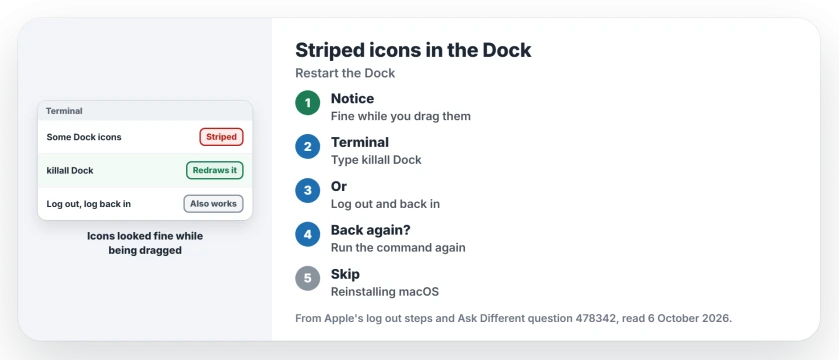
Status: checked 6 October 2026. Some Dock icons turned striped on macOS Sequoia, and a restart did not help. Restarting the Dock with killall Dock, or logging out and in, cleared them.
One detail pointed away from the graphics chip. In the asker's words: "During the drag, the icon displays correctly, after the drop the stripes re-appear".
Ours: a failing screen or graphics chip would not care whether an icon is being dragged.
1. Restart the Dock in Terminal
The accepted answer is two sentences long: "Executing killall Dock in terminal fixes it. Probably quicker than logging out and in".
Open Terminal from Applications, then Utilities, type this line and press Return:
killall DockThe Dock blinks out and redraws itself. Your open windows and apps stay put, which our black wallpaper page also found when it used the same command.
2. Or log out and back in
The asker found this one first: "logging off and logging in solved the problem of striped icons". It takes longer, because every app closes. I would only log out if Terminal feels like too much.
Apple's log out steps are simple: choose Log Out from the Apple menu. To skip reopening every window afterwards, Apple says to deselect "Reopen windows when logging back in".
Before that, the asker tried the guest account. Its Dock was clean. So the fault belonged to their own session, not to the Mac. That is why a restart of the Dock, or a full log out, reaches it when restarting the Mac did not.
It can come back
A second owner, on a 2020 MacBook Pro with Sequoia 15.3, had the same cure and a warning. In their words: "Log out/log in solved it temporarily, but can/will appear again over time".
The icons affected changed each time, they added. Ours: keep the killall Dock line handy and run it whenever the stripes return, since it takes a second.
I would also install macOS updates as they come, since a fix is far more likely to come from Apple than from you.
The same killall Dock line also helps when the Command-Tab switcher keeps showing on your other display.
Do not reinstall macOS over this
One commenter suggested reinstalling the system, and another pushed back: "Reinstalling is never necessary, if the OS is working". The system lives on a read-only volume, they explained, so a reinstall would not touch whatever glitched.
The same kind of redraw fixes menu bar icons that go missing, and our menu bar page has that command.
The Short Version
- Striped Dock icons that look fine while you drag them are a Dock drawing glitch.
- A full restart did not clear them on Sequoia.
- Run killall Dock in Terminal to redraw the Dock in a second.
- Logging out and in also works.
- The stripes can come back; run the command again.
- Reinstalling macOS will not help.
Where to Next
Open Terminal, type killall Dock and press Return, then look at the icons again.
Which Mac and macOS version do you have, and did the stripes come back? Tell me in a comment.

Isaac Smith is the founder and editor of PC Glance, a website that covers computers, laptops, and technology. He is a tech enthusiast and a computer geek who loves to share his insights and help his readers make smart choices when buying tech gadgets or laptops. He is always curious and updated about the latest tech trends.