

A MacBook restart normally takes Apple menu > Restart, followed by the confirmation. The same menu works on MacBook Air and MacBook Pro, with either Apple silicon or an Intel processor.
When a frozen app blocks that route, try quitting the app first. Hold the power button to force a shutdown only if normal restart controls cannot respond.
Restart from the Apple menu
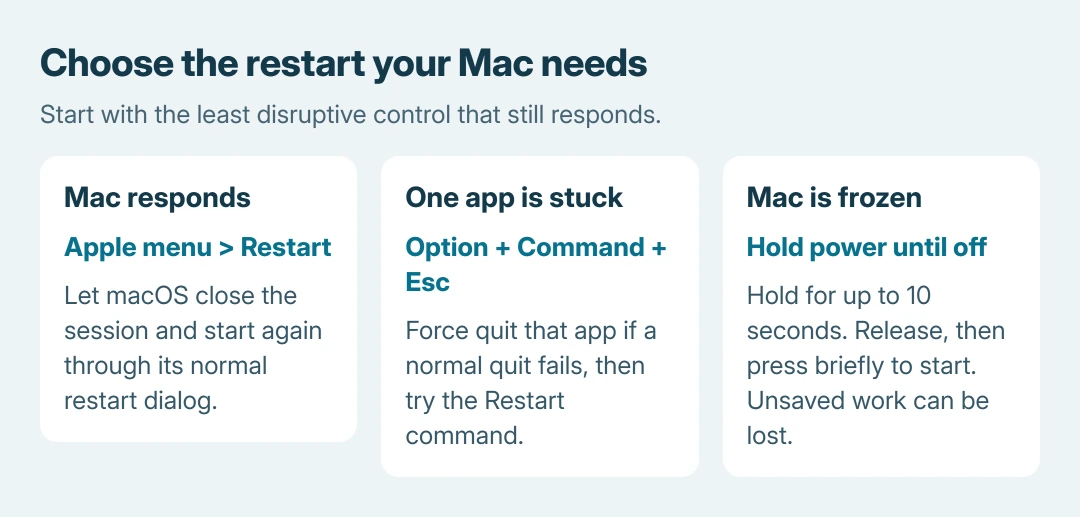
Save documents and finish any operation that must not be interrupted, such as copying files to an external drive. Open the Apple menu at the top-left corner, choose Restart, then confirm Restart in the dialog.
Apple documents the Restart confirmation as part of macOS's normal shutdown controls. The Mac closes its session and starts again without needing a second power-button press.
Status: macOS restart and force-quit instructions reviewed October 26, 2026. Apple's procedure covers Intel and Apple silicon Macs; no MacBook was restarted for this guide.
Clear Reopen windows when logging back in if app windows should stay closed after login. Leaving it selected asks macOS to restore them; a returning app does not mean the restart failed.
An application can pause the restart with a save prompt. Bring that app forward, decide whether to save its work, then let the restart continue. A prompt waiting for an answer is different from an entirely frozen computer.
Deal with an app that stops the restart
If the pointer and menu bar still respond, select the stuck app and try Command + Q. When it refuses to quit, press Option + Command + Esc. In the dialog, select the unresponsive application and click Force Quit.
Apple says force quitting bypasses the normal opportunity to save changes. Unsaved edits in that application can be lost. Its force-quit instructions put a normal quit ahead of this step.
Try Restart again after the app closes. The app-first choice is ours: it can release the blocked restart while leaving other applications available to save their work.
When the Dock alone looks wrong, a Dock redraw may be enough for that specific fault. Restarting a process and restarting the whole Mac have different effects.
Force a frozen MacBook off with the power button
If the Mac cannot open the restart menu or complete the app step, hold power for up to 10 seconds, until it turns off. On a MacBook with Touch ID, the Touch ID button is also the power button.
Release it once the Mac is off. Then press and release the same button to turn the Mac back on. Unsaved work across open applications can disappear during this forced shutdown, so reserve it for an unresponsive system.
Pressing and releasing the button to start is different from continuing to hold it. On Apple silicon, holding it during startup opens startup options. For an ordinary restart, the short press is the intended action.
Closing and reopening the lid normally sleeps and wakes a MacBook. It does not perform the full restart described here. Keep the lid open while shutdown finishes so the transition can complete.
Check the original problem after signing in
Wait for the login screen or desktop, sign in, then try the action that was failing. A returned desktop confirms the Mac started; whether the original fault recurs determines the next troubleshooting step.
For a clock that is wrong after waking, use the Mac time-service checks. Repeated full restarts do not identify why that setting or service keeps failing.
If the computer freezes again, record the active application and connected devices. Contact Apple Support if the power-button procedure cannot turn it off or back on, or if normal startup repeatedly fails.
The Short Version
Use Restart in the Apple menu for a responsive Mac. Clear the window-reopening option when needed. For a blocked session, quit the failed app; for a frozen system, hold power until off, release it and press briefly to start.

Isaac Smith is the founder and editor of PC Glance, a website that covers computers, laptops, and technology. He is a tech enthusiast and a computer geek who loves to share his insights and help his readers make smart choices when buying tech gadgets or laptops. He is always curious and updated about the latest tech trends.