
The Apple menu's Shut Down command turns a MacBook off normally and gives open apps a chance to save your work. Choose it, confirm the dialog, and leave the lid open until shutdown finishes.
An Apple silicon MacBook can start again when you open its lid or connect power. That can make it seem as though it didn't shut down. You can change this automatic startup without changing how you shut the Mac down.
Shut down through the Apple menu
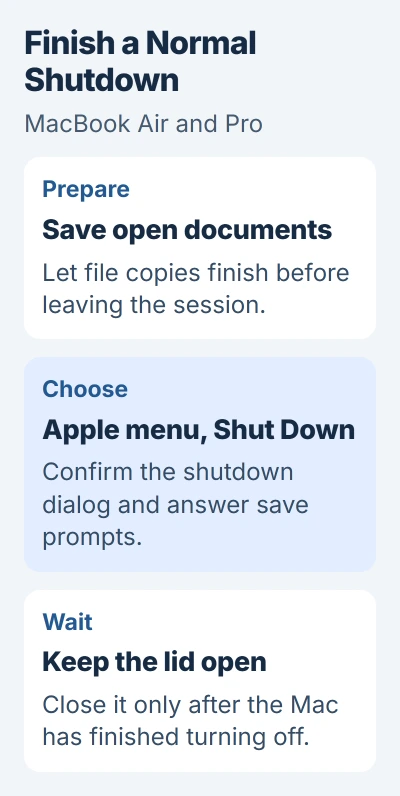
Save the documents you're editing and let any file copy finish. At the screen's upper-left corner, open the Apple menu, choose Shut Down, then confirm with Shut Down in the dialog.
Apple says to confirm the shutdown dialog on either a MacBook Air or a MacBook Pro. Choosing Restart instead ends the session and starts the Mac again.
The confirmation dialog can include a checkbox for reopening windows at your next login. Clear it if you don't want those app windows to reopen next time. The checkbox doesn't change whether the Mac shuts down now.
If an app asks about an unsaved document, choose whether to save or discard your changes. The Mac may be waiting for your answer before it can switch off.
Keep the lid open until the Mac finishes switching off; closing it early can interrupt shutdown. The screen goes dark when it's off. If the display was already asleep, though, a dark screen won't tell you whether shutdown finished.
Keep sleep, restart and shutdown separate
Closing the lid normally puts a MacBook to sleep. It keeps your session ready for a quick return. That's useful for a short break, but it doesn't end the session the way Shut Down does.
To switch it off fully, finish shutting down through the menu before closing the lid. If your windows reopen when you next start the Mac, check whether you left the reopening checkbox selected.
For a software problem that needs a reboot, follow the MacBook restart steps. Restart brings the computer back automatically, so you don't have to decide when to press power again.
An external drive that keeps spinning while the Mac sleeps needs its own drive-sleep checks. Switching off the Mac once and changing how it sleeps are different jobs.
I'd use the menu for an ordinary shutdown even when the power button is easier to reach. Save the long button hold for a Mac that isn't responding.
When one app prevents shutdown
Switch to the app named in the shutdown message. Try its normal Quit command or Command+Q, then answer any save prompt. Once the app closes, choose Shut Down again if needed.
If that app won't respond but the rest of macOS works, use the Mac app force-quit controls. Close the frozen app before trying to force the entire Mac off.
Force quitting can lose that app's unsaved changes. Save your work in the other apps first, then decide whether to close the stuck app without saving.
After it closes, try shutting down through the menu again and check for another prompt. If the same program keeps blocking shutdown, note its name and version and report that to its developer.
When the whole MacBook is frozen
If the Mac won't respond to menus or the controls for closing apps, hold down its power button until it switches off. This can take up to 10 seconds. Release the button once it's off.
For a MacBook that has Touch ID, hold the Touch ID button to force it off. That button handles power too. The power-button procedure explains which button to use on these laptops.
Forcing the Mac off can lose unsaved work in any open app. Use it when the normal controls won't respond, then check your recovered documents once the Mac starts again.
To leave the Mac off, don't press power again after releasing it. When you want to start it, press power briefly and let go straight away. On an Apple silicon model, opening the lid can also start it, as the next section explains.
Stop automatic startup on supported Apple silicon models
A MacBook with Apple silicon starts automatically when you open the lid or attach power. If either action brings yours back on, change the automatic-startup behavior rather than repeating forced shutdowns.
This option needs macOS Sequoia 15 or newer on an Apple silicon laptop. Find both details in Apple menu > About This Mac before entering a command. These commands aren't for older Intel MacBooks.
Open Terminal from Applications > Utilities. To stop the Mac starting when you open the lid or connect power, enter this command and press Return:
sudo nvram BootPreference=%00Enter your administrator password if asked, then press Return. Terminal won't show the password as you type. This setting changes automatic startup; the keyboard or trackpad can still turn the Mac on.
To stop startup only when you open the lid, use %01 instead of %00. To stop it only when you connect power, use %02. Pick the option you want; don't enter all three commands in a row.
To undo this setting and restore automatic startup, run:
sudo nvram -d BootPreferenceAfter changing the setting, shut down normally and test opening the lid or connecting power, whichever you chose. Keep your hands off the keyboard and trackpad while checking, since either can still start the Mac.
If normal shutdown still won't finish
Note what stops shutdown: a particular app, a prompt about an unsaved document or a frozen desktop. Also check whether the Mac switches off, then starts again when you open the lid or connect the charger.
Give Apple Support those details, your MacBook model and macOS version. If the power button won't switch it off or shutdown keeps freezing, ask for help with that problem. Changing automatic startup won't fix it.
The Short Version
Save your work, use Apple menu > Shut Down, and keep the lid open until it finishes. Deal with a blocking app before forcing power off. On supported Apple silicon MacBooks, automatic lid or charger startup can be changed separately.
Checked November 5, 2026.

Isaac Smith is the founder and editor of PC Glance, a website that covers computers, laptops, and technology. He is a tech enthusiast and a computer geek who loves to share his insights and help his readers make smart choices when buying tech gadgets or laptops. He is always curious and updated about the latest tech trends.