
Mac crashes usually come from installed software or a connected device. Update the affected app and macOS first, then disconnect nonessential accessories if the whole computer restarts.
A single app disappearing calls for app checks; a Mac that goes black and starts again needs system checks.
If a message after the restart says a problem caused it, check the whole system. If the desktop stays open and only one app quits, start with that app.
That distinction keeps you from reinstalling macOS for one malfunctioning program.
1. Match the fix to what stopped working
After the next failure, note whether you saw the startup screen and had to log back into the Mac. Also note whether only one app disappeared, an app stopped responding or the entire Mac became unresponsive.
An app that quits can offer Reopen. Try reopening it once and see whether the same document or action triggers another crash. If it freezes instead, save anything open in the other apps, then force the frozen app to close.
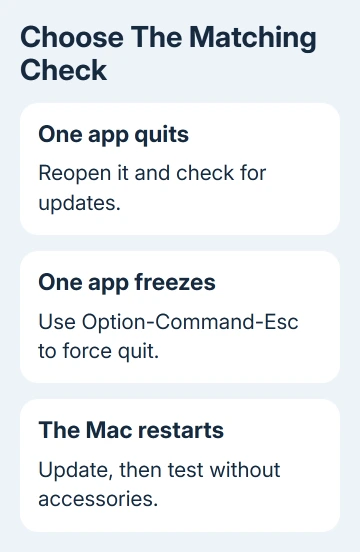
Press Option-Command-Esc, choose the frozen app from the list and select Force Quit. Unsaved changes in that app can be lost.
The Mac force-quit guide explains this route when the normal Quit command doesn't respond.
If the whole Mac is frozen and won't shut down normally, keep its power button pressed until it switches off, which can take 10 seconds. Start it again, then continue with the matching checks.
Don't use forced shutdown as the routine fix for an app you can close.
Keep a short record: app name, what you were doing, connected devices and any restart message. A crash during a specific action gives support a useful starting point. Include that detail when asking for help with apparently random crashes.
2. Update the app and the system
For an App Store app, open the App Store, select Updates and install its available update. For software downloaded elsewhere, use the app's update command or the developer's official download page.
On recent macOS versions, open Apple menu > System Settings > General > Software Update. On older systems that use System Preferences, open Software Update there. Install the available updates, then restart if prompted.
Apple recommends installing software updates when a Mac restarts unexpectedly.
The app relies on macOS too. Updating just the app can leave a problem in the system software unfixed.
If the Mac offers Move to Trash because it suspects a particular app caused a restart, accept that option and ask the developer for a compatible update. Keep the app's name and version for that conversation.
When only that app crashes, test a different document or an ordinary action in that app. If only one file causes the crash, tell its developer that.
If several unrelated apps quit or the whole Mac restarts, continue with the accessory and safe-mode checks.
3. Disconnect accessories for whole-Mac restarts
Shut down and unplug nonessential external devices, including hubs, drives, printers and audio interfaces. For a desktop Mac, leave its display and input devices attached. Leave the laptop connected to its charger if needed.
Start the Mac and test it through the period when it usually restarts. A five-minute check doesn't answer a fault that usually appears after an hour. Try the same everyday tasks you were doing when it crashed.
If the restarts stop, reconnect one device, test, then repeat with the next device. When the failure returns after a particular device, check that device's cable, software and firmware with its maker before reconnecting the other devices.
I'd do this comparison before replacing internal parts. A dock or interface can affect the whole computer, even when the app visible during the crash has nothing to do with that accessory.
If restarts happen specifically after waking, use the Mac restart-after-sleep checks for that pattern. Don't apply a sleep-setting workaround to every crash during ordinary use.
4. Compare normal startup with safe mode
Safe mode skips certain startup software and checks the startup disk. Use it to check whether software that loads when your Mac starts is involved in the crashes.
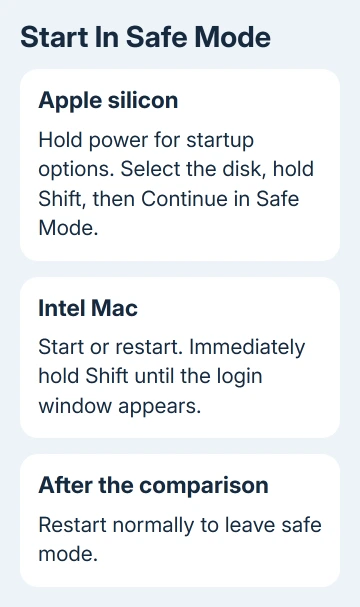
First open About This Mac: Chip identifies Apple silicon; Processor identifies an Intel Mac.
For Apple silicon, shut down. Hold power as the Mac starts. Release it when startup options load. Select your startup disk. With Shift held, choose Continue in Safe Mode. Log in; you might be asked to log in a second time.
For an Intel Mac, press Shift immediately after turning on or restarting the computer. At the login screen, let go of Shift and log in. The Apple silicon power-button procedure doesn't apply to this model.
The login screen might show Safe Boot. To check after login, hold Option while choosing Apple menu > System Information. Select Software and look for Boot Mode: Safe.
Test the action that normally causes the crash, then choose Restart to return to your usual startup.
Some audio, graphics and accessory features behave differently in safe mode, so check whether the crash returns. Safe mode isn't a useful test of your Mac's everyday speed.
If the crash returns only after normal startup, review login items and startup software. On recent macOS, open System Settings > General > Login Items & Extensions; some earlier versions label this Login Items.
Remove optional login items and test again.
Keep a note of the items you remove so you can restore needed ones afterward. If an item appears responsible, get its compatible update or removal instructions from the developer.
Keep the changes focused on items you recognize; switching off unfamiliar background software can create another problem.
5. Test hardware and choose the next repair
Run Apple Diagnostics if disconnecting those accessories hasn't stopped the restarts. Shut down, leave AC power and essential input/display devices connected, and place the Mac on a firm, ventilated surface.
On Apple silicon, keep power held down until Options is visible. Release the button and hold Command-D. On Intel, turn on and immediately hold D. Try Option-D if D doesn't start the test. Follow the onscreen prompts.
Save any reference code. Test options differ by model and macOS version, so follow the options your Mac displays.
If diagnostics doesn't report a fault but restarts continue, tell support when the restarts keep happening. Hardware can still be faulty even when the test reports no error.
For crashes that persist in safe mode, reinstall macOS through Recovery after backing up your important files.
Ask Apple Support to guide the reinstall if the Mac won't stay running long enough to make a backup.
When one app alone still quits, send its developer the app version, macOS version and triggering file or action.
If the whole Mac keeps restarting, arrange a check with Apple Support or an authorized service provider. Include the diagnostic codes and what happened with accessories disconnected.
The Short Version
Separate one app quitting from the whole Mac restarting. Update software, compare with accessories disconnected, then test safe mode using the steps for your chip.
If restarts continue, run diagnostics and give support the results so they can plan the next repair.
Checked November 9, 2026.

Isaac Smith is the founder and editor of PC Glance, a website that covers computers, laptops, and technology. He is a tech enthusiast and a computer geek who loves to share his insights and help his readers make smart choices when buying tech gadgets or laptops. He is always curious and updated about the latest tech trends.