A Mac won't show the Wi-Fi password-sharing prompt unless it's unlocked, connected to that network, and able to recognize the nearby Apple device. Check both Contacts entries and turn on Wi-Fi and Bluetooth before requesting again.
The receiving device also matters. Nearby password sharing works with another Mac, iPhone, or iPad. For a Windows computer or an Android phone, use the saved password or the network's QR code instead of waiting for the Apple sharing prompt.
In this guide
1. Start the request on the receiving device
Keep your Mac unlocked and connected to the Wi-Fi network you want to share. The other person should open their device's Wi-Fi settings and select that same network. Wait a few moments with both devices nearby.
On the Mac, look for the Wi-Fi Password notification. Click Share when it appears. On some current versions, the button reads Share Password; use the sharing button in the prompt.
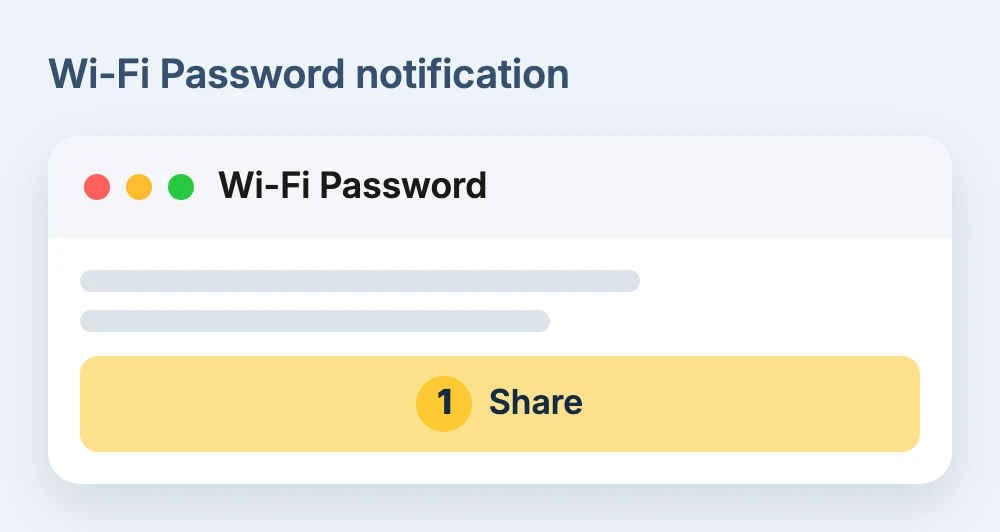
The receiver has to choose the network before your Mac can offer to share the password. Opening Wi-Fi settings without selecting a network isn't the same step. Check its exact name, especially where a guest network sits beside the main one.
Apple says the sender needs a working Wi-Fi connection and Apple Account sign-in in its Mac sharing instructions. A saved password for an old network doesn't make that network available nearby.
If your Mac itself isn't connected, join the network first. If the sharing prompt appears and the receiver joins successfully, the password and sharing feature are working; no router change is needed.
2. Check both Contacts cards and Apple Accounts
Make sure both people are signed in to their own Apple Accounts. In Contacts, add the Apple Account email they use, or the phone number linked to that account. Have them save yours on their device too.
A familiar name in Contacts isn't enough if the entry only holds an old phone number or an unrelated work address. Check that the saved email or number matches the account the other device actually uses.
For another device you own, check that your own Apple Account details are in your contacts list. That requirement is easy to miss when the recipient is your own iPad rather than someone else's phone.
After correcting the entries, have the receiving device select the network again. If the prompt appears now, the missing account detail was preventing the devices from recognizing the request.
I'd check these cards before forgetting any networks. Keeping the Mac's working connection intact lets you finish sharing or read the saved password while you troubleshoot the prompt.
3. Enable the nearby wireless connection
Turn on both Wi-Fi and Bluetooth, then bring the devices close together. If either device is using Personal Hotspot, turn it off for the password-sharing attempt.
On a Mac, those controls are available through Control Center or System Settings. On an iPhone or iPad, use the Wi-Fi and Bluetooth pages in Settings so you can confirm both are enabled.
Try the request again after making those changes. The phone should select the router's network, rather than a hotspot you're providing.
This feature sends an existing Wi-Fi password. It doesn't create a wireless network from the Mac. If the goal is to pass an Ethernet connection through the Mac, use the separate Internet Sharing controls.
That's why changing the Internet Sharing switch doesn't fix a missing Wi-Fi Password notification. The two features solve different connection problems and have different setup requirements.
4. Restart both devices and check their updates
After saving your work, choose Apple menu > Restart on the Mac. Restart the receiving device too, then reconnect the Mac and have the recipient select the network again.
The password-sharing help page recommends restarting both devices when the sharing animation doesn't appear. Check the result before resetting network settings.
Check software updates on both sides. On current Macs, open System Settings > General > Software Update. On an iPhone or iPad, use Settings > General > Software Update. Install the updates available for each model.
An update doesn't replace the contact and account requirements. After any restart requested by the installer, return to the same network and repeat the request with the devices close together.
5. Read or copy the saved password instead
The Passwords app is available from macOS Sequoia 15 onward. Open it and authenticate. Click Wi-Fi in the sidebar, select the network, and hold the pointer over the dots beside Password to reveal it. Click the dots to copy it.
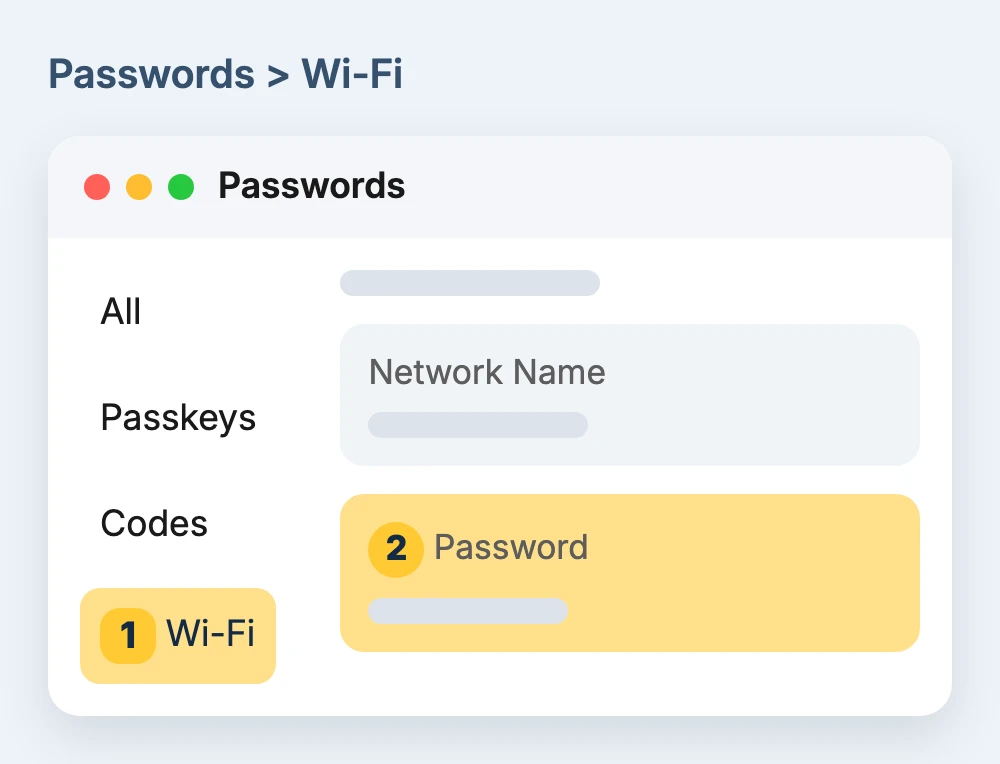
The Wi-Fi list starts with your currently connected network. Read the name before copying, because previous routers and guest networks can have similar names and different passwords.
On current versions that offer Show Network QR Code, select it in the network's Passwords entry. Let the receiving device scan the code if it supports joining Wi-Fi that way. This doesn't depend on the nearby Apple sharing notification.
On macOS Ventura 13 or Sonoma 14, use System Settings > Network > Wi-Fi > Advanced. Open More beside the saved network, then choose Copy Password. Paste it into a private note to read it for manual entry on the other device.
A connected iPhone can also provide the saved network password. If neither device remembers it, ask the router's owner for the current password.
Share the password or code only with someone who should have network access. The QR code gives access just as typing the password does; it isn't a limited-use invitation.
When a shared password still won't connect
If the receiving device rejects the password, confirm it is selecting the intended network. A password saved before the router's password changed can be outdated. Ask the network owner to confirm the current one.
A work, school, hotel, or other managed network may need an individual login, a certificate, or a web sign-in after joining. Ask its administrator for the guest access method rather than assuming it uses an ordinary shared password.
If the prompt still never appears between supported Apple devices, give Apple Support both models, software versions, and whether correcting Contacts changed anything. Meanwhile, type the password on the other device to get connected.
The Short Version
Unlock and connect the Mac, check both Contacts entries, and enable Wi-Fi and Bluetooth with Personal Hotspot off. Start the request on the receiver. Restart both devices if needed, or copy the password from Passwords instead.
Checked November 27, 2026.
 If you have any business, I can build it online