
Another device needs your Wi-Fi password, and the only thing that remembers it is your iPhone. No router label needed.
I'll show you where to read it, copy it or display a code someone can scan. Newer iPhones have the Passwords app.
Open the Wi-Fi list in Passwords
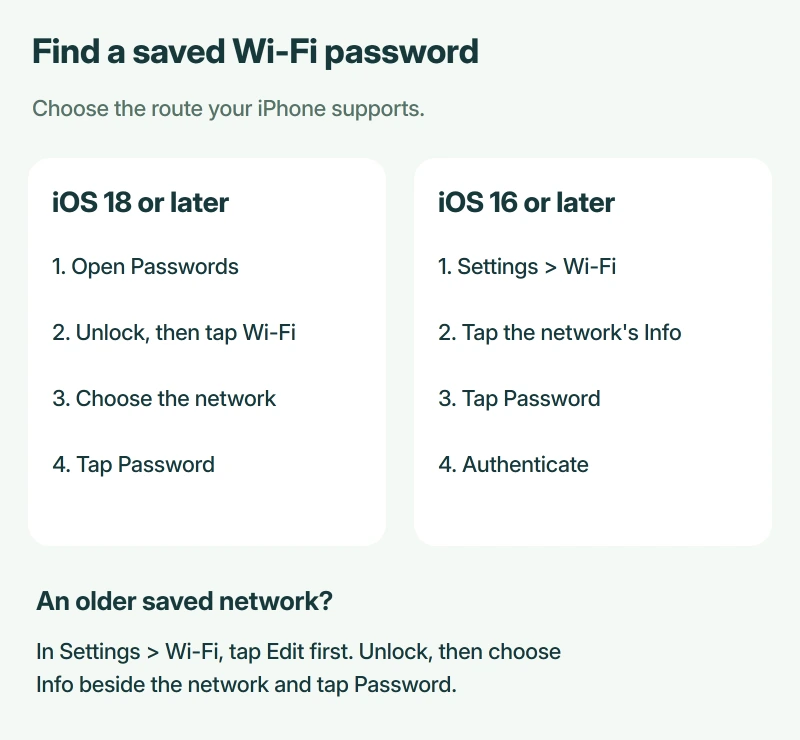
On iOS 18 or later, open Passwords, unlock it with Face ID, Touch ID or your passcode, then tap Wi-Fi. Choose the network and tap its Password field to reveal the characters.
Apple's current Wi-Fi password guide puts your connected network at the top, so start there if you're connecting another device to the Wi-Fi you're using right now.
Previously saved networks appear in the same list, so you don't have to visit that network again.
For a website login instead of a network key, open the saved account entry in Passwords and check which username it belongs to.
Status: Apple's iPhone instructions checked 17 October 2026. Passwords requires iOS 18 or later; the Settings method starts with iOS 16. No saved passwords were accessed here.
Need the characters elsewhere? Tap Copy Password. Otherwise, leave them visible while you enter them on your other device, checking each letter carefully.
I would check the network name before copying anything, because a saved entry from your old router can look very similar to the one you use today.
Copy any password you will need before resetting the iPhone's network settings, because that reset removes the saved networks along with their passwords.
Still using iOS 16 or 17? Open Settings
You can reveal the connected network's password without the Passwords app. Apple documents this method from iOS 16 onward, and it still provides a second route on newer versions:
- Open Settings > Wi-Fi.
- Tap the Info button beside your connected network.
- Tap Password, then authenticate when asked.
For a network you joined previously, tap Edit on the Wi-Fi screen first and authenticate. Tap Info beside the saved network with a lock icon, then tap Password.
Older answers saying an iPhone cannot display saved Wi-Fi passwords predate this feature. An Ask Different answer was updated when iOS 16 added it. You don't need the jailbreak methods described in that older discussion.
Let someone scan the network code
On the current iPhone software, the network's entry in Passwords also offers Show Network QR Code. Apple says a friend or family member can scan that code to join your network.
Let them scan the code. It saves typing a long password, especially when several letters look alike on a small screen and you keep having to start again.
Only share it with someone you trust. The code gives them access to your network, just as reading out the password or sending them a copy would.
When an Android phone holds the saved connection, its network-sharing screen can provide a password or scannable code.
Share directly with another Apple device
There is also a nearby sharing prompt. Keep your iPhone unlocked and connected, then have the other person select your Wi-Fi network on their iPhone, iPad or Mac.
When your phone asks, tap Share Password, followed by Done. Apple states that both devices need Wi-Fi and Bluetooth on, Personal Hotspot off, and to be close together.
Check your Contacts entries too. Each person must have the other's email address or phone number from their Apple Account saved there, with both devices signed in and running updated software.
If that prompt never appears, I would use the password or QR code you've already found. Apple's fallback is manual entry, so you can finish connecting without fixing the sharing prompt first.
The displayed password still won't connect?
Viewing the password doesn't change your router settings. If somebody changed the network's password after your phone saved it, ask them for the current one.
Our router password change guide explains why other devices need reconnecting after that change. It also separates the Wi-Fi password from the router's administrator login.
A hotel or cafe sign-in page is a different hurdle. If your phone joins the network but never shows that page, use our iPhone Wi-Fi login screen fixes.
The Short Version
Use Passwords to open your saved Wi-Fi networks on iOS 18 or later. Settings also reveals passwords from iOS 16 onward. Once you find the right entry, read it, copy it or share access with the person beside you.
Where to Next
Is the network missing entirely, or does its entry show no password? Tell me your iOS version and which screen you reached. Please keep the actual password out of your comment.

Isaac Smith is the founder and editor of PC Glance, a website that covers computers, laptops, and technology. He is a tech enthusiast and a computer geek who loves to share his insights and help his readers make smart choices when buying tech gadgets or laptops. He is always curious and updated about the latest tech trends.