
Files on a USB drive open right on your iPad. The Files app does the reading.
You don't have to move every file into the iPad's own storage before you can browse a connected drive.
I'll help you match the connection, find the drive and check why it might be missing. The right connection can save you some frustration.
Match the drive to your iPad's port
Look at the connector on your drive and the charging port on your iPad. Apple's external storage instructions support USB drives and SD card readers through compatible connectors or adapters.
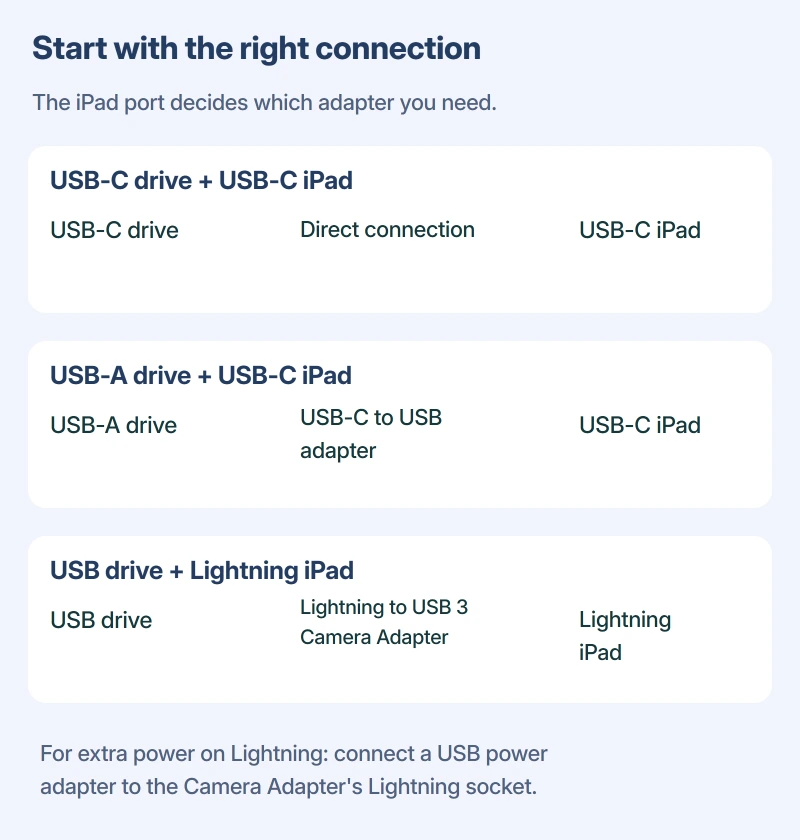
For an iPad with USB-C, a USB-C drive can connect directly. A drive with the larger USB-A plug needs a compatible USB-C to USB adapter. An external drive with a separate cable needs one that fits both ends.
Status: Apple's iPad instructions checked 17 October 2026. USB-C and Lightning use separate connections. No drive was tested, and file access doesn't guarantee movie playback.
For a Lightning iPad, Apple lists its Lightning to USB Camera Adapter and Lightning to USB 3 Camera Adapter. The USB 3 version also has a Lightning power connection, which matters for drives needing extra power.
The connector should fit without force.
A computer holding the document can copy it by cable into a compatible iPad app without an intermediate flash drive.
If you aren't sure which iPad port you have, check the model before choosing an adapter.
Give a hard drive the power it needs
A drive that works from your computer's USB port may need more power with an iPad. Power can be the missing piece.
Use the drive's own power supply if supplied. For a Lightning iPad, Apple's supported option is the Lightning to USB 3 Camera Adapter with power supplied through its Lightning socket.
Apple documents a powered USB hub for external drives on iPads supporting Thunderbolt / USB 4.
A USB-C connector alone doesn't confirm those standards, so check your iPad model's specifications before choosing a hub for a drive without its own power supply.
Apple's USB-C page lists Thunderbolt / USB 4 on iPad Pro M4 and M5, the 11-inch third generation, and 12.9-inch fifth and sixth generations.
I would check that power arrangement before changing the drive itself. That difference can be confusing.
Open the drive in Files
With the drive attached, open Files, tap Browse, then choose its name under Locations. If you can't see Locations, Apple says to tap Browse again.
The folders should now appear. Tap a folder or file to open it, rather than looking for the drive in Photos or your iPad's storage settings, which serve different jobs.
For an iPhone document headed to ChromeOS, check both ends of the file transfer before using a USB drive between them.
If tapping a file opens an unexpected app, that is a different part of Files. Our iPad Files guide covers the Open With controls and app problems.
A visible movie may still not play. The app you open it with still needs to support that file, so this connection procedure isn't a promise of playback for every video format.
The drive doesn't appear under Locations
Once you've checked its connector and power, look at the drive's format on a computer. Apple states that your drive needs a single data partition and lists these supported formats:
- APFS, including encrypted APFS.
- macOS Extended, also called HFS+.
- exFAT, also called FAT64.
- FAT32 or FAT.
NTFS isn't on that list. Neither is a drive with several data partitions, even if one of those partitions uses a listed format.
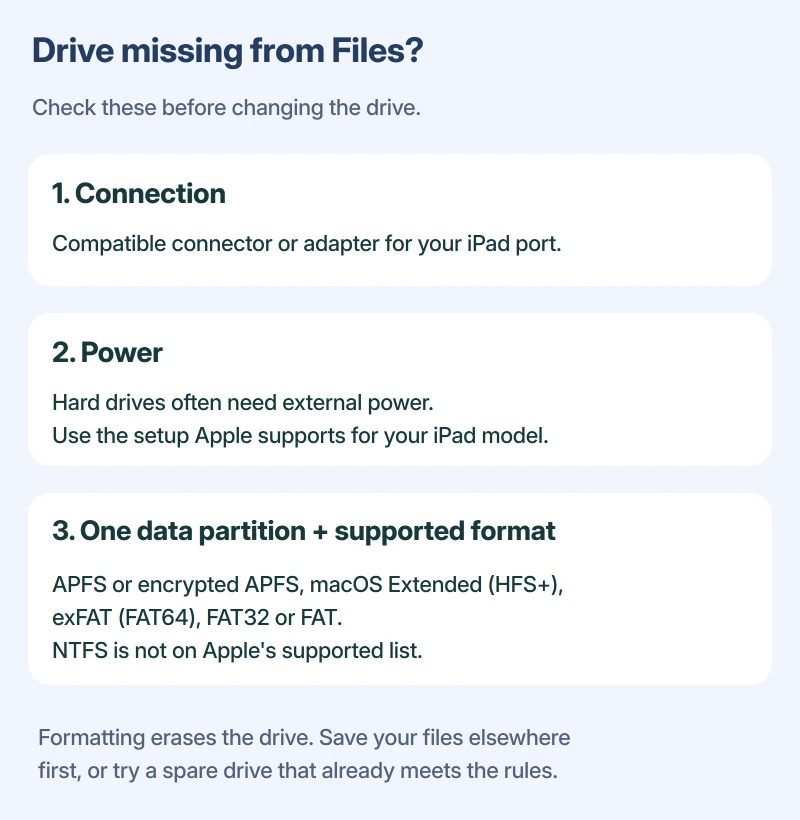
Formatting erases the drive. I would copy your files somewhere safe before changing its format, or try a spare drive that already meets Apple's requirements.
If the drive appears and images open but Preview keeps crashing, our iPad Preview troubleshooting is the closer match. Reformatting storage won't fix every app that reads it.
When you're finished with the drive
When you're done copying or saving, Apple says to remove the drive or card reader from the iPad's charging port.
If the copy was part of freeing local space, compare iPad cleanup choices before deleting apps. Offloading leaves their documents and data on the iPad.
The Short Version
Match the adapter to your iPad, give the drive enough power, then open it under Locations in Files. A missing drive also needs the supported format and single-partition checks. Keep your files safe before considering any format change.
Where to Next
Does your drive stay missing, or can you see its files but not open one? Tell me your iPad model, adapter and drive format. Those details will help separate a connection problem from an app limitation.

Isaac Smith is the founder and editor of PC Glance, a website that covers computers, laptops, and technology. He is a tech enthusiast and a computer geek who loves to share his insights and help his readers make smart choices when buying tech gadgets or laptops. He is always curious and updated about the latest tech trends.