
iPhone documents in iCloud Drive can be opened on your Chromebook through icloud.com/iclouddrive. If a file is saved only on your phone, copy it into iCloud Drive first, then download it in Chrome.
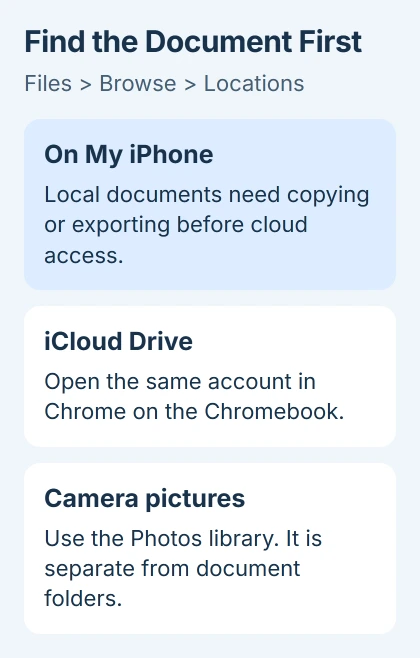
Check the location in the iPhone's Files app first. On My iPhone, iCloud Drive and Photos are different locations. A cable doesn't turn every app's private documents into a folder you can browse from ChromeOS.
Find the file's location on the iPhone
Open Files, tap Browse, then look under Locations. Tap Browse again if the location list isn't visible. Find your document and check whether it's in iCloud Drive or On My iPhone.
Apple's Files location guide lists local storage, iCloud Drive, external drives and other companies' services. A document saved only on your phone won't appear when you sign into iCloud on the Chromebook.
If the file belongs to an app and doesn't appear in Files, open that app and look for Share, Export or Save to Files. Which option you'll see depends on the app and document type.
Export in a format your Chromebook can use, such as PDF if you only need to read the document. This makes a separate file, which may not keep the original app's editing features or project history.
If the item is a picture from the camera, use Photos rather than searching every Files folder. The iCloud photo-library guide explains that separate library and its browser access.
Put a local document in iCloud Drive
Under On My iPhone, hold your file until its menu appears, then tap Copy. Open Browse > iCloud Drive, choose a folder, then hold a blank spot until Paste appears and tap it.
Copying lets you keep the local original while checking that the transfer works. The Files organization instructions list Copy and Move as separate actions.
Keep your iPhone online until the upload finishes. Large documents can take longer than a small PDF. If Files shows an upload indicator or error, wait for the upload or fix the error before checking the Chromebook.
If iCloud Drive isn't available, check Settings > your name > iCloud and its Drive settings. Use the Apple Account you'll sign into in Chrome. A folder in another cloud service won't appear in iCloud Drive automatically.
For work or school documents, use the storage service your organization allows. If the app already saves the file in a web service you can use, opening that service on the Chromebook may be easier than making another cloud copy.
Open iCloud Drive in Chrome and download the document
On your Chromebook, visit iCloud Drive in Chrome and sign into the same Apple Account. Complete any account verification request, then choose Browse or Recents to find the uploaded file.
Double-click a folder to open it. Select a file and press Space if a preview is available. The browser file-viewing instructions cover those mouse and keyboard controls.
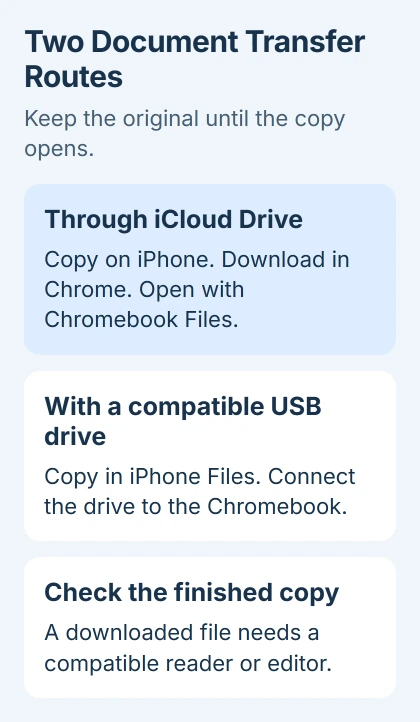
To keep a copy on your Chromebook, select the file and choose the Download control in the Drive toolbar. The file goes to Chrome's selected download location. You don't need iCloud for Windows on a Chromebook.
In ChromeOS, open Files and check My files > Downloads, unless you selected another folder. Double-click the downloaded document. You'll still need an app that supports its file type to open or edit it.
If ChromeOS reports an unknown file type, check which app created the original. Use that app to export a suitable version, or try a compatible web editor. Renaming the file's ending won't convert its contents.
Handle a web-access request without changing accounts
If iCloud reports that web access is off, open the iPhone's Settings > your name > iCloud > iCloud.com on iOS 26.4 or later. Enable Allow Data Access if you want browser access.
Earlier supported versions put the web-access switch directly in iCloud settings. With Advanced Data Protection enabled, follow the trusted-device prompt to approve temporary access after signing into the website.
The web-access settings let you approve this without turning off Advanced Data Protection. A request for permission to access cloud data doesn't mean the document has disappeared.
On a shared Chromebook, sign out of iCloud afterward and check whether a downloaded copy should remain on that computer. Signing out of the website doesn't remove files you've already downloaded into its local storage.
Use a USB drive when an online copy isn't suitable
A compatible USB flash drive can carry an exported document between the devices. Connect it using the connector or adapter your iPhone needs, then check that its name appears under Files > Browse > Locations.
Copy the document into that drive's folder. Once copying has finished, move the drive to the Chromebook and open its folder in Files. When you're done, choose Eject in ChromeOS before unplugging the drive.
Choose storage that both devices support. For this transfer, exFAT is a common option for both; an APFS drive won't work with ChromeOS. Back up the drive before changing its format.
The external-storage setup guide covers connector, power and format checks for using a drive in Apple's Files app. Check the iPhone's own storage-device requirements for your connection.
Check the copied document before deleting its source
Open the transferred file and check the pages, pictures or other contents you need. I'd check it in the app you'll actually use; seeing the filename in Downloads isn't enough.
Changes to a downloaded document stay with that copy unless you upload it again. The iCloud download guide explains this; downloading won't keep your edits synced.
If an app's file won't export, tell its developer the document type and which Share options you see. If an iCloud file appears on your phone but not online, give Apple Support its folder and upload status.
The Short Version
Find the document in Files, copy it into iCloud Drive and download it in Chrome. Photos uses a separate library. A compatible USB drive can carry offline files. Open the copy before removing the original.
Checked November 5, 2026.

Isaac Smith is the founder and editor of PC Glance, a website that covers computers, laptops, and technology. He is a tech enthusiast and a computer geek who loves to share his insights and help his readers make smart choices when buying tech gadgets or laptops. He is always curious and updated about the latest tech trends.