
Finding a Wi-Fi password on Android starts with the connected network's Share screen. Open its details in Settings, then unlock the sharing panel. Some phones display the password beside a QR code; others offer the code alone.
That code can connect another device without typing. For a laptop or accessory that needs the actual characters, check for a displayed password first, then use another authorized device or the router's settings if necessary.
Open the connected network's sharing panel
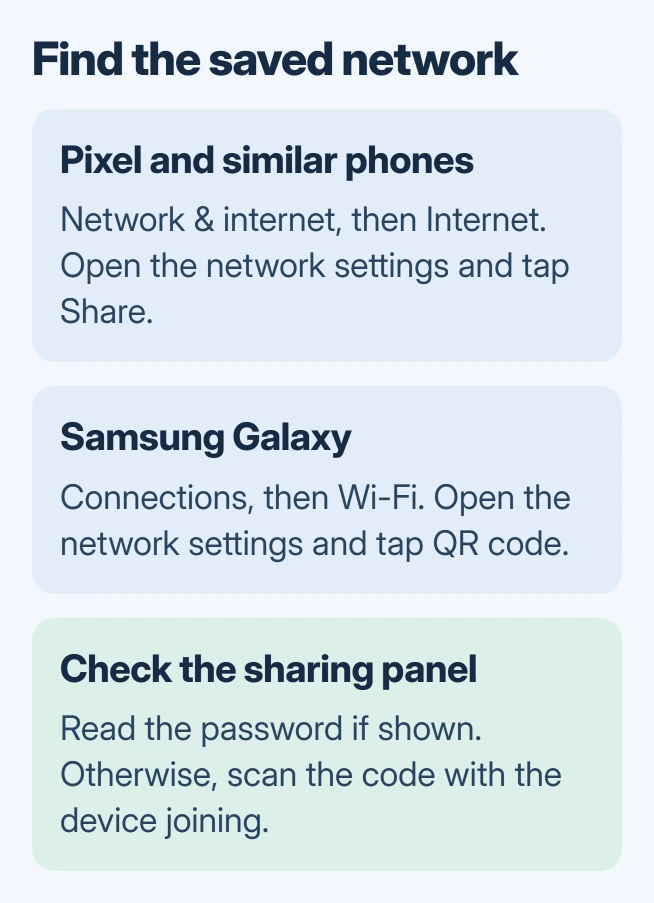
On a Pixel, open Settings > Network & internet > Internet. Find the network currently connected, tap its settings icon, then choose Share. Complete the identity check if the phone requests one.
Google documents this route in its Pixel Wi-Fi instructions. Keep the phone on the network while opening its sharing controls.
Status: Google and Samsung Wi-Fi sharing instructions reviewed November 2, 2026. Password display varies by phone; no network credentials were accessed.
Check the area around the QR code for the password. If it is displayed, copy the characters carefully, preserving capitalization. The network name identifies the connection but is not its password.
On other Android phones, Google's general Android instructions also use Network & internet > Internet, followed by the network and Share. A manufacturer's menus can use different names.
Use the Samsung Galaxy route
On a Galaxy phone, open Settings > Connections > Wi-Fi. Tap the settings icon beside the connected network, then select QR code. Let the other person's phone scan the displayed code and accept the connection prompt.
Samsung says the phone must already be connected in its network-sharing guide. Its documented procedure shares a code; it does not promise visible password text on every Galaxy.
If the panel offers a password reveal control, authenticate as requested and use it. If it only shows the network name and code, follow the next section instead of looking for a universal Show password switch.
Connect with the code when no password is displayed
Open the receiving phone's Camera or its Wi-Fi code scanner and point it at the sharing panel. Follow the network prompt. Check that the receiving device shows the intended network as connected before closing the code.
Google says the QR code lets another device join the same network. Treat a saved image of that code as network access information, and share it only with people who should connect.
A camera-free computer may still need typed credentials. A connected iPhone can reveal its saved Wi-Fi password, while a Windows PC has its own saved-network password controls.
Those are alternatives when another device already knows the network. They cannot reveal a password that was never saved there.
When the phone cannot share the network
First confirm that this is the home or guest network you intended to share. A workplace connection that uses individual accounts or certificates may not have a single reusable Wi-Fi password to reveal.
Do not choose Forget while trying to recover the only saved copy. Google states that this removes the saved network, so reconnecting can require the password being sought.
For your own router, check its label if the original Wi-Fi password is still in use. If it was changed, consult the router's management app or ask the person who manages the connection for its current credentials.
If a known password still fails, use the Android Wi-Fi connection checks. Ask the manufacturer about a missing Share control, naming the phone, Android version and network type. A factory reset will not recover the password.
The Short Version
Open the connected network's Share or QR code panel. Read the password when it is shown, or scan the code to join. Use another saved device or the network administrator when the receiving device needs text and the phone does not display it.

Isaac Smith is the founder and editor of PC Glance, a website that covers computers, laptops, and technology. He is a tech enthusiast and a computer geek who loves to share his insights and help his readers make smart choices when buying tech gadgets or laptops. He is always curious and updated about the latest tech trends.