
Reset Network Settings sits at Settings > General > Transfer or Reset iPhone > Reset. It removes the saved Wi-Fi networks and their passwords, your VPN and APN settings and the cellular settings, and leaves photos, apps and messages alone.
Copy any Wi-Fi password you cannot look up again before you tap it. Owners report that the reset can also empty those networks on an iPad or Mac that shares your Apple Account.
Apple's own list adds a few side effects, such as the phone being renamed iPhone.
Copy the Wi-Fi passwords you will need
The reset forgets the networks the iPhone has joined, passwords included, apart from any a work or school profile installed. A router's label shows only its default password, so save the rest first.
Apple documents a route from iOS 16 on: open Settings > Wi-Fi, tap Edit and unlock with Face ID, Touch ID or your passcode. Tap the small i beside a network with a lock icon, then the Password field.
Status: Apple's iOS 27 iPhone guide and its Wi-Fi and Stolen Device Protection pages, read 19 October 2026. Apple's steps throughout; no iPhone was reset here.
On iOS 18 and later the Passwords app has a Wi-Fi list with the same passwords. Our Wi-Fi password guide walks through both routes and the network QR code.
Keep the copy somewhere the reset cannot reach, on paper or in a note, because you will need it while the iPhone has forgotten the network.
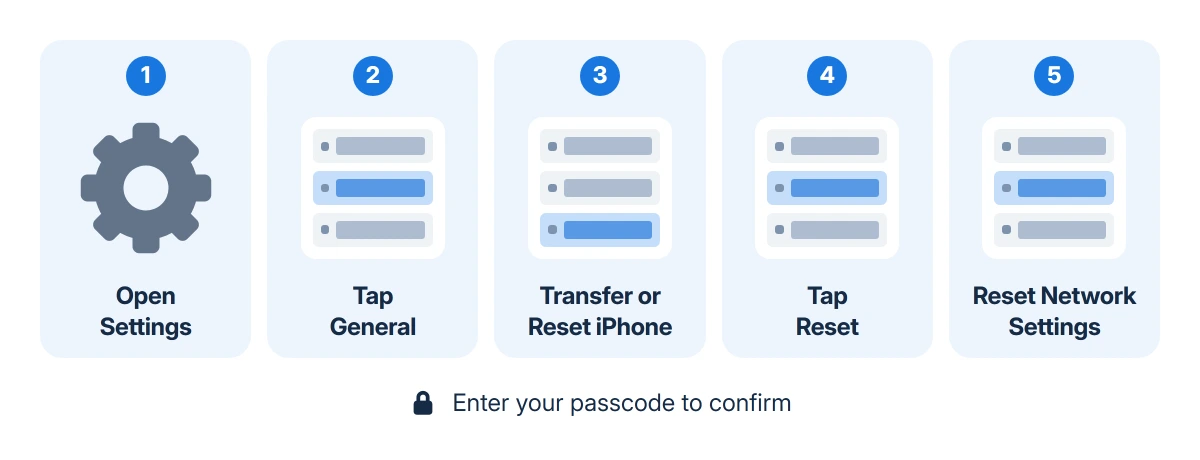
Reset Network Settings, step by step
- Open Settings and tap General.
- Scroll down and tap Transfer or Reset iPhone.
- Tap Reset, then Reset Network Settings.
- Enter your passcode and confirm.
Apple says Wi-Fi turns off and back on, which drops the network you are on. One owner on Ask Different describes the run on an iPad: the passcode prompt, a while on the Apple logo, then a restart.
Tap only that one button. Reset All Settings returns every setting to its default and Delete All eSIMs deletes your eSIMs, while Erase All Content and Settings removes all your content.
Older iOS versions kept the same button under Settings > General > Reset, the path older forum posts give.
Stolen Device Protection names Reset All Settings among the changes behind its one-hour security delay away from familiar places. Reset Network Settings is not named on Apple's list of examples.
If a school or company set up the iPhone's Wi-Fi, Apple's Wi-Fi page says to check with its IT team before resetting.
What the reset removes, and what it keeps
Apple's guide puts it in one line: "All network settings are removed". Its Wi-Fi page spells that out as every network and password, the cellular settings, and the VPN and APN settings.
Three side effects come with it, from the same guide:
- The phone is renamed "iPhone", which is what AirDrop, Personal Hotspot, Bluetooth accessories and your computer then show.
- Certificates you trusted by hand, for a work or school website for example, become untrusted.
- Cellular data roaming may switch off.
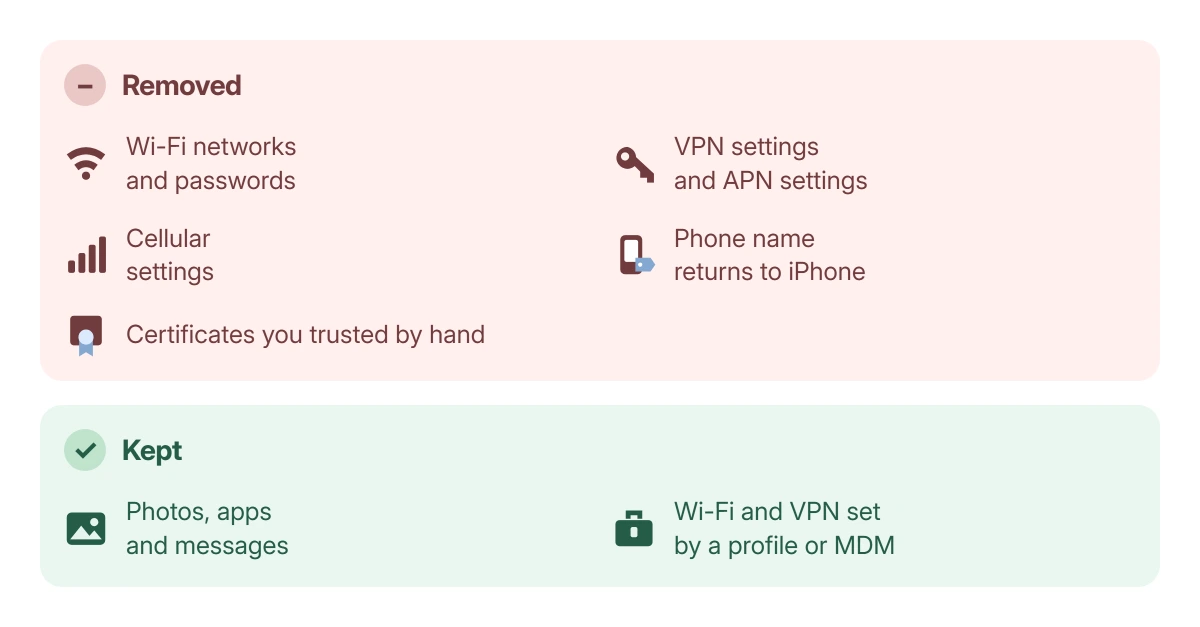
Some things survive. Wi-Fi and VPN settings installed by a configuration profile or by an organization's device management stay, and so do the Wi-Fi and Ask to Join Networks switches.
Apple gives eSIMs a separate Delete All eSIMs button and does not list them among what this reset removes.
Apple's list does not mention Bluetooth either. If headphones or the car stop connecting afterwards, pair them again in Settings > Bluetooth.
Your iPad and Mac can lose the networks too
Apple says iCloud Keychain keeps your passwords updated across your devices, Wi-Fi passwords among them. Apple does not say the reset follows them there, but owners report that it can.
It goes both ways. On Ask Different two Mac owners found the passwords gone from their Mac's keychain after an iPhone reset, and on MacRumors an iPad lost its home network every time its owner reset the iPhone at work.
Another asker on MacRumors found their other devices kept every password, so it can go either way.
The workaround passed around is to switch iCloud Keychain off first: Settings > [your name] > iCloud > Passwords, then turn off Sync this iPhone, reset, and turn it back on.
An answer on Ask Different, quoting a comment from an older question, says the networks then sync back unharmed.
Two MacRumors owners, in 2018 and in May 2024, found it failed for them, while a 2018 owner who tried it kept everything without being sure the switch was why. That is why the copied passwords come first.
If a Mac did lose them, one owner on Ask Different got the passwords back by pulling the keychain out of a Time Machine backup and importing it again. Another could not restore them from older backups.
Set things back up afterwards
- Rejoin each network in Settings > Wi-Fi with the password you copied.
- Give the phone its name back in Settings > General > About > Name.
- Re-trust a work certificate in Settings > General > About > Certificate Trust Settings.
- Before a trip, check Data Roaming in Settings > Cellular > Cellular Data Options; with two lines, tap the number first.
- Set up again any VPN you added yourself, since Apple lists those settings among what the reset removes.
One adviser on MacRumors adds that the reset turns cellular data back on for apps you had blocked from it. Scroll through the app list in Settings > Cellular if you had limited any.
When the reset does not fix it
If the iPhone now joins Wi-Fi but still shows no internet, Apple points to the internet provider; try the network on another device to confirm. If the iPhone cannot join any Wi-Fi network anywhere, Apple's advice is to contact Apple.
For Wi-Fi trouble that began with an update, our iOS 26 Wi-Fi fixes cover the privacy toggles and a manual IP address. No Service or SOS has its own checks, a carrier settings update in Settings > General > About among them.
The reset does not unlock a carrier-locked iPhone either. For a locked phone, one answer on Ask Different says "This won't do anything", and the accepted answer sends the asker to the carrier.
For cellular faults the No Service and SOS guide goes further, and Apple's reset guide lists every reset option.
When nothing helps, book Apple Support or a Genius Bar visit and mention that the network reset is already done.
The Short Version
- Copy the Wi-Fi passwords you need first, from Settings > Wi-Fi > Edit or the Passwords app.
- Go to Settings > General > Transfer or Reset iPhone > Reset > Reset Network Settings and enter your passcode.
- It clears networks, passwords, VPN, APN and cellular settings, renames the phone iPhone and untrusts hand-trusted certificates.
- Other devices on your Apple Account can lose the same networks through iCloud Keychain.
- Afterwards, rejoin Wi-Fi, rename the phone and check data roaming.
Where to Next
Which radio sent you here, Wi-Fi, cellular or Bluetooth, and did the fault return after the reset? Put that and the iOS release in a comment; a fault that survives the reset narrows the cause to the network, the carrier or the phone.

Isaac Smith is the founder and editor of PC Glance, a website that covers computers, laptops, and technology. He is a tech enthusiast and a computer geek who loves to share his insights and help his readers make smart choices when buying tech gadgets or laptops. He is always curious and updated about the latest tech trends.