
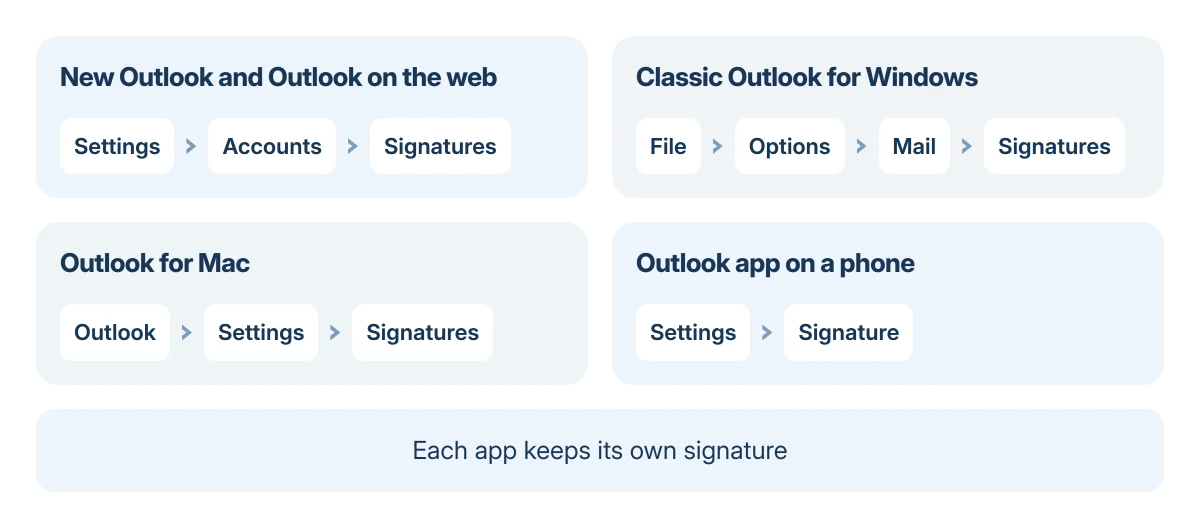
Outlook keeps a separate signature in each of its apps. New Outlook for Windows and Outlook on the web use Settings > Accounts > Signatures, classic Outlook uses File > Options > Mail, and the Mac and phone apps have their own.
So the first job is knowing which Outlook you are in. Change the signature there, set it as the default for new messages and replies, and repeat in every other Outlook you send from.
Check which Outlook you have
New Outlook for Windows has a Settings gear at the top right and no File menu. Classic Outlook has a File tab at the far left of the ribbon. Outlook on the web runs in a browser at outlook.com or outlook.office.com.
If you are not sure, the which Outlook guide shows how to tell them apart, since search and signatures both differ between them.
Status: Microsoft's signature pages for new, classic, web and Mac Outlook, and its roaming signature page, read 18 October 2026. Phone app steps come from owners; no account was changed here.
Change it in new Outlook or Outlook on the web
- Select Settings (the gear) at the top right.
- Select Accounts > Signatures.
- With more than one account, pick the account first.
- Select the Edit signature button next to the signature, make your changes, and Save.
To make a fresh one instead, select Add signature, give it a name, type and format it, then use the checkboxes under the box to add it to new messages, to replies and forwards, or both.
Microsoft says new Outlook and the web versions follow one set of steps. Its signature help page adds one catch for personal Microsoft accounts: the desktop app and the web version each need the signature created.
To insert one by hand while writing, select Signature in the Insert group on the Message tab and choose the one you want.
Change it in classic Outlook for Windows
- Select File > Options > Mail, then Signatures.
- Pick the signature under Select signature to edit.
- Change it in the Edit signature box, then select Save and OK.
On the right, under Choose default signature, pick the E-mail account, then the signature for New messages and for Replies/forwards. Each account can have its own pair, and (none) leaves that kind of message without one.
Classic Outlook does not add a new signature to the message that is already open, even when it is set as the default. Microsoft says you add it to that one message by hand; every message after it gets the signature on its own.
For logos, use the Image button in the editor rather than pasting. Microsoft warns that VML markup in a signature can turn pictures into attachments.
Change it in Outlook for Mac
- On the Outlook menu, select Settings.
- Under Mail, select Signatures.
- Under Signature name, select the signature, then Edit.
- Make your changes and close the Signatures window.
Defaults are set per account in the same window, under Set default signature, with separate choices for new messages and for replies or forwards. Legacy Outlook for Mac puts the same option under Email instead of Mail.
Microsoft states that support for legacy Outlook for Mac ends in October 2026, so recreate any signature that only exists in the legacy app in the new one now.
Change it in the Outlook app on a phone
The Outlook app for iPhone and Android keeps its own signature, separate from every desktop version. Open the app's Settings, tap Signature, and edit the text, then pick the account if the app asks.
The default text there is Get Outlook for iOS or Android. Replace it, or the app keeps adding that line to every message.
Images are the weak spot. Owners report that a picture pasted into the mobile signature turns into a box with an X once the editor closes.
One owner's fix, confirmed by two more, was to screenshot the logo, crop it, and add it with the editor's own insert option.
If the app itself keeps closing while you edit, the Outlook on iPhone crash guide starts with the app update.
When the signature does not show up
Check the defaults first. New messages and replies are separate settings in every version, so a signature that appears on new mail but not on replies is usually set for new mail only.
Next, check the account. Roaming signatures, which arrived in classic Outlook build 2303, store the signature in the mailbox so it follows you between computers. Microsoft says they work for Microsoft 365 and Outlook.com mailboxes only.
POP, IMAP, Gmail and on-premises Exchange accounts keep the signature on the computer where you made it. Classic Outlook shows local ones under Signatures on this device.
Work and school accounts can also have a signature added by the organization's mail server after you send. That one cannot be changed from Outlook; ask the IT administrator.
Signature in the wrong place on Mac replies
New Outlook for Mac users have reported replies with the signature placed under the quoted message instead of over it. A Microsoft Q&A volunteer called it a known bug with no fix yet in September 2026.
The workaround one owner found was to set the attribution line for replies to None under Outlook > Settings > Composing. By that owner's account, any attribution line pulled the signature down, even a signature added by hand.
The Short Version
Find out which Outlook you use, then change the signature there: Settings > Accounts > Signatures in new Outlook and on the web, File > Options > Mail > Signatures in classic Outlook, Outlook > Settings > Signatures on a Mac.
Where to Next
Tell me which Outlook you use and what goes wrong with the signature, such as the wrong place, missing images or no signature on replies, in a comment. Those three faults have different fixes.

Isaac Smith is the founder and editor of PC Glance, a website that covers computers, laptops, and technology. He is a tech enthusiast and a computer geek who loves to share his insights and help his readers make smart choices when buying tech gadgets or laptops. He is always curious and updated about the latest tech trends.