
Create Outlook email templates through the app's own controls. In new Outlook, a qualifying account can save a full draft through Message > Mail template > Save email as template. In classic Outlook, use File > Save As > Outlook Template.
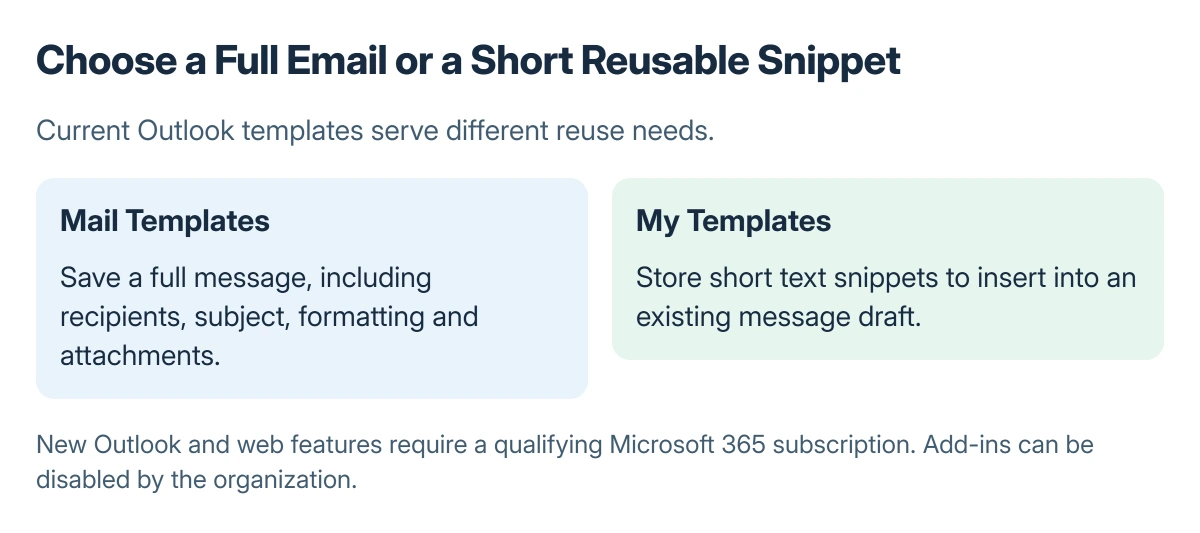
A full mail template and the My Templates add-in serve different purposes. The former can save a complete message; the latter stores short reusable text snippets.
Choose a full message or a text snippet
Microsoft says Mail Templates saves recipients, subject, body, formatting and attachments. My Templates stores short text for insertion into another draft, as its current template creation guide explains.
For a new Outlook or web account, check eligibility first. Microsoft states that Mail Templates and My Templates require a qualifying Microsoft 365 subscription in those apps. An organization can also disable add-ins.
Status: Microsoft's current new, classic and web template features checked 23 October 2026. No draft, attachment or recipient list was saved.
Keep a template's content generic enough to review safely each time. A saved address or attachment can be just as outdated as a saved sentence.
Save a full mail template in new Outlook
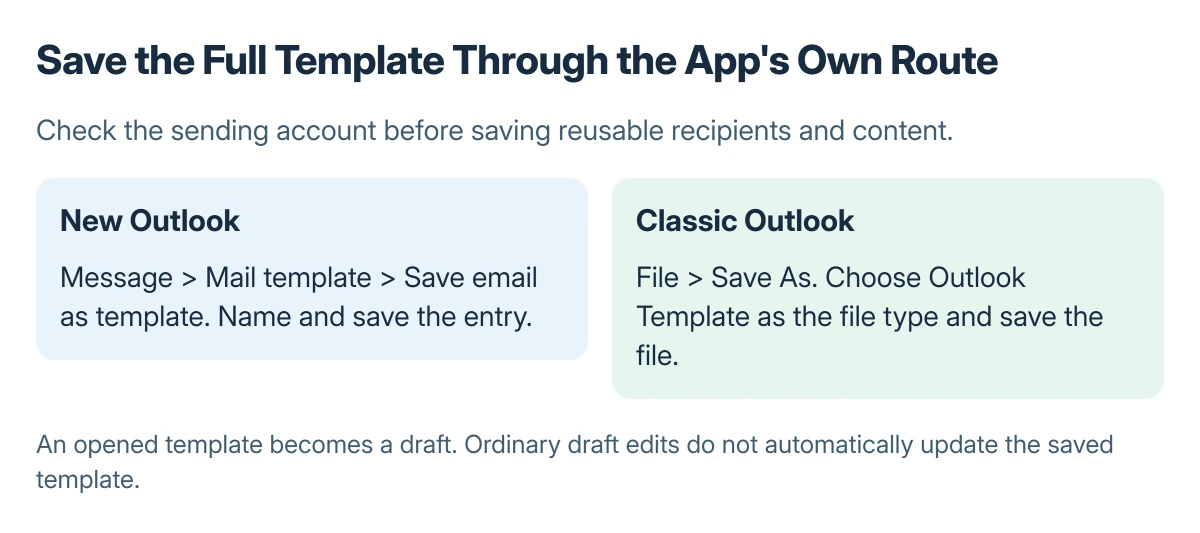
Create a draft through Home > New > Mail. Add the content that belongs in the reusable message. From Message, choose Mail template > Save email as template, enter a name and select Save.
Find saved entries through Settings > Mail > Templates. Microsoft documents that these templates belong to the account used to compose the draft and can also be accessed from that account in Outlook on the web.
For reuse, choose Home > New > Mail from template, then select the saved entry. The template sending instructions explain that it opens as a draft for review.
Use a template file in classic Outlook
Open New Email, compose the reusable content, then choose File > Save As. Set Save as type to Outlook Template, name the file and save it.
For reuse, select New Items > More Items > Choose Form. In Look In, choose User Templates in File System, select the template and choose Open. Browse to its folder if it was saved elsewhere.
For snippets instead, new Outlook uses Message > My Templates. Classic Outlook's add-in route uses Message > View Templates. Create a named entry through +Template and save the text.
Inspect recipients and update the template deliberately
Before sending a reused draft, inspect To, Cc, Bcc, subject, body and attachments. The Bcc visibility guide covers hidden-recipient behavior. Review the membership of any saved recipient collection as well.
Changes to the opened message do not automatically update its stored template. Microsoft says ordinary Save creates a draft; use the template creation steps again when the reusable version itself needs replacing.
The Short Version
Choose full Mail Templates or short My Templates snippets. Save through the controls for new or classic Outlook, then review every reused draft. Check account eligibility and add-in availability if a command is missing.
Where to Next
An administrator checking missing template controls needs the Outlook version, sending account and command name. A template saved under one account should not be assumed to belong to a different mailbox.

Isaac Smith is the founder and editor of PC Glance, a website that covers computers, laptops, and technology. He is a tech enthusiast and a computer geek who loves to share his insights and help his readers make smart choices when buying tech gadgets or laptops. He is always curious and updated about the latest tech trends.