
The iPhone's Unable to Load Video message means Photos couldn't open the version it needs to play. With iCloud Photos and optimized storage, start by checking your connection and Photos' sync status so the full video can download.
If iCloud Photos is off, don't assume the same cause. Compare another saved video and a new camera recording, then check available storage and restart before making changes to the library.
1. Compare the failing clip with another video
Open Photos and try a second video that played recently. Then record a short clip with Camera and play that recording. This helps you tell whether one saved item fails or the phone is struggling with video playback more generally.
Check whether the message mentions loading a higher-quality version. A visible thumbnail doesn't mean the full video is available locally: an optimized library can keep smaller versions while storing originals in iCloud.
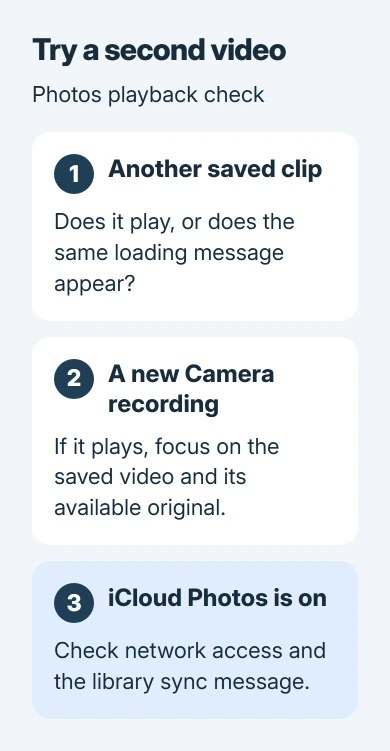
Apple's iCloud Photos explanation describes full-resolution originals and optimized device storage. The cloud connection matters when optimization is on, but a damaged or missing video can have another cause.
Open Settings > your name > iCloud > Photos and check Sync this iPhone to see whether you're using iCloud Photos. Look at the storage choice there without switching sync off.
If the failure is limited to YouTube, a browser player or another streaming app, use that app's connection and playback checks instead. This guide is for videos in Photos and the higher-quality-version loading message.
2. Restore the connection and follow the sync message
Connect to a reliable Wi-Fi network and reopen the same clip. If other internet apps also fail, fix that connection first. A strong Wi-Fi icon doesn't mean the network can reach iCloud.
Open Photos > Collections, then tap your profile button to view library status on iOS 26 or later. On iOS 18, tap the profile button in Photos; on iOS 17 or earlier, check the bottom of Library > All Photos.
Read the status instead of repeatedly tapping Play. The paused-sync instructions cover Low Data Mode, Low Power Mode, a poor connection, a low battery and a phone that needs to cool down.
Follow the reason shown. Charge a low battery, let an overheated phone cool, or use Sync Now if Photos offers it for the current pause. A large library can need an overnight connection to finish syncing.
If several iCloud services fail together, mention that when contacting support. For a wider service problem, wait for the service to recover instead of repeatedly changing your phone's library settings.
Don't turn iCloud Photos off as a loading test. That restarts the syncing process and can make it harder to judge whether the current download was making progress.
3. Make room for the original video
Open Settings > General > iPhone Storage. Let the usage chart finish loading, then review the recommendations. Even an optimized library needs enough free space to download and play the full video.
Review an unused app or a downloaded movie you can replace, rather than deleting the video you're trying to rescue. The iPhone storage categories distinguish apps, media and other stored content.
Offload App removes the app itself; its documents and saved data remain on the iPhone. Delete App erases those as well. Read the button label before clearing space so you don't lose data you still need.
Check iCloud storage separately under Settings > your name > iCloud. A full iCloud account can pause syncing; freeing local iPhone storage doesn't expand your cloud allowance. The status message tells you which limit needs attention.
I'd remove downloads you can replace before touching the photo library. With iCloud Photos on, deleting a clip also deletes it from iCloud and other synced devices. It isn't just a temporary file on this phone.
4. Download originals when enough space is available
For a library you want stored locally, open Settings > your name > iCloud > Photos. In iOS 27, open iPhone Storage there, then select Download and Keep Originals. In earlier versions, look for that choice directly in the Photos settings.
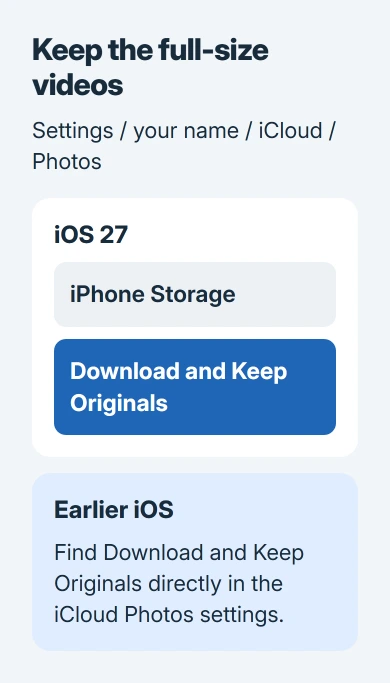
The original-download procedure starts with that setting before you export full-quality media. It can download originals for the whole library, so check your collection's size against your free space first.
Keep Wi-Fi connected and your iPhone charging while the originals download, then retry the clip. This asks the phone to keep originals locally; it can't repair an original file that's missing or unreadable.
For a separate copy of selected media, use Photos > Select, choose the item, open Share, then choose Export Unmodified Originals. Select a destination in Files and save. The download guide describes this route.
If the same item won't export, tell support. The problem affects getting the original file as well as using the Play control in Photos.
5. Restart Photos and update the phone
Open the app switcher: on a Face ID iPhone, swipe from the bottom edge toward the middle and pause. With a Home button, double-click Home instead. Swipe Photos' preview away, then open Photos again.
Restart the iPhone, then retry both clips. On a newer iPhone, the power slider opens by holding Side and one volume button together. Home-button phones use the side or top Power button, depending on the model.
Check Settings > General > Software Update for an available iOS update. The app troubleshooting steps include reopening, restarting and updating. Keep the library in place while checking those software fixes.
If a recent deletion or missing library item is involved, the iCloud deletion recovery steps are more relevant than repeated playback attempts. Check recovery while the item may still be available.
6. Protect the remaining copy and contact support
If the full clip plays on another device, export a separate copy from there before changing more settings. Play the exported file to check the copy. A thumbnail can still appear when the original won't play.
An owner on Ask Different said a network reset cleared the error but the affected media disappeared. I'd avoid that as an early fix when you're trying to save those clips.
The network-reset explanation covers what that setting normally changes. Before trying it for missing media, tell Apple Support about the loading warning, sync status and failed export.
The Short Version
Compare another clip and check iCloud Photos status. Free space on the phone, download originals when suitable, then restart and update. Protect a working copy before broader resets, and report clips that still won't play or export.
Checked November 5, 2026.

Isaac Smith is the founder and editor of PC Glance, a website that covers computers, laptops, and technology. He is a tech enthusiast and a computer geek who loves to share his insights and help his readers make smart choices when buying tech gadgets or laptops. He is always curious and updated about the latest tech trends.