
You open Sharing on your Mac to pass its connection to another device, and Internet Sharing or its options sit dimmed. Clicking them does nothing.
I would check the order first, because Apple swapped it between Ventura and Sonoma. Then the port, then whether your network or your employer allows sharing at all.
Four Ask Different threads hold 31,301, 25,459, 10,530 and 3,626 views.
What each dimmed part means
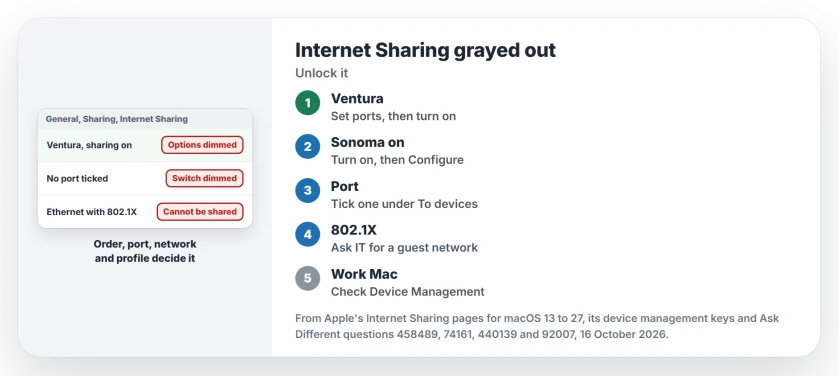
Owners and Apple's own pages point to four causes:
- The options lock while sharing is on, as a 2023 answer found on Ventura.
- The switch stays dimmed until a port is ticked under To devices using.
- The connection uses 802.1X, which macOS will not share.
- A work profile has locked the setting.
Ours: none. Sharing could not be tested here without a Mac, so the fixes are Apple's and owners'.
Status: checked 16 October 2026 against Apple's Internet Sharing steps for macOS 13, 14, 15, 26 and 27, Apple's device management keys and five Ask Different questions.
On Ventura: off, set it up, then on
The 2023 asker on macOS 13.3.1 wrote: "I have toggled Internet sharing on, but I'm unable to activate its sharing options".
The accepted answer names the cause in one line: "You can't change the options if Sharing is on".
So turn Internet Sharing off. Click the Info button beside it, pick the connection to share and the port to share it on, set Wi-Fi Options, then turn it back on.
That matches Apple's Ventura steps, where switching Internet Sharing on comes last, after Done. To change anything later, the answer says you "will have to disable Internet Sharing" first.
From Sonoma on, the switch comes first
Apple's steps flipped in macOS 14. There you turn Internet Sharing on, confirm with Turn On, and then click the Info button.
From macOS 15 the page reads: "Turn on Internet Sharing, then click Configure". Its macOS 26 and 27 versions say the same.
I would follow the order for your version. If the boxes stay dimmed, try the other order once; it takes ten seconds.
Tick a port under To devices using
With no port picked, older macOS said so outright: "You cannot start Internet Sharing because you have not selected a port to share your connection".
A 2022 answer explains that the switch wakes up "As soon as you select a port to share on". You also cannot share to the port you share from; macOS drops that one from the list.
Apple describes this step as turning on "the port other devices can use to access the shared internet connection". Ventura calls the list To computers using.
So to pass Ethernet over Wi-Fi, choose Ethernet in the top menu and tick Wi-Fi underneath. Swap them and the share runs backwards.
Apple also warns about sharing out through the same kind of port you connect with, such as Ethernet to Ethernet. On a cable modem, it can upset other customers' network settings.
Protected by 802.1X? macOS will not share it
Office networks often sign you in with 802.1X. One asker on Ethernet got this refusal: "Your Internet connection cannot be shared because its protected by 802.1X".
That block is by design. The answers point to the IT team or a phone hotspot, and one from 2014 linked a firewall workaround its author had not tested.
I would not try to get around it on an employer's network. Ask for a guest network instead.
Using your iPhone's connection instead? A dimmed Personal Hotspot switch has its own causes on the phone side.
A work Mac can lock the setting
Apple gives organizations a switch for this. With its device management key allowInternetSharingModification set to false, which works from macOS 14, "the system prevents modifying the Internet Sharing setting in System Settings".
To see whether a profile applies, open System Settings, General, Device Management. Apple says you can double-click a profile there to see what it holds.
An owner of a work laptop on Ventura 13.6.2 found the setting suddenly dimmed after it had worked fine. The question got no answer.
The 2012 asker found their company's system image had disabled sharing through an older management method; removing it brought sharing back.
On a company Mac, that is IT's call. When you finish sharing, turn it off again: wireless Sidecar refuses to connect while it is on.
The Short Version
- On Ventura, the options lock while Internet Sharing is on: switch it off, set them, switch it on.
- From Sonoma on, Apple's order is reversed: turn it on, then Configure, or the Info button on macOS 14.
- The switch needs a port ticked under To devices using, and it cannot be the port you share from.
- A connection protected by 802.1X cannot be shared; owners report the only way out is IT or another connection.
- On a work Mac, look in General, Device Management; a profile can lock the setting.
Where to Next
Tell me your macOS version and which part was dimmed for you. I am collecting whether Sonoma and later still lock the options while sharing is on.

Isaac Smith is the founder and editor of PC Glance, a website that covers computers, laptops, and technology. He is a tech enthusiast and a computer geek who loves to share his insights and help his readers make smart choices when buying tech gadgets or laptops. He is always curious and updated about the latest tech trends.