
You plug your Mac into a monitor, press play, and the video tears through in fast-forward. One owner watched a 24-minute video end in under five seconds, sometimes with no sound at all.
I would switch the sound away from the monitor first. For owners, that fixed the speed straight away, with no restart.
On Ask Different, the two questions on this race have 64,226 and 18,867 views.
Why the picture races
The asker behind the bigger question saw it in Chrome, Safari and local files, on two MacBooks with one LG monitor. In their words, "it looks like videos are basically stuck in fast-forward".
Unplugging the monitor fixed it on the spot. It ran over HDMI through a USB-C hub.
So the browser is not to blame. The fixes owners found point at the sound.
My reading, not Apple's: players time each frame against the audio. When the audio side stops keeping real time, nothing holds the pictures back.
Ours: none. Without a Mac on this desk, I could not reproduce the race, so each step names its source.
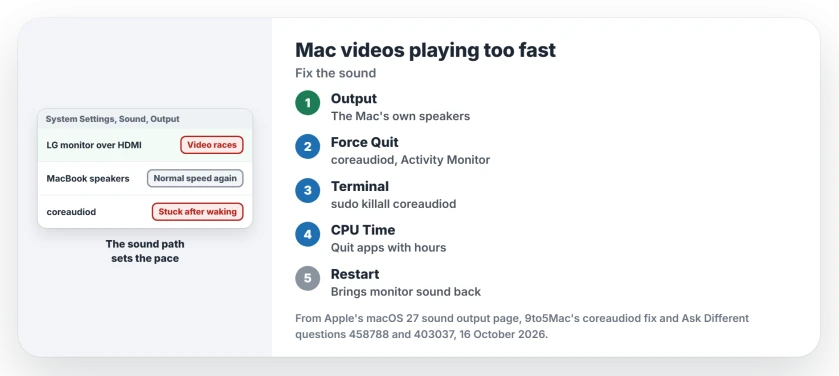
Status: written 16 October 2026 from two Ask Different questions with 83,093 views, Apple's macOS 27 sound output page and 9to5Mac's coreaudiod fix.
1. Send the sound to your Mac's speakers
Open System Settings, click Sound, then Output, and choose your Mac's own speakers; Apple's sound output page treats the display's speakers as one choice among several.
An owner with LG monitors put it plainly: "I went into audio settings and set it back to using the in-built speakers and not sending audio out the DisplayPort, and it worked."
They added "No reboot required". A second owner replied that changing the setting worked for them too.
There is a cost. One reader pointed out that you lose sound through the monitor, which was the point of some setups.
2. Force quit coreaudiod
coreaudiod is the service behind your Mac's sound. Quit it and macOS starts a fresh one.
9to5Mac's video team met the bug "after waking and unlocking my Mac after an absence". Their fix: open Activity Monitor, find coreaudiod on the CPU tab, click the X button and choose Force Quit.
The Big Sur question's accepted answer gives the Terminal way:
sudo killall coreaudiodType your password when asked. Any playing sound stops for a moment.
It is no sure thing. The asker of the LG question had already tried it "without success"; owners after them fixed it with the sound switch.
3. Look for an app with hours of CPU time
One reader found no coreaudiod in Activity Monitor at all. They looked at the CPU Time column instead.
Microsoft Remote Desktop, or another app, showed many hours there. They quit it, Discord and one other app, and playback went back to normal at once. They never learned which one did it.
4. Restart the Mac
A restart cleared it for several owners. One with an LG 35WN75CP-B wrote that "just completely restarting my Mac seemed to work".
Another, on macOS 14.5 with the monitor on Thunderbolt, had sound through the monitor working again after a reboot. 9to5Mac adds that a restart works too, just slower than quitting the audio service.
I would still try the sound switch first; it is quick, and your work stays open.
Want sound through the monitor again?
Restart with the monitor connected, then check that it is picked under Sound, Output. A reboot alone brought monitor audio back for the Thunderbolt owner.
One owner's 4K Samsung has no speakers of its own and feeds external ones from its headphone port. A restart fixed theirs as well.
If the racing returns with the monitor picked, keep the sound on the Mac, where speakers or headphones plugged straight in skip the display path entirely.
The same monitor can cause other trouble. A screen the Mac will not detect at all has its own page, and so does fuzzy text on a new monitor.
Only one site racing?
Check that site's speed menu first. Both questions here hit several apps at once, which is what points at the sound.
The Short Version
- Videos racing on an external monitor point at the sound path, not the browser.
- Switch Sound output to your Mac's speakers; owners report it fixes the speed with no restart.
- Or force quit coreaudiod in Activity Monitor, or run sudo killall coreaudiod.
- No coreaudiod there? Look for an app with hours of CPU time.
- A restart clears it too, and can bring monitor sound back.
Where to Next
Which monitor and hub were you using when the videos raced? Tell me in a comment, because I am tracking which models keep turning up.

Isaac Smith is the founder and editor of PC Glance, a website that covers computers, laptops, and technology. He is a tech enthusiast and a computer geek who loves to share his insights and help his readers make smart choices when buying tech gadgets or laptops. He is always curious and updated about the latest tech trends.