
You plug the drive in. You hear the sound. File Explorer shows you nothing. That gap between the machine clearly noticing something and refusing to show it is the whole problem.
It usually means Windows can see your drive perfectly well and has not given it a letter. One window tells you which of those you have, so I will start you there.
Before anything else, one warning, because it is the difference between an inconvenience and losing everything.
Do not initialize, format or create a new volume on a drive that has your files on it. Several guides send you straight there. Read the section near the end before you touch any of those.
Open Disk Management and look
Right-click the Start button and choose Disk Management. Or search for it, and open it with administrator permissions.
Documented by Microsoft in its drive letter guide, which notes the account must be "a member of the Backup Operators or Administrators group".
Now find your drive in the list at the bottom. What it says there decides everything that follows.
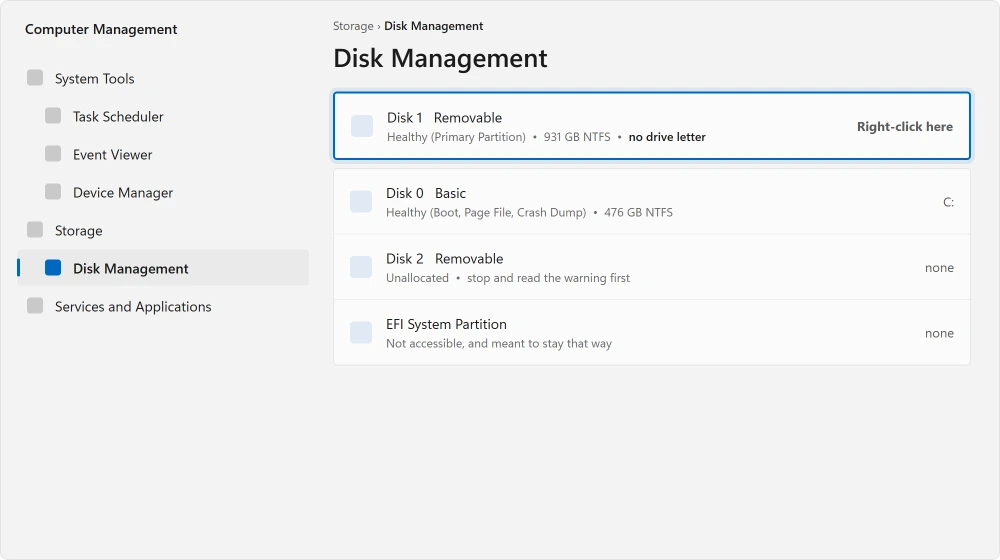
A healthy volume with no letter means Windows can read the drive and simply has not given it a name. That is the easy case and the next section fixes it.
Unallocated, in black means Windows can see the disk but not a usable partition on it. Treat that as serious rather than as a step to click through.
Absent from the list entirely means the hardware is invisible to Windows, and the last two sections are yours.
A drive that shows up but will not take new files is a different fault, and antivirus drive protection was one owner's cause.
A disk marked Offline after you cloned it is another case. Windows has found two disks with one ID and needs one of them changed.
The easy case: give it a letter
If your drive shows a healthy volume with no letter beside it, this takes twenty seconds.
Documented by Microsoft: right-click the volume and select Change Drive Letter and Paths. Then, "to add a drive letter for a new drive, select Add".
Then choose Assign the following drive letter, pick a letter from the dropdown, and select OK. Confirm with Yes.
Your drive appears in File Explorer immediately.
This happens more often than you would expect, usually when a letter your drive used to have is now taken by something else, such as a mapped network drive.
Ours: what a missing letter looks like here
Ours, and this is what the disk here actually looks like. I counted on 25 August 2026: one physical disk, 6 partitions, and 4 of them over 100 MB have no drive letter at all. Exactly one volume shows a letter.
Those four are partitions Windows hides on purpose, so nothing is wrong with them. But they show the mechanism. Look at your own disk with one line, which changes nothing:
Get-Partition | Where-Object { -not $_.DriveLetter -and $_.Size -gt 100MB }Every partition it lists is present and healthy, yet File Explorer cannot show it. Your external drive can end up in exactly that state.
When that option is grayed out
Microsoft explains this precisely, and that explanation earns its place on the page.
Documented by Microsoft: "If the Change Drive Letter and Paths option is missing for the volume you want to manage, or the option isn't available (grayed), then the volume isn't ready to receive an assigned drive letter."
It gives three reasons, and they send you in very different directions.
The drive is unallocated and needs initializing. Read the warning section before acting on this one.
The drive is not accessible, which Microsoft says is the case for EFI System partitions and Recovery partitions. Those are meant to be hidden, and you should leave them alone.
You have insufficient permissions. Close Disk Management and reopen it as administrator.
Before you change a letter that already exists
In Microsoft's words: "If you change the drive letter of a drive that contains Windows or apps, the apps might have trouble running or finding the drive."
So add a letter to the new drive rather than moving one that already works. Pick a letter well down the alphabet, something like S or T, so the next thing you plug in does not collide with it.
The warning about initializing
The advice to initialize is everywhere and the consequence is never stated, which is why this section exists at all.
Initializing a disk sets up a fresh, empty partition table. Anything already on your drive becomes inaccessible.
Now think about why your drive might be showing as unallocated. A genuinely new drive out of its box has never been set up, and initializing is exactly right.
But a drive that worked yesterday and now reads as unallocated has usually lost its partition table rather than its data, and the files are very often still physically there.
Ours, and marked as ours: initialize a drive you know is new. On a drive with anything you care about, stop. Data recovery from a drive with a damaged partition table is often straightforward for somebody with the right software.
Data recovery after you have initialized it is a much harder and more expensive job.
Not sure which of those you have? The uncertainty is your answer. Leave it alone.
When the drive is absent from the list
The hardware is invisible to Windows, so no setting will conjure it up.
Try a different USB port, and pick one built into the machine rather than a hub, a dock or a monitor. Front panel ports on desktops are a common weak point.
Then try a different cable. On portable drives your cable is the commonest failure by a distance, and they fail intermittently rather than cleanly.
Then listen to it. A drive that spins up and clicks repeatedly has failed mechanically, and every further power-on makes recovery harder. A drive that stays silent may simply not be getting enough power.
The opposite fault, a drive that keeps spinning once the PC is off, means the port is still live, and the page on drives spinning after shutdown covers it.
A stick that is listed but shows no size at all is a different failure. The memory behind its controller has stopped answering, and formatting cannot reach it.
The power problem nobody mentions
Portable drives draw their power from the USB port, and some of your ports cannot supply enough.
An unpowered hub is the classic cause. So is a laptop port on the far side of a dock. The drive gets enough power to light up and not enough to spin properly. So it appears and vanishes, or never mounts at all.
Where the machine has been struggling generally, a machine that has been struggling deals with that separately.
Plug it directly into the machine. If you have a Y-cable that uses two USB ports, this is exactly what it is for.
Ours, and marked as ours: a drive that works on one machine and not another, with the same cable, is usually this rather than a fault. Test that before you assume the drive is dying.
If it shows up but you cannot open it
A drive with a letter that gives you an error when you click it is a different fault again.
An error asking you to format the disk is the same situation as unallocated, and the same warning applies. Do not accept that offer if there is anything on the drive you want.
A drive formatted for a Mac mounts on Windows and then refuses to open properly, because Windows cannot read that filing system natively. Nothing is damaged. The files are intact on any Mac.
And a drive that opens but shows nothing usually has hidden files. Turn on hidden items in the View menu first, before assuming the worst.
And if the machine will not start at all rather than just refusing the drive, a computer that will not turn on is the page you want.
Status: written 21 August 2026. Microsoft documents three reasons the drive letter option is unavailable, and initializing a disk that already holds data will make that data inaccessible.
Why is my external drive not showing in File Explorer?
Usually because Windows has not assigned it a drive letter. Open Disk Management and look for the drive. A healthy volume with no letter beside it is the common case, and right-clicking it to add a letter fixes it in seconds.
My drive is in Disk Management but not in This PC. What now?
That is the good version of this problem. Windows can see the hardware and the partition, it just has no letter assigned. Adding one takes a minute and touches nothing on the drive.
Why is Change Drive Letter and Paths grayed out?
Microsoft gives three reasons: the drive is unallocated and needs initializing, the partition is a hidden EFI or Recovery one that is not meant to be accessible, or you do not have administrator permissions. Reopening Disk Management as administrator rules out the last one immediately.
Will initializing my external drive erase it?
It sets up a fresh partition table, which makes anything already on the drive inaccessible. Only do it on a drive you know is new. A drive that worked yesterday and now reads as unallocated has usually lost its partition table rather than its files, and those are often recoverable until you initialize.
Why does my external drive work on one computer but not another?
Most often power rather than a fault. Portable drives draw power from the USB port, and hubs, docks and some front panel ports cannot supply enough. Plug it directly into the machine before assuming the drive is failing.
A drive that appears but has one folder that will not open is a different fault, and chkdsk is the repair for that one.
The Short Version
- Disk Management shows drives that File Explorer will not, so start there.
- A healthy volume with no letter is the common case and takes twenty seconds.
- Grayed out has three documented causes, and one of them is only permissions.
- Initializing destroys access to what is on the drive. Only do it on a new one.
- Unallocated on a drive that worked yesterday usually means a lost partition table.
- A drive that works elsewhere with the same cable is usually a power problem.
Where to Next
If it is a memory card rather than a drive, the file system it should carry is not a matter of taste. The body that defines SD cards is specific about it.
The habit I would take from this is opening Disk Management before anything else, because it separates a drive Windows cannot see from one it can see and has not named, and each calls for a different response entirely.
If the drive appears and disappears rather than never showing at all, look at power before anything else.
And where the machine is short of storage generally, the two things that slow a PC down covers why a nearly full drive causes trouble of its own.
A drive that appears but crawls is usually the socket rather than the drive, and one command names which generation each of yours is.
Worth knowing what else is in that window before you right-click anything, because several of its options are permanent and two of them look harmless.
Once it appears, the file system on it decides what you can copy, and one of the three has a four gigabyte ceiling.
Copy out what Disk Management says beside your drive, word for word, into the comments. Healthy, unallocated or absent entirely puts you in three very different situations, and I would rather know which before suggesting anything.

Isaac Smith is the founder and editor of PC Glance, a website that covers computers, laptops, and technology. He is a tech enthusiast and a computer geek who loves to share his insights and help his readers make smart choices when buying tech gadgets or laptops. He is always curious and updated about the latest tech trends.