A phone can appear in Windows File Explorer without a drive letter because it shares files as a portable device, not a disk. Open its name under This PC to copy files; Disk Management's letter control isn't the usual fix.
That differs from a USB flash drive or external SSD whose volume has lost its letter. Check which kind of device Windows sees before changing partitions or formatting anything.
In this guide
Check whether the device is a phone or a disk
Connect the device, press Windows+E, and select This PC in File Explorer. A phone can appear under its own name, while ordinary storage volumes normally have a letter such as D: beside their names.
Double-click the phone. If its shared storage opens, Windows is already communicating with it. The missing letter alone doesn't mean the connection or the phone's storage is broken.
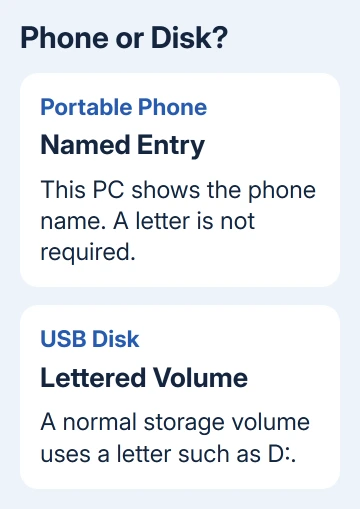
Many Android phones use MTP, short for Media Transfer Protocol, to share files over USB. Windows can access the files your phone shares, but it doesn't control the phone's entire storage as a disk.
That's why Explorer can browse your phone while an older program's drive picker can't see it. That program may expect a disk path beginning with a letter, which the portable connection doesn't provide.
Microsoft's portable-device overview describes this separate way of exchanging device content. The same distinction applies in both Windows 10 and 11.
For an actual external disk missing from Explorer, use the external-drive detection checks. The steps for a disk's volume aren't a way to convert a connected phone into one.
Open Android's shared storage and copy the files
Unlock the Android phone while it is connected. Pull down its notifications and tap the USB connection notification. Choose File transfer, or the equivalent option your phone offers, instead of charging only.
Return to This PC, open the phone's name, and open its available shared storage. Folder names vary; look for camera photos in DCIM and downloads in Download. Open the folder containing what you need.
Create a destination folder on the PC, then copy the selected files into it. Use Copy and Paste if dragging makes it unclear whether you're copying or moving. Disconnect only after the transfer progress has finished.
Check a transferred file by opening it from the PC folder. A thumbnail on your phone doesn't tell you whether a usable copy reached the computer.
For video still on an A1 drone, restore its Android connection and download through Quick Transfer before copying from the phone.
If the phone stays empty, recheck its unlocked state and USB mode. Charge-only cables prevent file access too. Use a cable that has transferred files successfully, then try another PC port before blaming the missing letter.
The phone photo import guide covers locked phones and transfer permissions in more detail. Use that route when photos are the task; the phone doesn't need a new drive letter first.
Use a local copy when a program demands a letter
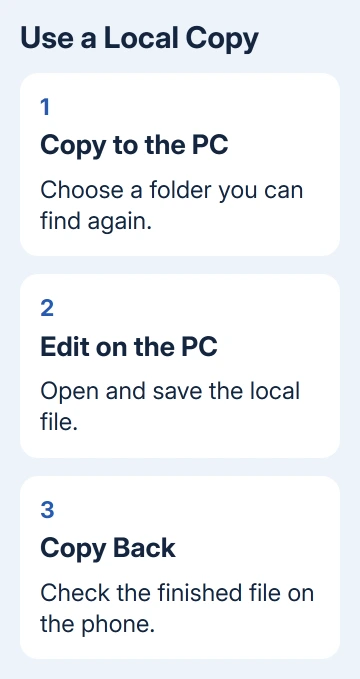
Some editors, backup tools and older file managers only browse normal disk paths. When the phone isn't offered, first copy the needed files to a folder such as Documents on the PC.
Open the program, choose Open, and select that local copy. The file now has an ordinary Windows path the program can use. The program can then work with the file without needing to support your phone's portable-device connection.
For an edited document, save the finished version on the PC first. Close it, then copy the completed file back into an appropriate shared folder on the phone. Check the phone's copy before removing your working PC copy.
Keep your original while you check the returned file. Editing a file and transferring the finished file are separate operations, so a failed transfer shouldn't cost you your single remaining copy.
For a command-line tool, point it at the PC folder containing the copied files. An Explorer address showing This PC > phone name isn't automatically a command-line path such as D:\Photos.
I'd use a local working folder for an occasional transfer. It is easier to check what was copied and saved than to add another layer of software just to satisfy one program's drive picker.
Treat iPhone access as a separate transfer route
An iPhone connected over USB also isn't a general-purpose external Windows disk. Unlock it and accept its trust or access request when you want the PC to import photos.
For photos, open the Windows Photos app, choose Import, and select the connected device when offered. Follow the import prompts and check the resulting images on the PC. This doesn't require assigning a letter to the iPhone.
Files stored inside an app can need that app's sharing or export method. Seeing camera photos on the PC doesn't mean Windows can browse every app's private documents through the same connection.
For a file already in cloud storage, use that service's supported Windows app or download method. That gives you a PC copy without needing access through the phone's USB connection.
An empty photo list needs the unlock, trust and import checks. If a visible file won't open in the program, you'll need a compatible file type or app. Naming the phone E: won't solve either problem.
Understand the limits before using a drive-mapping tool
Software can present a portable device through a virtual drive letter, but that extra letter doesn't turn the phone into a directly attached disk. The tool still works through the device's file-transfer connection.
Check what the tool supports before using it with your editor or backup program. MTPdrive, for example, warns that editing directly in place can fail even when copying files to a device is supported.
It also can't expose the phone's underlying storage as a disk for recovery software. A recovery program needing that access won't gain it just because another program has assigned a virtual letter.
For a regular backup task, ask the backup app's support whether it supports your phone's portable-device connection. Give the phone model, Windows version and the exact operation you need, such as copying photos or saving edited documents.
Follow a missing-device failure separately
If the phone doesn't appear under This PC at all, check its USB mode, unlocked state and data cable. If it appears on another computer with the same cable, give the PC or phone maker the results from both computers.
For a USB stick or SSD, tell support whether Disk Management lists the correct device and capacity. Don't format a device containing needed files just to make a letter appear. Recovering the disk's files comes before changing its storage.
Ask the program developer for portable-device support when Explorer can copy files but that program can't browse the phone. Ask the phone maker about USB file transfer when even Explorer can't open its shared storage.
The Short Version
A named phone entry in This PC can work without a letter. Unlock it, allow file transfer, and copy the files locally. Programs requiring disk paths can use those PC copies. A missing USB disk needs a separate storage check.
Checked November 12, 2026.