Antigravity A1 needs both Wi-Fi and Bluetooth enabled on your Android phone. Turn on both and connect through the Antigravity app. Quick Transfer, first-time activation and goggles updates use different connection steps.
These steps are for the A1 drone; Google's Antigravity coding software is a separate product. Keep the drone on the ground while working through its phone connection.
In this guide
1. Start with the right app and powered devices
Open the Antigravity app intended for the A1 drone. The manual lists Android 10.0 or later for app version 1.0.0. A newer app release can have different requirements, so check the current listing if installation is refused.
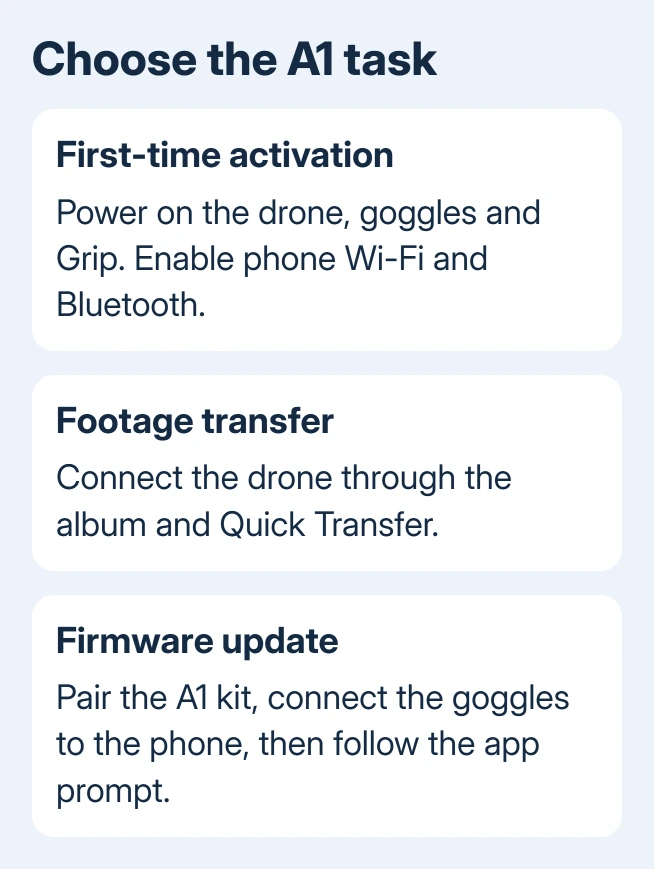
Enable Wi-Fi and Bluetooth in your phone's Settings. For first-time activation, power on the A1, Vision Goggles and Grip Controller, then follow the activation instructions shown in the app.
To turn on the drone and Grip Controller, press each power button briefly, then press again and hold for two seconds. The Vision Goggles use a two-second hold of their power button. A short battery-check press alone doesn't start the drone.
Charge devices that won't stay on. A new flight battery needs charging to wake it before first use. When its indicators light during that first charge, the battery has woken up. A battery that hasn't woken up isn't a phone pairing failure.
Antigravity explains powering on, activation and firmware updates in its beginner instructions. If the app already reaches the drone's album, activation isn't the first thing to repeat.
2. Restore the Android permissions the app requests
Open Settings > Apps > Antigravity > Permissions. On some phones, first select See all apps. Check for permissions you previously denied, particularly Nearby devices or Bluetooth-related access when those choices are present.
On a Samsung Galaxy, use Settings > Apps > Antigravity > Permissions too. The labels offered depend on the Android version and app release; use the permissions actually listed rather than hunting for an iPhone-only Local Network switch.
Android's app permission controls let you change a refused permission without reinstalling. Allow the connection access the app requests, reopen Antigravity, and try the same connection again.
If the app asks for location access while searching for the drone, respond to it. Bluetooth, nearby-device access and location follow different permission rules across Android versions. Check the requested permissions individually.
Album or photo access is for a different job: saving or using media on your phone. If the device connects and its clips appear but a download can't be saved, check that permission rather than restarting pairing from the beginning.
3. Use Quick Transfer for footage from the drone
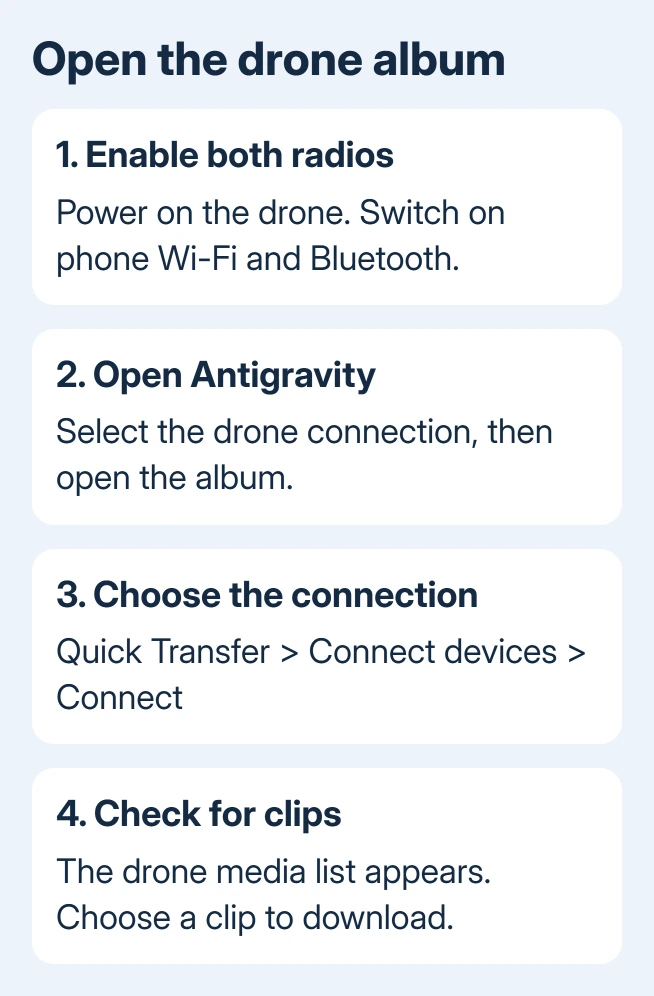
For wireless footage transfer, power on the A1 and keep Wi-Fi and Bluetooth enabled on the phone. Open Antigravity and select the drone connection. In the app's album page, choose Quick Transfer > Connect devices > Connect.
Once connected, the app shows a list of media stored on the drone. Select a clip and download it. That visible album is a better connection check than simply seeing a device name somewhere in Android's Bluetooth list.
The drone can't take off while footage is transferring. Keep it stationary until the transfer finishes. Quick Transfer is the media-transfer route; flying still uses the goggles and controller connection.
If the media list appears but one clip fails, try a different saved clip. A failure after the album loads is different from a drone that is never discovered. Keep the exact download message for support.
If Connect never completes, close and reopen the app and restart the powered drone, then repeat the same route. I'd retry the documented album connection before removing Android's entire saved Wi-Fi and Bluetooth setup.
4. Use the goggles connection for activation and updates
A firmware update uses a different setup from downloading drone footage. Pair the drone, goggles and controller, connect the goggles to the phone, then open the Antigravity app and follow its update prompt.
The A1 firmware update instructions describe this goggles-to-phone route. Finding the drone in Quick Transfer doesn't mean the goggles are already connected for an update.
Read which device the app says is missing. If it asks for the goggles, reconnect those rather than repeatedly selecting the drone's album connection. Keep the device the app names turned on throughout setup.
During an update, leave the app open and keep power connected as instructed. After a completed upgrade, the drone can shut down automatically; the beginner guide tells you to turn it back on manually.
That completed-update shutdown is different from a connection dropping halfway through an update. If the app reports failure, save its exact message and the device named on screen before trying again.
5. Separate a phone problem from an A1 problem
Restart your Android phone and update Antigravity through its official app distribution route. Check Settings > System > Software updates, or your phone maker's equivalent, for an Android update too.
If a second compatible Android phone is available, try the same A1 connection there. Use the same task, such as opening Quick Transfer, so the comparison isn't between footage transfer on one phone and activation on another.
An A1 that connects on the other phone points toward your first phone's app, permissions or software. If neither phone can find it, ask the A1 support team to check the drone or goggles connection.
For a phone that can't use other wireless accessories either, the Android Bluetooth connection checks help separate a wider phone fault. They don't replace the A1 app's own connection controls.
If the footage has reached a Windows computer and you're looking for a disk letter, portable-device file access explains why a phone entry can work without one. That's a file-access problem after transfer, separate from finding your A1.
Send support the stage that actually fails
Use the contact options on Antigravity Support. Give them your phone model, Android and app versions, and whether activation, Quick Transfer or the goggles update connection fails.
Include the device serial number privately, the exact message, and the second-phone result if available. Ask which device's connection logs they need before you reset the drone or reinstall the app, which can erase saved app information.
The Short Version
Enable Wi-Fi and Bluetooth and restore requested permissions. Use Quick Transfer for footage and the goggles connection for activation or updates. Report the failing stage and named device to Antigravity Support.
Checked November 12, 2026.