Headphones that are switched on aren't always ready to pair. Put them into their model's pairing mode, then select them in your phone's Bluetooth settings. An old connection to a laptop or another phone can also stop the new connection.
Match the next action to the screen: a missing name needs discovery checks, a saved name that won't connect needs a fresh pairing, and Connected with no sound needs an audio check. Wired headphones use a different route entirely.
In this guide
1. Make the headphones discoverable
Charge the headphones and bring them close to your phone. Find the pairing instructions for the exact model, including whether the earbuds need to stay inside an open charging case during setup.
A Bluetooth button, power button, or case control may start pairing. Hold it for the time in the maker's instructions and wait for the light pattern or spoken prompt they describe. The button sequence differs between headsets.
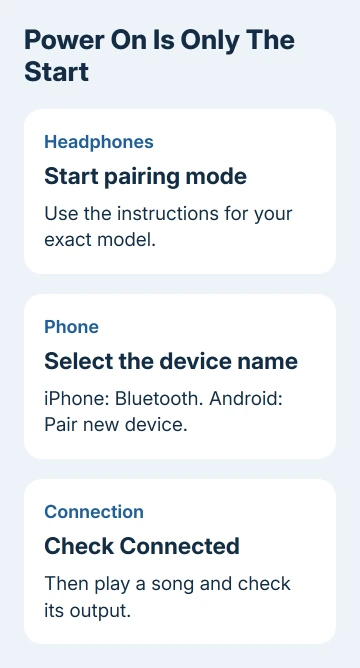
On an iPhone, open Settings > Bluetooth and look under Other Devices. On Android, open Settings > Connected devices > Pair new device. Some Android phones put this under Bluetooth instead.
On a Samsung Galaxy, use Settings > Connections > Bluetooth. Select the headphones when their name appears, then accept any pairing request. Use a PIN from the headset's own instructions if one is requested.
Check that the phone shows Connected, then play something. A name in the list means your phone found the headphones; it doesn't mean pairing finished or sound is being sent there.
If the name never appears, toggle Bluetooth in Settings, restart the headphones, and start their pairing mode again. A pairing window can expire while you're searching through the phone's settings.
2. Release the headphones from the other device
Check the tablet, laptop, or phone you last used with the headphones. If they reconnect there, disconnect them from that device and try pairing with the intended phone again.
Some models remember several devices but connect to only one at a time; others support two. Check how many devices your model can connect to at once, as well as how many it remembers.
Apple says to remove other-device pairings when a headset works there but fails on the iPhone. Its Bluetooth accessory steps cover that situation. Then try the iPhone pairing again.
I'd check the old laptop before resetting the headphones. It's a quick check, and a headset can reconnect to a computer in the next room without making it obvious which device has taken it.
The Sony headphone pairing guide covers model-specific controls. Use those details for a Sony model rather than borrowing a case-button sequence from unrelated earbuds.
3. Remove a saved connection that no longer works
Headphones already saved on your phone don't need to appear as a new device. Tap their existing entry first. If they won't connect, remove that pairing and set it up again.
On an iPhone, open Settings > Bluetooth, open the headphones' entry with its information button, and choose Forget This Device. Confirm, put the headphones into pairing mode, and select their name again.
Forgetting an accessory on iPhone also removes its pairing from other devices that use your Apple Account.
On Android, open the headphones' settings from Connected devices or the Bluetooth list. Choose Forget and confirm. On a Galaxy, open the headphones' details using the settings button and select Unpair.
Follow the maker's model instructions to clear the headset's own pairing memory if needed. Removing a phone entry and resetting the headset are separate actions.
The headphone reset guide explains that difference. Use it once you know the exact model and can follow the correct reset procedure.
Retry the fresh pairing and check whether the phone now shows Connected. If pairing succeeds while audio still plays through the phone, continue with the playback controls instead of repeating the reset.
4. Fix Connected with no sound
Play a song you know and increase media volume during playback. Call volume and media volume can be separate, so changing the volume on an idle phone may adjust the wrong sound.
On an iPhone, open Control Center, open the playback destination control in the media panel, and select the headphones. Check that another speaker or AirPlay device hasn't become the selected destination.
On Android, open the headphones' device settings. If Media audio is offered, turn it on for music and videos. A connection that works for calls doesn't always have music and video sound turned on too.
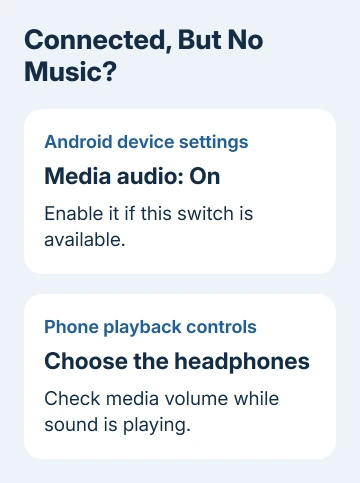
Audio switches differ between Android versions and accessories. If Media audio isn't shown, check the phone's media output selector instead.
Try another audio app. If sound works in only one app, check the silent app's settings. If several apps are silent, continue checking the headphone connection.
5. Follow the wired route for a plug or adapter
Wired headphones don't pair in Bluetooth. Push the plug fully into the correct port and remove a case that blocks it. Check the adapter and cable for damage, unplugging the accessory before you inspect its connector.
Use an audio adapter listed as compatible with your phone. A USB-C plug can fit even when the phone doesn't support that headset or adapter for sound.
Lightning iPhones need compatible Lightning headphones or a Lightning audio adapter. USB-C iPhones need compatible USB-C audio. A 3.5 mm plug needs a suitable adapter when the phone has no headphone jack.
Try another compatible pair or adapter if available. If the replacement works, the original cable, adapter, or headphones need attention. If neither works, continue with the phone rather than buying another identical accessory immediately.
6. Compare another phone and get the right repair help
Restart the phone, then check for its available system updates. Update headphone firmware through the maker's supported app if that model uses one. Recheck the same connection after each change.
Try the headphones with another compatible phone, and try another Bluetooth accessory with yours. Headphones that fail on both phones need the headphone maker's help; a phone that can't connect to any accessory needs phone support.
Give support both model names, the phone's system version, and the failed step: discovery, pairing, or audio. Ask the headset maker to check firmware and its pairing-memory reset before arranging service.
For a grayed-out iPhone Bluetooth switch, contact Apple Support about connecting a Bluetooth accessory. For Android, ask the phone maker's connection support and report what happened with the second accessory.
The Short Version
Start pairing mode and check for another device taking the connection. Rebuild a failed saved pairing once. Connected with no sound needs playback checks; wired headphones need a compatible port and adapter.
Checked November 11, 2026.