

You shut the laptop down for the night, and the external hard drive next to it keeps humming. Its light stays on. It even seeks, as if copying files.
That can look like a dying drive. Before you buy a new one, I would check the port it sits in, because that was the answer for a ThinkPad owner on Super User.
Asked in August 2025, the question has 4,089 views. The owner's reply to the answer that solved it began with two words: "Spot on".
What the owner heard
They had two identical WD Elements 2621 drives, 1 TB each, plugged into a Lenovo ThinkPad T480. After shutdown, one carried on "seeking and making noises like when it's doing a transfer of many small files".
"Its light is on but not blinking", they added. The other drive "does nothing at all that I can notice". Same model, same laptop.
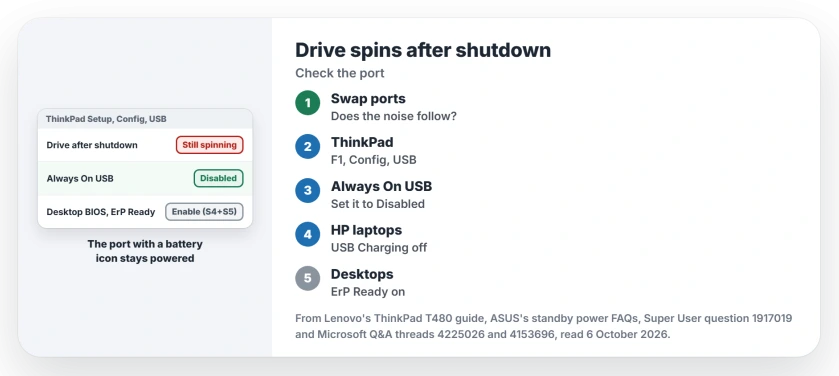
Status: checked 6 October 2026. One owner's drive kept spinning after shutdown because it sat on Lenovo's Always On USB port. Move it, or turn the port off in the BIOS.
A commenter first asked whether the laptop was really off or only asleep. Rule that out before anything else, since your ports keep their power during sleep anyway.
Why only one of the two
The accepted answer named the port: "Most Thinkpads have at least one Always-on USB port, which stays powered even if the laptop is off". These ports "usually have a battery icon next to them", it added.
The owner looked. In their words, "my USB port even looks exactly like the example picture".
Lenovo says in its T480 user guide that the port charges devices "When your computer is off or in hibernation mode, but connected to ac power". So a laptop on its charger keeps feeding that port after shutdown.
A second answer explains the noise. The WD Elements 2621 "appears to be an SMR (Shingled Magnetic Recording) disk". Such a drive "might move data around when the disk is otherwise idle", so with power and no computer, it carries on tidying.
1. Swap the two drives' ports
A commenter gave the quickest test: "Easy to check that it's not a difference in disks by swapping the ports". Shut down, swap the cables, and listen. Did the noise move to your other drive? Then the port is the cause.
Ours: use a port without the battery icon for a drive you leave plugged in. Keep the icon port for a phone you want charged overnight.
2. On a ThinkPad: turn off Always On USB
Press F1 at the logo screen to open ThinkPad Setup. Under the Config menu, then USB, you will find Always On USB.
Lenovo's description of it: "Select Enabled to charge devices through the Always On USB connectors even when the computer is turned off, in sleep mode, or in hibernation mode".
Set it to Disabled. Press F10, then Yes. A second switch, Charge in Battery Mode, only works while Always On USB is on. So it goes quiet too.
You can skip the BIOS. One owner on a Microsoft Q&A thread opened Lenovo Vantage, went to Power under System Tools, and chose to "uncheck this option" for Always on USB.
3. On other PCs: USB charging or ErP
HP laptops have their own version. In a Microsoft Q&A thread with a "Same question" count of 90 or more, one HP owner's ports were "still feeding current even when shut down".
They found USB Charging in the BIOS and wrote "change it to DISABLED". Their verdict: "Sorted!"
Desktops often use ErP instead. ASUS says in its standby power FAQ to set ErP Ready to Enable (S4+S5) or Enable (S5), under Advanced, then APM Configuration.
ASUS adds: "the USB ports will no longer provide power when the computer is shut down". On the other Q&A thread, one owner needed ErP too. It "needed to be enabled" before their ports finally went dark.
ASUS also unticks Fast Startup in the same steps, which changes what shutting down really does on your PC.
Is the spinning hurting the drive?
Not according to the answer that explained it. Once Windows flushes its buffers and spins it down, your drive is ready to lose power, and "it will just resume from where it stopped the next time it's powered on".
Ours: to let the tidying finish, leave the drive connected with the laptop on for an afternoon. I would do it after a big copy.
The answer gave the same advice: "Keep it powered-on for a few hours; eventually it'll be done and should quiet down".
On a normal port it simply stops at shutdown and picks up next time. If the noise bothers you, our page on SSD or HDD covers what to buy instead.
A drive inside your PC that keeps waking while Windows runs is another case, and the spin-up page shows how to catch the program reading it.
The Short Version
- A drive that spins after shutdown is getting power from its port.
- ThinkPads have an Always On USB port, marked with a battery icon.
- Swap ports first; if the noise follows the port, that is the cause.
- Turn off Always On USB under Config, USB in ThinkPad Setup, or in Vantage.
- HP calls it USB Charging; ASUS desktops use ErP Ready.
- The drive comes to no harm, and it resumes its tidying next time.
Where to Next
Shut down, move the drive to a port without a battery icon, and listen for a minute.
Which laptop or desktop do you have, and what was the setting called? Tell me in a comment.

Isaac Smith is the founder and editor of PC Glance, a website that covers computers, laptops, and technology. He is a tech enthusiast and a computer geek who loves to share his insights and help his readers make smart choices when buying tech gadgets or laptops. He is always curious and updated about the latest tech trends.