

Outlook's Folder Pane can shrink when the Reading Pane competes for space. Turn off the Reading Pane, widen the folder list, then select another folder. An owner confirmed that removing the preview stopped the shrinking.
A folder list that collapses into a slim strip needs Normal view restored first. These steps cover classic Outlook on Windows, where File opens Office Account; keep the layout that works for you while checking for updates.
In this guide
1. Give the Folder Pane space to stay open
Maximize Outlook, then open View > Reading Pane > Off. The message preview disappears, leaving the folder list and message list. Double-click a message when you need to read it in a separate window.
Move the pointer to the right edge of the folder list. When the resize pointer appears, drag that edge to the right until your longer folder names are readable. Select another folder, then return to the original one.
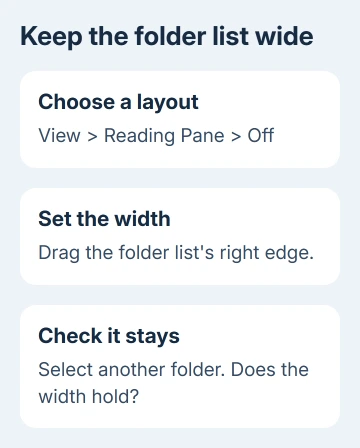
If the width now holds, Outlook can display your folder names and resize the list. It loses that width when the preview shares the window, so the pane layout makes a difference.
One owner confirmed that Reading Pane Off stopped the narrowing, but they didn't want to lose the preview permanently. Keep that temporary layout without reorganizing your mail.
If it still shrinks with the preview off, continue to the Normal view check. Don't keep dragging after every folder change; that repeats the symptom without changing what triggers it.
2. Restore Normal view when the list is minimized
Open View > Folder Pane > Normal. A minimized pane gives you a narrow strip or a temporary folder pop-out. Normal keeps the folder list expanded so you can resize its edge in the main window.
The Folder Pane appearance controls distinguish Normal, minimized and Off. A pop-out disappearing after you choose a folder isn't the same fault as an expanded list becoming narrower.
Check what you see before continuing. If the account names and folders stay visible, the pane is expanded. A slim strip that opens only when clicked means you're still dealing with the minimized layout.
Expand the mailbox and any parent folder you need. If the list is present but a particular folder isn't, follow the separate steps for missing Outlook folders. Resizing can't restore a deleted folder or expand a closed parent.
If Normal is selected and the divider still moves back, continue with the layout check. Reset View can change message columns and sorting without keeping the folder list at your chosen width.
3. Put the Reading Pane at the bottom
To keep a preview without using as much horizontal space, choose View > Reading Pane > Bottom. Messages appear under the message list instead of beside it. Adjust the horizontal divider to give the preview enough room to read.
Widen the Folder Pane once in this arrangement, then switch between the same two folders used in the first check. Check that the folder names stay readable and the list keeps its width with the preview open.
I'd try Bottom before shortening folder names. It changes one viewing preference, and you can return to Right later. Renaming a folder tree creates work without addressing a pane that won't retain its size.
The Reading Pane layout settings include Right, Bottom and Off in classic Outlook. Choose the arrangement that actually stays usable on your display.
If Bottom also snaps the folder list back, use Off while completing the update check. A different fault, such as a black Outlook scroll bar, needs its own redraw checks even though it affects the same part of the window.
4. Update classic Outlook and restart Windows
Choose File > Office Account and note the version shown under About Outlook. Under Product Information, choose Update Options > Update Now when that control is available. Let the update finish before opening mail again.
Save open documents, then restart Windows. Reopen Outlook and test your preferred layout, including a right-side Reading Pane. Check the width after selecting several folders, rather than judging it at startup.
The asker later reported that the problem cleared after a system restart. They guessed an update had installed and noticed moved navigation icons. They didn't identify a build or confirm what caused the change.
The report doesn't identify a build that fixed it. Use the update available for your Office installation; don't downgrade or switch update channels to recreate an old navigation layout.
If Update Options is missing, your workplace may manage updates. Send IT the About Outlook numbers so they can review the release. Keep the working layout while they check the managed settings.
5. Report a width that still won't stay set
If the width still won't stay set, note three things: the full Outlook build, whether Reading Pane Off prevents it, and whether Bottom also works. Include whether it happens with every folder or only a particular mailbox.
Send those details through Help > Contact Support if your Outlook installation offers it, or to your organization's Microsoft 365 administrator. Ask them to check a Folder Pane width that resets after folder selection in classic Outlook.
Explain the exact sequence: drag the folder divider, select another folder, then watch it shrink. A screenshot with private mailbox names hidden can show the layout, but the steps tell support how to make it happen.
Don't delete your Outlook profile or mailbox files just to reset pane width. The confirmed workaround concerns the display layout. Account rebuilding is a much larger change and needs a separate reason from support.
The Short Version
Turn the Reading Pane off and check whether the folder width holds. Restore Normal view for a minimized list, try Bottom to keep a preview, then update and restart. Report a recurring reset with the build and the layout that triggers it.
Checked November 16, 2026.






