

A black strip in place of Outlook's scroll bar can mean the Reading Pane isn't drawing correctly. Drag the edge of that pane a few pixels first: an owner with this problem reported that resizing it restored the scroll bar.
That workaround fits classic Outlook for Windows, including the desktop app supplied with Microsoft 365. Start by checking whether only the message preview is affected or the whole window has stopped responding.
In this guide
1. Resize the pane with the black strip
Select a message long enough to need scrolling. Move the pointer onto the boundary between the message list and the Reading Pane, where the selected email appears. When the resize pointer appears, drag that boundary slightly.
With the Reading Pane on the right, move its left edge. With it at the bottom, move its top edge. The aim is to change the preview's size, rather than drag the black strip itself.
Release the mouse and look at the scroll bar again. If the normal scroll bar returns, drag its movable handle through the message. If the email moves with it, the workaround has worked.
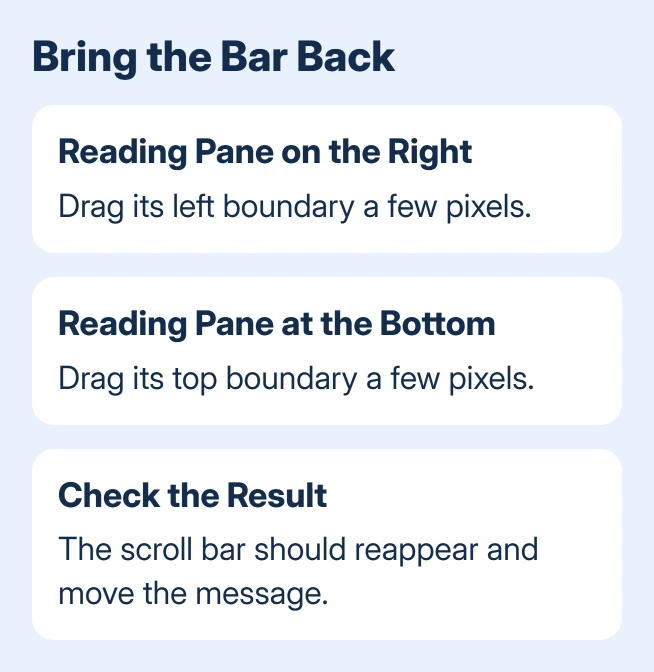
The owner's successful workaround was simply to resize the preview pane by a few pixels. It redraws the affected area without changing your messages or account settings.
I'd start there before repairing Office. It's a small change, and a restored bar tells you the pane wasn't drawing correctly, rather than email being missing. If the strip stays black, check whether scrolling works elsewhere.
2. Check whether the message or the whole window is stuck
Double-click the same message to open it in its own window. Compare its scroll bar with the preview. Then select another long message in the main Outlook window and compare that preview too.
A category visible in the message list but absent from its preview needs the separate Outlook category refresh check.
If the separate message window scrolls normally, use it to read the email while you work on the Reading Pane problem. Moving mail or recreating the mailbox isn't needed just to read that email.
For a temporary alternative, select View > Reading Pane > Off in classic Outlook. Open messages individually. Restore the pane through the same menu when you're ready to check it again.
Try the mouse wheel with the pointer over the email. If the message moves but the bar stays black, scrolling still works and the problem is how the bar looks. If neither works, check whether Outlook's other buttons respond.
One email failing while other messages work gives you a useful example to report. Every message failing in both views points toward a broader Outlook problem. Neither result calls for deleting mail or emptying your folders.
3. Restart and check the installed Outlook version
Save unfinished messages, then use File > Exit. Open Outlook again and revisit the affected email. If the preview looks normal after restarting, note whether the black strip returns as you use Outlook.
For recurring failures, open File > Office Account and note the numbers in About Outlook. Microsoft 365 is the subscription name; it doesn't identify the exact desktop build that's drawing your messages.
Choose Update Options > Update Now when that control is available. Close Office apps if the updater requests it, let installation finish, then open Outlook and test the same message again.
If updates are controlled by your organization, give IT the version you recorded. Don't install another Office copy because that control is absent. Your administrator may manage updates through a different channel.
The original black-bar reports date to 2017. Resizing worked in those reports, but they don't tell us which current build fixes every black scroll bar. Judge an update by what happens on your own installed version.
4. Test safe mode before changing add-ins
Close Outlook. Press Windows+R, enter outlook.exe /safe, and press Enter. Select the usual profile when asked. This startup mode leaves out add-ins and some customizations.
Open the same message and check the preview. A bar that works in safe mode gives you a reason to examine add-ins. If it's still black, disabling add-ins is less likely to help.
To review them, open File > Options > Add-ins. Beside Manage, choose COM Add-ins, then select Go. Note the checked entries first. That record lets you restore the usual tools afterward.
Uncheck the entries, then restart Outlook normally. If the bar returns, switch add-ins back on individually, restarting between checks. When enabling one causes the black strip again, ask its provider about an update.
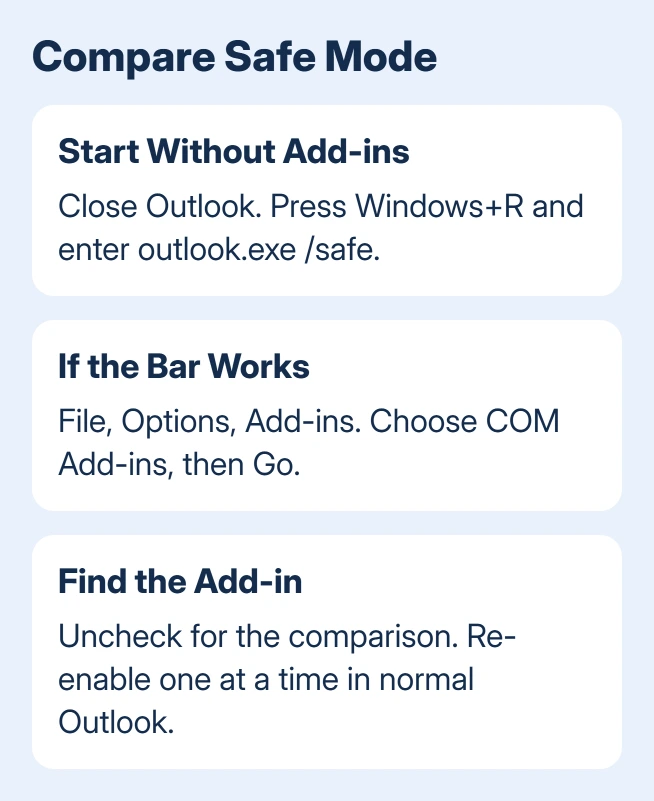
On a work computer, ask IT before disabling a required security or compliance add-in. If Outlook itself stops responding rather than just showing a black bar, the Outlook startup guide covers that wider failure.
5. Repair Office when the display fault persists
Microsoft's Outlook troubleshooting steps include updates, safe mode and Office repair. I'd leave repair until this point because resizing the pane worked for the exact black-strip problem.
In Windows 11, open Settings > Apps > Installed apps. Find your Microsoft 365 or Office installation, open its menu, and choose Modify. In Windows 10, use Settings > Apps > Apps & features, select Office, then Modify.
For a Click-to-Run installation, try Quick Repair first. If that doesn't help, Online Repair downloads replacement components, so it needs internet access. The repair affects the Office suite, so close other Office apps first.
The original asker reported that the earlier repair advice hadn't solved their problem. Don't keep repeating repairs when the same black strip returns. Record that result along with the safe-mode and separate-window comparisons.
If the fault keeps returning, send those results and the build number to Microsoft Support or the administrator who manages your mail. Add a cropped picture that hides personal email. Missing results need separate Outlook search checks.
The Short Version
Resize the Reading Pane first. If the bar stays black, compare a separate message window, update Outlook, then use safe mode to check add-ins. Repair Office only after those smaller checks, and report a recurring fault with its exact build.
Checked November 16, 2026.






