

Shared calendars missing from a second Outlook account can return after disabling shared calendar improvements on both accounts. Owners confirmed this for calendars that worked online. Restart Outlook, then add the calendar again.
Try this only when the calendar belongs to the second organization's account and you already have access to it. A calendar missing online too needs a sharing or permissions check before changing the desktop app.
In this guide
1. Confirm which account received calendar access
In Outlook, open File > Account Settings > Account Settings and read the account list. Identify your main account and the second work account that was granted access to the missing calendar.
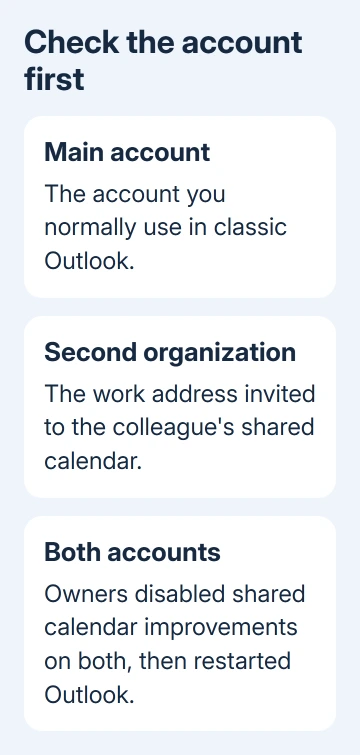
Outlook can show mailboxes from several organizations in one window. Seeing the second account's calendar doesn't tell you whether a colleague shared theirs with the address you're using.
Confirm the invited address with the calendar owner. If it's wrong, ask them to share with the correct work address. Switching the laptop's primary Outlook account won't transfer that permission.
Open the calendar in the second account's Outlook web session. If your events appear, note that they work online. The confirmed workaround is for calendars you can open online but can't see in the desktop app.
If it isn't available there either, ask the owner or mail administrator to review calendar permissions and the invitation first. Changing desktop settings won't give an account access that hasn't been granted.
2. Update Outlook and check the setting's availability
Open File > Office Account. Under Update Options, select Update Now. Install available updates, reopen Outlook and try Calendar > Home > Add Calendar > Open Shared Calendar for the person who shared the calendar.
The confirmed reports date from 2023, including an installation running Version 2210. Your current version may behave differently. Update Outlook and test it before keeping an older workaround in place for months.
Microsoft's calendar sharing settings explain that improvements are enabled by default in recent Microsoft 365 versions. The option applies to Exchange Online accounts, rather than every email account Outlook accepts.
The same guidance notes automatic upgrades of shared calendars starting in late May 2026. Turning off this setting in Outlook won't necessarily undo changes to calendar sharing on the server.
If Outlook lacks a File tab, you're using a different interface, such as new Outlook. The classic Exchange account dialog in this procedure won't be there. Don't search new Outlook for classic Outlook's Exchange checkbox.
3. Turn off improvements for both Exchange Online accounts
One owner confirmed success only after disabling the option on both their main account and the second organization's account. Changing just one account had left the problem unresolved.
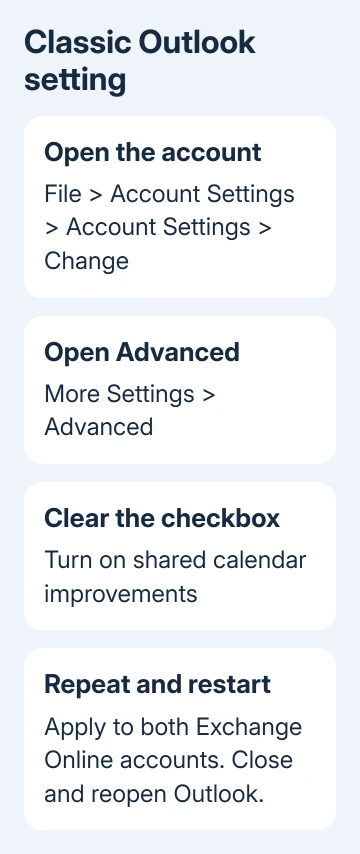
- Select File > Account Settings > Account Settings.
- Select the main Microsoft Exchange account and choose Change.
- Choose More Settings, then open the Advanced tab.
- Note the current state of Turn on shared calendar improvements, then clear its checkbox.
- Confirm the dialogs and repeat for the second Exchange Online account.
- Close Outlook completely, then open it again.
Try adding the shared calendar again using Home > Add Calendar > Open Shared Calendar in Calendar. Select the calendar owner and check the calendar list after confirming the dialog.
Success means the calendar appears with readable events. Restart the app again and check that the calendar remains. Don't count it as fixed just because the Add Calendar dialog closed without an error.
If this fixes the problem, keep a note of the changed setting for IT. This workaround helps with this combination of accounts. It isn't an improvement for every shared calendar on your computer.
4. Is the checkbox missing or locked?
If Turn on shared calendar improvements is absent, check that you selected an Exchange Online account. A POP or IMAP account won't have this Exchange setting, even when you've added it alongside an Exchange account.
If the checkbox is gray and can't be changed, ask IT whether the REST updates for calendars policy controls it. That policy can lock the setting on or off. Don't work around an organization policy with registry edits.
Give IT both account addresses, the organization that owns the shared calendar and your version from About Outlook, found under File > Office Account. Include whether the same calendar opens in the correct browser account.
If the option is available but disabling it changes nothing, restore its previous state and restart Outlook. Leave the working online calendar available while IT checks the desktop connection, instead of removing accounts over and over.
When the calendar is visible but its layout keeps changing, try the calendar display-setting checks. That is a separate symptom from a shared calendar never appearing in the list.
5. Escalate with the account combination and result
Ask IT to check the calendar connection between these organizations. Supply the owner's address, receiving account and Outlook build. Include what happened with improvements disabled on both accounts.
Mention any case where the calendar appeared until the next restart. An earlier owner reported that behavior before the successful workaround was posted. It gives support a more precise symptom than saying calendar sharing doesn't work.
The Outlook folder-pane checks help when the whole mailbox list is hidden, but they don't replace checking access to a particular shared calendar. Tell support exactly which calendar is missing and which account should have access.
If IT can't get the calendar working, ask the Microsoft 365 support team to check how these accounts work together. Keep using the working online view. Let the administrator decide whether to retain the older sharing setting.
The Short Version
Check the second account's access and update Outlook. Try disabling shared calendar improvements on both Exchange Online accounts, restart, then add the calendar. Ask IT about a missing or locked setting.
Checked November 17, 2026.






