

Deleted emails in Outlook can often be recovered from Deleted Items. Open that folder in the correct mailbox and move the message back to Inbox. If the folder was emptied, a second recovery area may still hold the email.
That second chance depends on the account and its retention rules. Use a computer for the full recovery controls, and act before the provider removes the retained copy.
Look in the account's Deleted Items first
Select the mailbox that originally received the email, then open Deleted Items. Search or scan for its subject and sender. A different account's folder will not contain the message just because both accounts appear in Outlook.
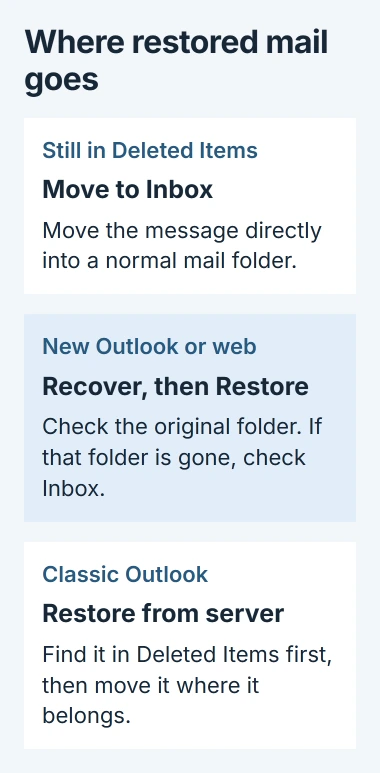
Select the email and use Move to place it in Inbox or another ordinary mail folder. Microsoft explains the Move command in its deleted-item recovery instructions.
Status: Outlook recovery controls and retention limits checked November 2, 2026. Account support determines whether a second recovery area exists. No deleted mailbox data was accessed.
Open the destination folder and confirm the recovered message is there. If an entire folder vanished, use the Outlook folder recovery checks to distinguish deletion from a hidden folder list.
Also inspect Junk Email when the disappearance was unexpected. A message diverted there has not necessarily been deleted. Review any mistaken Outlook sender block so later messages do not take the same route.
Use Recover in the browser or new Windows app
With Deleted Items selected, choose Recover beside Recover items deleted from this folder. Select the missing messages and choose Restore.
Check their original folders afterward. In new Outlook and the web interface, recovery returns items there when possible; if a message's original folder no longer exists, check Inbox.
Microsoft says the second recovery area is unavailable in a mobile browser. Open Outlook.com or the work mailbox's Outlook website on a PC or Mac if the phone does not show the control.
The Outlook.com missing-mail guide also excludes this recovery action from the iOS and Android apps. An app reinstall on the phone does not extend the server's retention period.
Classic Outlook: restore from the server, then move the mail
Keep classic Outlook connected to the mail server. Select Deleted Items, then use Home > Recover Deleted Items From Server. Choose the messages, select Restore Selected Items, and confirm with OK.
This edition restores the recovered messages to Deleted Items first. Return there and move them into Inbox or another folder. Looking only in Inbox immediately after the server recovery can make a successful restore seem to have failed.
A Trash folder or an absent server recovery command means that account cannot use this Outlook recovery route. Check the provider's webmail recovery options rather than repeatedly searching for the button.
The time limit comes from the mailbox provider
For a personal Outlook.com account, Microsoft states that items removed from Deleted Items remain recoverable for 30 days. Other providers can apply a different recovery window.
For Exchange Online work mailboxes, Microsoft documents a default deleted-item retention period of 14 days, which an administrator can extend to 30 days. Holds and organization policies can change the situation.
Those limits are in Microsoft's Exchange retention documentation. Ask the administrator about this mailbox's policy rather than changing Windows or Outlook settings.
Provide the sender, approximate subject, original folder and deletion date. Contact IT promptly if the message is absent from the recovery list; an administrator can check whether another retained copy remains available.
When recovery no longer finds the message
Look for a previously saved copy, or request another message from its sender. If Microsoft Support or the mailbox administrator confirms that the retained item is gone, the commands in Outlook cannot recreate its contents.
Keep needed messages in normal folders after recovery. Deleted Items and Junk are temporary locations, and leaving an important message there exposes it to the next cleanup or retention action.
The Short Version
Try Deleted Items, then the account's recovery list. Classic Outlook puts server-recovered mail back in Deleted Items; new and web Outlook try its original folder. Check the provider's retention limit promptly.

Isaac Smith is the founder and editor of PC Glance, a website that covers computers, laptops, and technology. He is a tech enthusiast and a computer geek who loves to share his insights and help his readers make smart choices when buying tech gadgets or laptops. He is always curious and updated about the latest tech trends.