
To block emails in new Outlook, open Settings > Mail > Junk email, enter the address in the blocked list, and save. Future messages from that sender are diverted to Junk Email.
Classic Outlook provides a message-level Block Sender command. Check the account type first: new Outlook does not offer its sender-blocking feature for third-party accounts such as Gmail or Yahoo.
Choose the mailbox and the size of the block
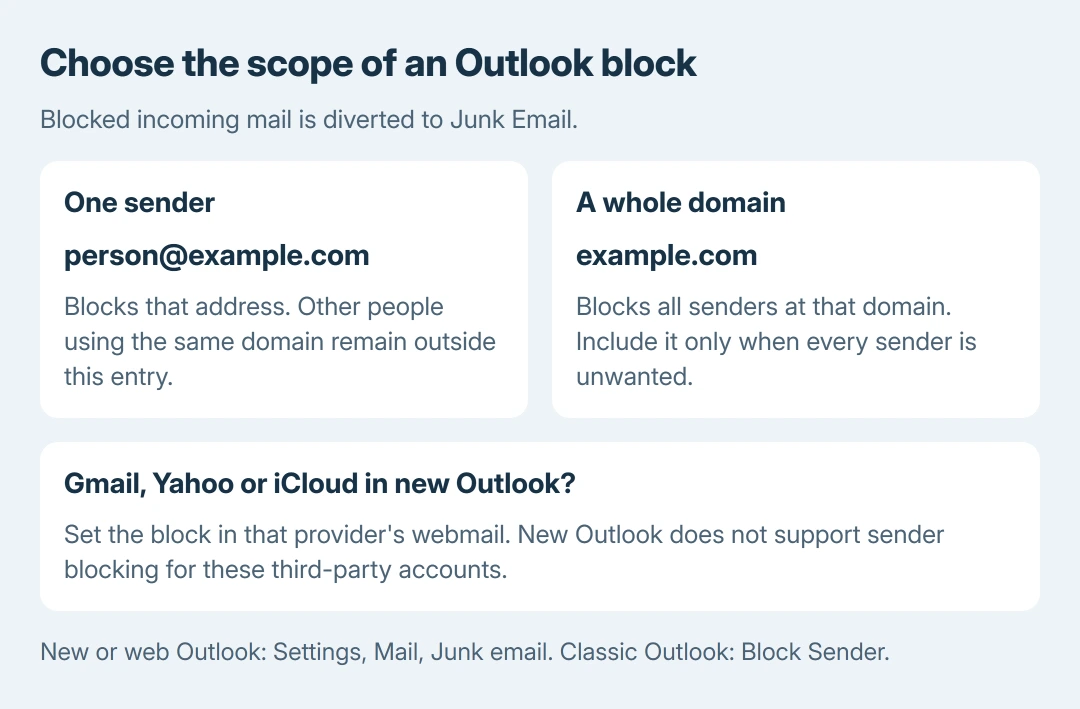
Select the account that receives the unwanted message before changing its settings. Blocking an address affects that address; blocking a domain affects every sender using that domain.
Microsoft says its Outlook blocking feature diverts messages into Junk. The sender can still send them. This is an inbox filter, rather than a refusal to accept delivery.
Status: Microsoft's new, classic and web Outlook blocking instructions checked October 28, 2026. Third-party accounts in new Outlook require their provider's controls.
Our recommendation is to start with the individual address unless the whole domain is unwanted. Blocking a large shared provider's domain can divert legitimate messages from many unrelated people.
Add a sender in the Windows app or a browser
For a supported mailbox in new Outlook for Windows, open Settings > Mail > Junk email. Under Blocked senders, enter the full email address, select Add, then select Save.
To reject a whole domain from the inbox, use Blocked domains and add the domain itself. Review its spelling before saving. The resulting block targets new messages matching that sender or domain.
Microsoft documents the same settings route for Outlook on the web and Outlook.com. If the layout groups addresses and domains in a single blocked list, add the intended entry there and save the change.
For Gmail, Yahoo, iCloud or another third-party service inside new Outlook, open that provider's webmail and set its block there. Microsoft's page explicitly excludes these accounts from new Outlook blocking.
After adding an entry, return to Junk email settings and confirm it is present. A message already visible in the inbox is not a reliable test of how the next incoming message will be handled.
Block from a message in classic Outlook
Right-click the unwanted message in the Windows edition of classic Outlook. Choose Block > Block Sender. Some ribbon layouts label the equivalent menu Junk, followed by Block Sender.
Microsoft states in its classic Outlook guide that this adds the sender to the blocked list. Later messages from that address are treated as junk.
To inspect or add entries manually, open Home, then Block or Junk, followed by Junk E-mail Options > Blocked Senders. Select Add, enter the address or domain, and confirm with OK.
For an Exchange work account, Microsoft's guide says people in the organization's Global Address List cannot be added to this blocked list. Ask the mail administrator about unwanted internal mail instead of repeatedly trying the same entry.
Use Unsubscribe for a mailing list you recognize
For an Outlook.com newsletter that was deliberately joined, open Settings > Mail > Subscriptions. Find it in Your current subscriptions, choose Unsubscribe, then confirm with OK.
Microsoft's subscription instructions describe this as a separate choice from blocking. The sender menu in that list also offers a block option.
A rotating collection of unrelated spam addresses will not be stopped by one address block. Use Outlook's junk or phishing reporting controls for those messages, and avoid following unfamiliar links inside them.
Undo the block if wanted mail disappears
In the new or web settings, return to Mail > Junk email and remove the mistaken address or domain. In classic Outlook, select it under Blocked Senders and choose Remove.
For mail still missing, check the other Outlook delivery and sorting causes. A rule or mailbox limit can hide mail independently of the blocked list.
Blocking incoming mail also does not clear a suggested recipient when composing. Use the Outlook address-suggestion controls for that separate list.
If a saved block fails on a supported account, give Microsoft Support or the mail administrator the Outlook version, account provider and matching sender address. Include whether the new mail reaches Inbox or Junk.
The Short Version
Use Junk email settings in new or web Outlook, or Block Sender in classic Outlook. Start with one address. Third-party accounts in new Outlook need provider-side controls. Unsubscribe handles recognized newsletters separately.

Isaac Smith is the founder and editor of PC Glance, a website that covers computers, laptops, and technology. He is a tech enthusiast and a computer geek who loves to share his insights and help his readers make smart choices when buying tech gadgets or laptops. He is always curious and updated about the latest tech trends.