

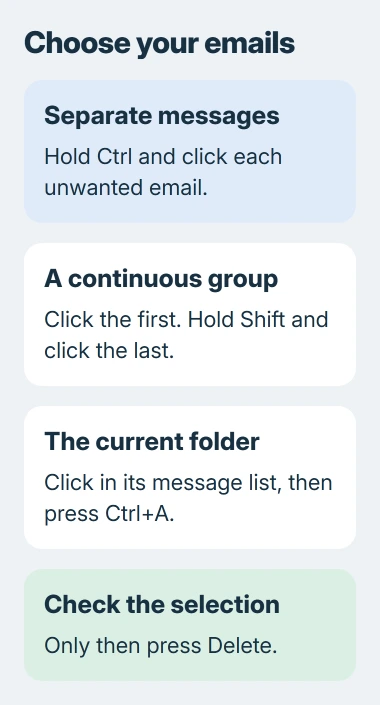
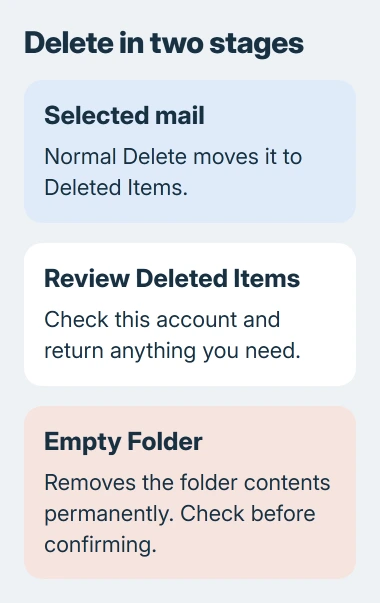
Hold Ctrl while clicking separate emails in classic Outlook for Windows, or use Shift to select a continuous group. Press Delete after checking the selection. The mail normally moves to that account's Deleted Items folder.
For every message in a folder, click inside its message list and press Ctrl+A. Inside a draft, that shortcut selects text instead. These steps use classic Outlook, the Windows app with File > Account Settings.
1. Open the folder and decide which messages should go
Select the mailbox first, then the folder holding the unwanted messages. With several accounts in Outlook, Inbox and Deleted Items appear under each account. Check the account heading before selecting a large batch.
Click a message row in the central list, rather than text in the reading pane. A selected row is highlighted. That highlight is what you'll check before using a deletion command.
Microsoft explains these message selection methods. Choosing a group first is quicker than opening and deleting each message separately.
I'd start with a few unwanted messages and check where they go before clearing years of mail. It's easier to check the account and your selection when you're dealing with a small group.
For a tidier Inbox without removing mail, Archive keeps messages in a separate folder. Use Delete when you want to remove the mail, even if the Archive button takes longer to find.
2. Select scattered emails with Ctrl
Click the first unwanted email. Hold Ctrl, then click each additional message you want to remove. Release Ctrl when only the messages you want are highlighted.
This works when the messages aren't next to one another. For example, you can select a delivery notice, skip the receipt you need, and select an expired offer farther down the same list.
If you include the wrong row, hold Ctrl and click that row again to remove it from the selection. Check its highlight has gone before continuing. Clicking another row without Ctrl can replace the group with that single message.
Review the selected subjects and senders. Then press Delete, or use the ribbon's Delete command. The selected rows should leave the current folder together.
Delete removes your mailbox's copy of a message. It doesn't take it back from someone who received it. Deleting an email in Sent Items won't recall a message you sent to the wrong person.
3. Select a continuous block with Shift
Click the first email in the group. Hold Shift, click the last email, then release the key. Outlook selects both endpoints and every message between them in the current list order.
Look through that highlighted block before pressing Delete. If an important message sits between the endpoints, it belongs to the selection too, even when its sender differs from the others.
The list order matters. Sort by date to group a week's mail, or by sender to group one sender's mail. Shift selects the rows between your two clicks, whatever those messages contain.
If the block includes a message you want to keep, Ctrl-click it to remove its highlight. You can keep those exceptions without selecting the whole group again.
If the selection is hard to check, click one message to cancel the group, then start with fewer emails. Keep the batch small enough that you can check what you're deleting.
4. Select the whole folder only when that's the intention
Click a message in the folder you want to clear, then press Ctrl+A. Check the selection before pressing Delete. The shortcut selects that folder's message list, not every folder in all your Outlook accounts.
For the direct folder command, expand the folder pane, right-click the folder you want to clear and choose Delete All. Read the prompt before confirming the move to Deleted Items.
Both methods clear the messages from one folder while keeping the folder itself. Use the folder command for all its messages; use a smaller selection when you only want to remove a few.
A search or filter can hide messages from the list you're selecting. To clear the whole folder, leave the search and return to its normal message list before using Select All.
Outlook may show only some of the mail in your account. The Outlook older-mail guide explains the offline date range. A short list on your PC can leave older mail out of view.
5. Check Deleted Items before clearing it
Open Deleted Items under the same account and look for the subjects you just removed. If they're there, the move worked. Check whether you accidentally included anything you need.
If you deleted something by mistake, act promptly. Use the Outlook message recovery guide to move it back or check your account's recovery area. Recovery limits depend on the provider.
When you're ready to clear it, right-click Deleted Items, choose Empty Folder, and read the confirmation. This empties the folder, including messages you deleted earlier, not just today's batch.
Don't use Shift+Delete as a faster version of the ordinary command. It requests permanent deletion and skips the normal Deleted Items stage. The Outlook shortcut reference lists it separately.
Moving mail into Deleted Items doesn't finish a storage cleanup. Those messages still occupy mailbox space until they are removed from that folder, and workplace retention rules can keep additional copies.
When messages won't stay deleted
If the rows return, note whether Outlook was offline when you deleted them and whether they appear on another device using the same account. Trouble syncing changes between devices needs a different fix from selecting the wrong emails.
For work mail, ask IT about retention and permissions before repeating a large delete. Give them the account, folder, message dates and any error. For a personal account, contact the mail provider with those details.
The Short Version
Use Ctrl-click for separate messages, Shift-click for a block, or Ctrl+A inside the intended folder. Review the highlighted rows and press Delete. Check Deleted Items before deciding whether to empty it permanently.
Checked November 5, 2026.

Isaac Smith is the founder and editor of PC Glance, a website that covers computers, laptops, and technology. He is a tech enthusiast and a computer geek who loves to share his insights and help his readers make smart choices when buying tech gadgets or laptops. He is always curious and updated about the latest tech trends.