

Archiving emails in Outlook moves them out of the inbox while keeping them in the account's Archive folder. Select the messages and choose Archive. Open that folder whenever a filed message is needed again.
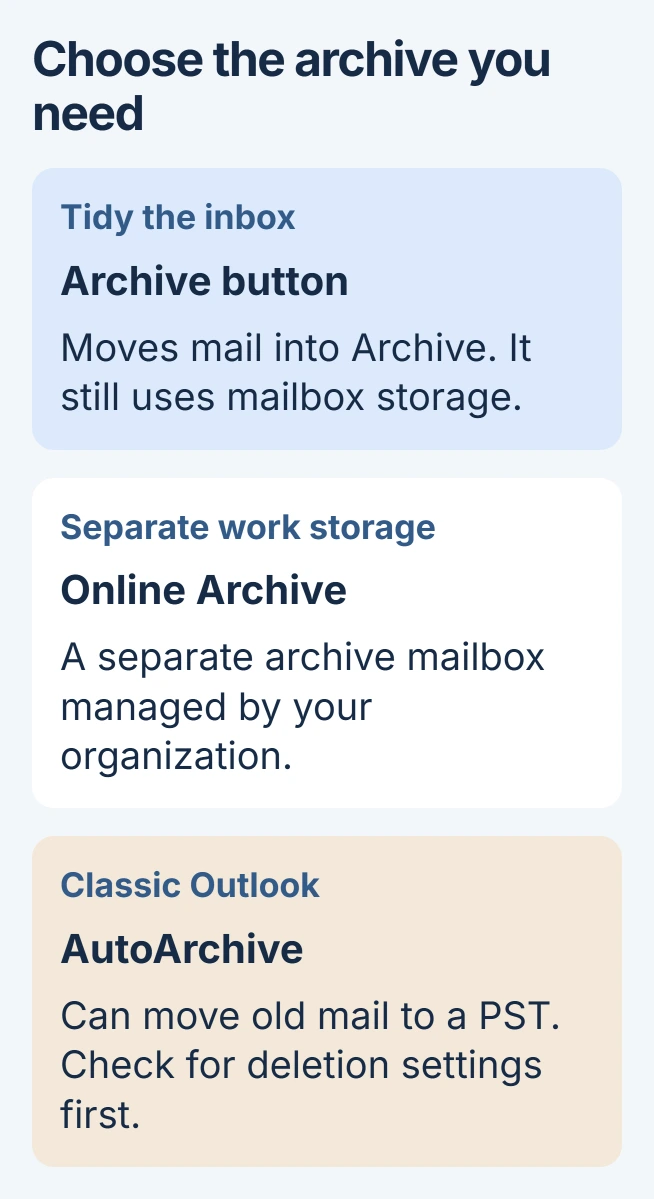
The ordinary Archive button organizes mail; it does not free mailbox storage. A separate Online Archive or a local archive file serves a different purpose, so choose according to whether the goal is a tidier inbox or more space.
File selected messages with the Archive button
In new Outlook for Windows, select an email in the message list, then choose Archive on the toolbar. A confirmation offers Undo if the wrong message was selected.
Microsoft documents the toolbar action and its confirmation in the Windows Outlook archiving guide. Try one message first and locate it in Archive before filing a large selection.
Status: Microsoft archiving instructions checked November 3, 2026. Covers new and classic Windows Outlook plus webmail. No mailbox was accessed or changed.
In classic Outlook, select the intended messages and choose Archive from the ribbon's Delete group. This is a filing command even though Microsoft places it beside deletion controls.
For Outlook on the web, select the message and choose Archive on the command bar. Microsoft's webmail organization instructions describe the folder and return route.
The selected message should leave the inbox and appear in Archive under the same account. With several accounts open, check the account heading as well as the folder name.
Find an archived message or return it to the inbox
Expand the account's folder list and open Archive. In classic Outlook, View > Folder Pane > Normal restores the folder list when it is hidden.
Search for a distinctive subject or sender if the folder contains many messages. Check the search scope when results omit the folder you intended to search.
In webmail, select the message inside Archive, choose Move to, then select Inbox or another destination. Verify that it appears there. Moving a message back does not require downloading it first.
If older mail is visible online but absent from desktop Outlook, check how much mail Outlook keeps offline. Filing and the local synchronization window are separate settings.
Does archiving solve a full mailbox?
Microsoft says the standard Archive button does not reduce mailbox size. The message remains inside that mailbox, just in another folder.
For a work account, Online Archive is separate storage with its own folders. Ask the administrator whether it is enabled and which retention policy applies before moving work records there.
A copy outside the mailbox is another task. The Outlook email export procedure explains saved message files and PST exports, including checking the copy before relying on it.
Keep AutoArchive separate from inbox filing
AutoArchive in classic Outlook can move older items into a local .pst file. Microsoft states in its AutoArchive settings reference that it can also permanently delete aged items, depending on the options.
Its Move old items to option saves an archive file; Permanently delete items keeps no copy. The documented AutoArchive feature is unavailable in new Outlook, so its absence there is expected.
If mail is absent from Archive and its original folder, compare webmail before changing rules. Ask workplace IT about retention, or give Microsoft Support the personal account type and affected message dates.
The Short Version
Use Archive to clear the inbox while retaining messages in the account. Open Archive to find them and move them back when needed. Treat Online Archive, PST exports and AutoArchive as separate choices with different storage consequences.

Isaac Smith is the founder and editor of PC Glance, a website that covers computers, laptops, and technology. He is a tech enthusiast and a computer geek who loves to share his insights and help his readers make smart choices when buying tech gadgets or laptops. He is always curious and updated about the latest tech trends.