
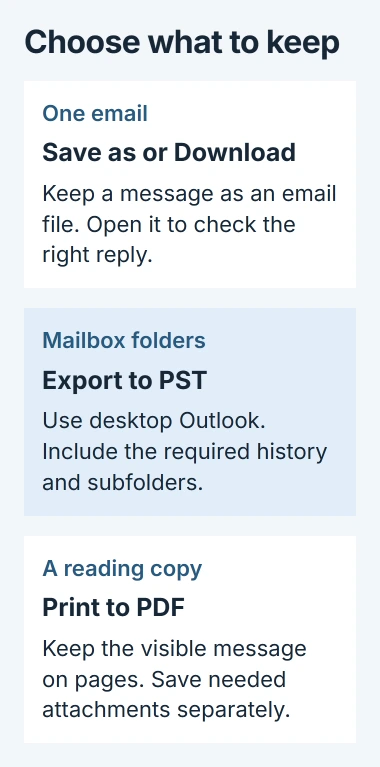
To download emails from Outlook, save an individual message as an email file or export a mailbox to a .pst file. The first keeps one email; the second saves whole folders of mail together.
For one message in new Outlook, start with More actions > Save as. Outlook on the web calls the command Download. Choose the route that matches both your version and the amount of mail needed.
Save one message from the app or website
Open the intended email and check its sender, date and actual message text. When a conversation contains several replies, select the specific reply needed rather than assuming the entire thread will be saved.
Microsoft documents the version-specific controls in its message-saving guide. The message's menu is different from an attachment's download menu.
Status: Outlook save and export guidance checked November 2, 2026. New Outlook now has a documented PST export route. No mailbox was accessed or exported.
| Version | Save the selected email |
|---|---|
| New Outlook for Windows | Open More actions > Save as, choose the destination and save. |
| Outlook in a desktop browser | Choose More actions > Download, then check the browser's download location. |
| Classic Outlook for Windows | Open the message in its own window, then choose File > Save As and the file type. |
The web version can save EML or MSG, depending on the offered choice. Preserve the extension supplied by Outlook; renaming an email file to end in .pdf does not convert it.
Inspect the saved file for the required reply and any attachments. For a printable reading copy, use the Outlook printing controls with a PDF printer. Keep attached documents separately when needed.
Export folders from new Outlook for Windows
Open Settings > Files > Export, then choose Get started. Follow the export wizard to select the mailbox or folders and the destination for the PST.
Microsoft now documents this route in its PST export instructions. Advice that new Outlook cannot export any email is out of date.
If Export is unavailable, use classic Outlook's procedure or ask workplace IT about the installed edition. This desktop export command is separate from downloading one message in a browser.
In classic Outlook, download the required history first
Before exporting, check that the oldest mail needed is available locally. For an Exchange account with a limited cache, use the Outlook history sync setting to download the required period and let synchronization finish.
A cached export needs the downloaded mail. Check an older message before using Microsoft's classic Outlook backup steps:
- Choose File > Open & Export > Import/Export.
- Select Export to a file, then Outlook Data File (.pst), advancing with Next.
- Choose the account or folder and enable Include subfolders when its nested folders are required.
- Choose a new filename and a local destination outside OneDrive, then finish the wizard.
Microsoft says export copies the selected data without emptying the mailbox. Attachments are included, but rules, blocked-sender lists and folder settings are not part of this backup.
Check the exported file before removing any mail
In classic Outlook, use File > Open & Export > Open Outlook Data File and select the saved PST. Expand its folders and open a few messages, including an older one and a message with an attachment.
Microsoft states that opening PST files in new Outlook has additional requirements, including classic Outlook installed in matching architecture and a Microsoft 365 subscription. Its ARM version is excluded.
Those are file-opening requirements, not a reason to assume a completed export contains every item. Keep the original mailbox until the copy has been checked and stored safely.
For Outlook.com mailbox exports, Microsoft's account export guidance directs users to desktop Outlook. A browser's single-message Download command does not export the whole account.
If saving or exporting fails, give Microsoft Support the Outlook version, account provider and exact error. Say whether one email fails or the folder export fails; those are separate operations.
The Short Version
Save as or Download keeps one email file. Export saves folders through desktop Outlook, using the mail available to that edition. Check the oldest required messages and reopen the exported copy before depending on it.

Isaac Smith is the founder and editor of PC Glance, a website that covers computers, laptops, and technology. He is a tech enthusiast and a computer geek who loves to share his insights and help his readers make smart choices when buying tech gadgets or laptops. He is always curious and updated about the latest tech trends.