

A ZIP attachment in Outlook can show its files yet fail when Windows extracts a document. Save the ZIP locally, then use Extract All. For a password-protected archive, use a compatible extractor such as 7-Zip.
The message Windows cannot complete extraction. Destination file could not be created means Windows couldn't unpack the ZIP. It isn't a Word or Excel error, so repairing Office won't necessarily help.
In this guide
1. Save the whole attachment before opening its contents
In classic Outlook, right-click the ZIP attachment and choose Save As. Pick an easy-to-find folder on your laptop, such as a new one inside Downloads. In new Outlook, use the attachment's menu and choose Download.
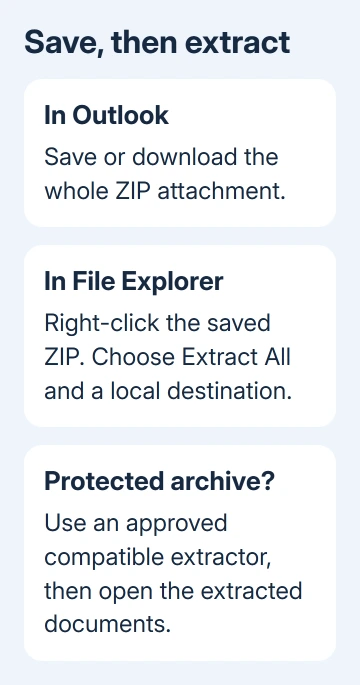
Keep the email and original attachment while trying this. Work on the saved ZIP, rather than double-clicking documents in the attachment preview. The extraction tool can then work with the saved file and a folder you've chosen.
Find the saved ZIP in File Explorer. Save it again if the download stopped or the file is empty. Seeing the filenames inside an archive doesn't tell you that every document will extract successfully.
If Outlook never displays the attachment at all, use the missing attachment checks. These steps are for a ZIP you can see and save to your laptop.
Before opening any documents, confirm that you expected the attachment from that sender. Recognizing the displayed name isn't enough reason to run an unexpected file from a compressed archive.
2. Extract to a new local folder
Right-click the saved ZIP and select Extract All. Choose a short destination inside your own Downloads folder, then select Extract. On Windows 11, expand the context menu to see more commands when needed.
After extraction, open the destination folder and try one document there. You should now be opening an ordinary DOCX, XLSX or PDF file, rather than a document still displayed inside the compressed archive.
This step avoids relying on the temporary location used when opening an attachment directly. If it works, keep using the extracted folder for this set of documents. Leave Outlook's account settings as they are.
If the destination error remains, create a normal text file in that destination folder. If that won't save either, check the folder's write permissions and the available storage space. The problem isn't limited to ZIP files.
Try a different local folder that allows normal saves. Avoid a network share or a work-managed location for this comparison. A successful extraction in Downloads gives IT a useful difference to check in the original destination.
Saving elsewhere and using Extract All didn't work for the owner in the forum discussion. A separate extraction program did, so move to the next step if the same archive still fails.
3. Use 7-Zip for a protected or incompatible archive
Microsoft's ZIP instructions note that Windows 11 version 24H2 doesn't support operations on encrypted archives. Extra format support in that version doesn't remove the password-protection limitation.
Ask the sender whether the ZIP uses a password. Some archives let Windows show the filenames while it can't extract the protected contents. Seeing those names doesn't mean Windows can unpack the password-protected files.
On a personal PC, get 7-Zip from its official download page. On a work laptop, ask IT for the approved extraction tool. Don't use a download advertisement that happens to mention the same program.
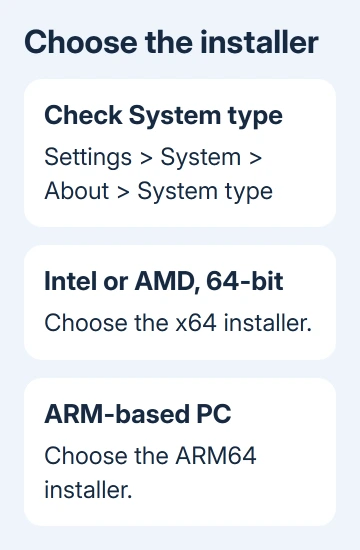
The download page offers different Windows builds. Check Settings > System > About > System type and choose the matching installer: x64 for a 64-bit Intel or AMD PC, or ARM64 for an ARM-based Windows computer.
Open 7-Zip File Manager and select the saved ZIP. Choose Extract, pick a new output folder and enter the password if requested. Ask the sender for the password through a trusted channel.
One owner confirmed that 7-Zip extracted their saved archive. They also removed duplicate Office installations to fix a separate problem. Their report doesn't show that reinstalling Office was needed to unpack the ZIP.
4. Ask for a fresh archive when extraction still fails
Changing the default app won't repair a bad password or damaged archive. Copy the extraction error exactly, especially any mention of a password, data error or unexpected end of the file.
Save a fresh copy of the attachment and extract it into a different empty folder. If the new copy fails at the same document, send that document's name and the error to the sender. It helps them check the specific file inside the archive.
Have the sender unpack the very ZIP they emailed, rather than opening their original uncompressed documents. Their originals can work while the archive they sent is incomplete or uses settings your tool can't handle.
If their ZIP extracts, request a fresh archive or use the organization's approved sharing service. Keep private files protected as agreed with the sender. Don't ask them to send an unprotected copy over ordinary email.
I'd ask for that fresh copy before trying system-wide permission changes. A single failing archive is a poor reason to change security settings across a laptop that extracts other ZIPs normally.
5. Treat a document error after extraction separately
If extraction succeeds but Word, Excel or a PDF reader then refuses the document, the ZIP stage is finished. Note the document's error message and check that its file size looks right before troubleshooting the app.
For a destination folder that keeps showing a read-only box, the folder read-only explanation separates that checkbox from file access. Don't change permissions just to clear the box.
If several known-good archives fail even with the approved extractor, ask IT to check local write permissions and storage. Provide the saved ZIP's location, the extraction destination, the tool's name and the exact error.
The Short Version
Save the ZIP and extract it locally before opening its documents. Protected archives need a compatible tool. If it still fails, have the sender check and resend that archive instead of reinstalling Outlook.
Checked November 17, 2026.
 If you have any business, I can build it online






