
You untick Read-only on a folder, click Apply and watch Windows work through every file. Then you open Properties again and the box is filled in exactly as before.
I would stop clicking it. On a folder that box is not a lock at all. If something really stops you saving, the cause sits on the Security tab or in Windows Security.
Super User has carried this question since November 2014, and it shows 229,532 views, while one Microsoft Q&A version holds 100+ under Same question.
What that box means on a folder
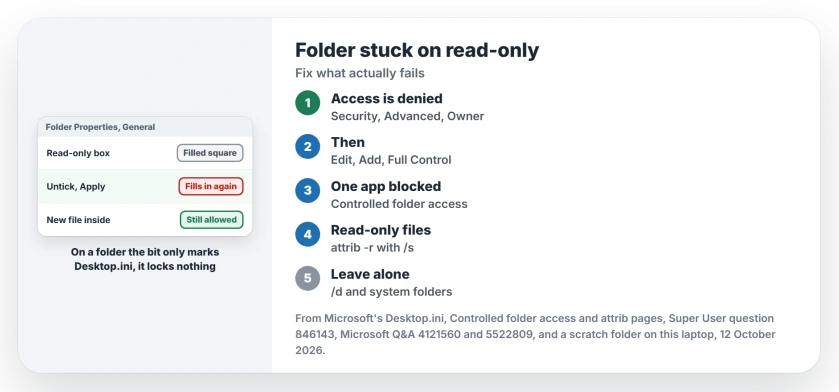
Windows uses a folder's read-only bit as a marker, not a lock. Microsoft's folder customization page says Windows "sets the read-only bit on the folder to indicate that the special behavior reserved for Desktop.ini should be enabled".
That is why your Downloads and Music folders carry it, since Desktop.ini gives them their icon and display name. The bit tells File Explorer to read it.
One Microsoft Q&A volunteer moderator was blunt about it: "It's perfectly normal and essentially meaningless and has always been that way." Unticking the box changes your files inside, and then it goes back to filled.
Status: tested 12 October 2026 with a scratch folder on Windows 11 Home 25H2, beside Microsoft's folder and Defender pages and owner reports.
Ours: on this laptop, Downloads, Music and Videos carry the read-only bit plus a desktop.ini. I set the bit on a test folder too, and Windows still let me create a file inside it and rename that file.
Only a file with its own read-only bit refused my write, so if your folder lets nothing in, look for another cause.
1. Read what actually fails
Name the failure before you change anything. That same moderator asked one asker what they were really trying to do, since "The folder itself is not read-only".
Access is denied on a whole folder? That points at ownership, often on a second drive after a reinstall. An app that cannot save into your Documents while Windows Security shows a notice points at Controlled folder access.
A single file that opens read-only may have its own bit set. Step 4 clears it.
2. Take ownership after a reinstall or a new PC
Your old files belong to the account from your old Windows install. The accepted Super User answer explains that you "no longer have NTFS security permissions to access (read) the folder".
Right-click the folder, choose Properties, open the Security tab and click Advanced. Click Change next to Owner and type Users or your own account name. Click OK.
Tick Replace owner on subcontainers and objects, then click Apply. Close that window.
Back on the Security tab, click Edit, then Add, type the same name, tick Full Control and click OK.
Confirmed by owners. The asker accepted it for a photo folder on drive D. In August 2025, an owner on Windows 11 who had copied files from an old laptop used the same steps with Administrator in place of Users.
Their advice for you: "Focus on the Security tab and make the changes there to get full control of your files." One Super User commenter also ticked the box that replaces all child permission entries. Only then did every subfolder change.
Keep this to your own data folders, though. Windows' system folders are owned by TrustedInstaller on purpose, and our WindowsApps permissions page shows what breaks when that changes.
3. Check Controlled folder access
Windows Security can block apps from your own folders. Microsoft's Controlled folder access overview says: "When an untrusted app tries to change a file in a protected folder, CFA blocks the attempt and notifies you."
Open Windows Security, then Virus and threat protection, then Manage ransomware protection. Is Controlled folder access on? Then check Block history, or use the option there to allow your app through.
An adviser on Microsoft Q&A pointed a Windows 10 to 11 mover there in 2025. I would check it first whenever only one of your apps fails. That app may simply not be trusted yet. Ours: it is off on this laptop.
4. Clear the bit on the files, not the folders
Your files may really be marked read-only, for example after a copy from a CD. Clear them from Command Prompt. Microsoft's attrib page gives this pattern for a folder and everything under it:
attrib -r "D:\Photos\*.*" /sThat touches files only. Microsoft says the extra /d switch "Applies attrib and any command-line options to directories". On your folders, that bit is the Desktop.ini marker.
So leave /d off. Clearing it on Downloads or Music can leave you a plain folder icon.
A moderator spotted a common slip in one thread. The switches need spaces, as in -r /s, or attrib answers that the switch is invalid.
Two things that waste your time
A repair install never helped the 2021 asker whose folders all looked read-only. Neither did the built-in Administrator account. Their files opened and saved fine, and only one app complained.
Game folders from unofficial repacks show up in these threads too, and a moderator told one asker it looked like an issue with the game itself, not with Windows.
On an external drive, your antivirus or the drive itself can set the read-only state. Our external drive page covers that case.
The Short Version
- A filled Read-only box on a folder is normal.
- Access is denied after a reinstall: take ownership, then Full Control.
- One app blocked from Documents: check Controlled folder access.
- Read-only files: attrib -r with /s, and leave /d off.
- Keep ownership changes away from Windows' own folders.
Where to Next
Which exact message stopped you? Paste it into the comments. I read them all and match each message to the step that fits it.

Isaac Smith is the founder and editor of PC Glance, a website that covers computers, laptops, and technology. He is a tech enthusiast and a computer geek who loves to share his insights and help his readers make smart choices when buying tech gadgets or laptops. He is always curious and updated about the latest tech trends.