Robocopy error 1314 often means the command is copying ownership or auditing information your account can't set. For an ordinary copy, replace /COPYALL with /COPY:DAT to keep contents, attributes and timestamps.
A backup job is different. When the command needs to preserve permissions or use backup mode, the account needs the matching rights. The line immediately before the error helps you choose the appropriate fix.
In this guide
1. Match the error to the failing operation
Read the error block in Command Prompt or the saved log. Copying NTFS Security means the failure happened while copying security settings. A required privilege is not held by the client explains error 1314.
Write down the source, destination and complete command. Look for /COPYALL, /COPY:, /SEC, /B and /ZB. Those switches change what Robocopy asks Windows to do, even when both folder paths are correct.
Copy one affected file through File Explorer to a spare folder. If that works but Robocopy fails while setting security, the account can read and write the contents. Next, check which security settings the command tries to copy.
If File Explorer also refuses access, the problem extends beyond Robocopy's switches. Check access to the source and destination with the account that actually runs the job, especially for a scheduled task or network share.
A message about a long pathname needs the long-path copy steps instead. The error number and operation are more useful than simply knowing the copy stopped.
2. Use a contents-only copy when permissions aren't needed
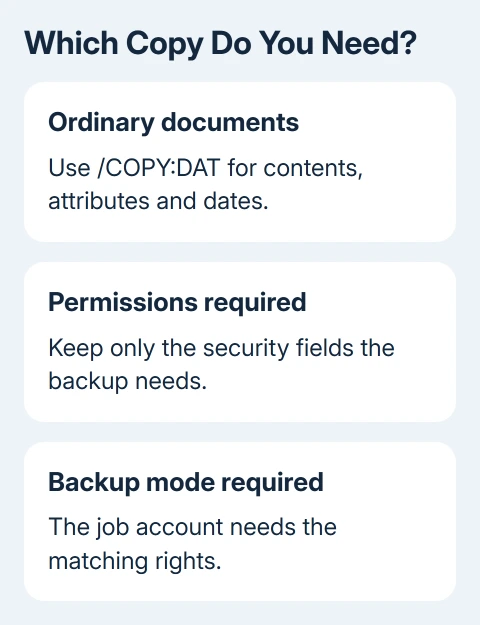
For personal documents in a new backup folder, I'd keep the files and dates first. The destination can use its normal permissions without carrying the old computer's ownership and auditing settings.
Microsoft says DAT copies data, attributes and timestamps in its Robocopy reference. S adds permissions, O ownership, and U auditing.
Use a new destination folder for this trial. Replace the two example paths with your own, keeping quotation marks around each path:
robocopy "C:\Source" "D:\CopyTest" /E /COPY:DAT /R:1 /W:1 /LThe /L switch lists work without copying. Check that the destination is your spare folder. /E includes subfolders, even empty ones. The retry switches prevent one failed file from tying up the trial.
Run the same command with /L removed when the paths are right. Leave out /COPYALL, /SEC, /SECFIX, /B and /ZB for this ordinary-copy trial. Don't carry deletion switches such as /MIR or /PURGE into it.
Open several copied files and read the summary's Failed column. A completed data copy with no failed files means the unwanted security request was the obstacle. Keep this simpler command if it meets the job's purpose.
Copy flags don't clear an existing destination's permissions. A spare folder avoids confusion from those older settings. If the fresh copy fails too, read which operation the new error names.
3. Keep only the security fields the backup requires
An office migration may need the original access permissions. Ask whoever owns the backup whether it also needs ownership and auditing information. The backup may need one without the other, even though /COPYALL includes both.
/COPY:DATS includes file contents, attributes, timestamps and access permissions. It leaves out ownership and auditing. /SEC is another way to request that same set of file information; it isn't a switch for bypassing permissions.
A saved Super User discussion suggests omitting auditing for this error. That reduces the copy's requirements; it doesn't grant extra rights. Ownership and access permissions can still require rights the account lacks.
Don't discard required backup security fields to clear an error. Ask the administrator to approve fewer fields or supply an account that can preserve them. Restored files need the intended permissions too.
Try again with a small folder containing the kinds of files you need to back up. Check that intended users can open the copies and restricted files remain restricted. A backup hasn't done its job if the wrong people can open the files.
4. Run backup mode with an account allowed to use it
The /B switch uses backup mode, which can read past ordinary file access restrictions when the account has the required privileges. /ZB starts in restartable mode and falls back to backup mode when access is denied.
For a job needing backup mode, search Start for cmd and select Run as administrator. Approve the prompt and retry the approved command on a small folder. Running as administrator lets the account use the rights it already has.
Running as administrator doesn't give your account extra rights on a remote server. The network destination enforces its permissions, and a scheduled task may use another account. Give IT both paths and the account that runs the task.
If a task works when you run it yourself but fails overnight, compare its command and saved account. Your own permissions won't help a job running under another account. Ask IT to review the required backup, restore and auditing rights.
5. Validate the files and final copy summary
Robocopy uses several success and warning return codes. A nonzero code isn't automatically a failed transfer: the command reference treats 8 or greater as a copy failure. Read the summary and any named files as well as the return code.
Run echo %ERRORLEVEL% in Command Prompt immediately after copying to read that job's code. Keep the earlier backup until files open and permissions check out. A visible folder doesn't show that every file arrived.
If failures now name a USB drive that disconnects, use the semaphore timeout drive checks. That is a connection problem to handle separately from a privilege error.
For another 1314 failure, send IT the command, account, error block and small-folder result. Ask which security field or backup privilege is denied at either end. They can then review that specific permission.
The Short Version
Use /COPY:DAT for ordinary file copies that don't need old permissions. Keep required security fields for real backups, then run the job with an account allowed to copy them. Check failed files and return codes before trusting the result.
Checked November 17, 2026.
 If you have any business, I can build it online