
You copy a big folder onto a backup drive or a new PC, and Windows stops with Destination Path Too Long: "The file name(s) would be too long for the destination folder."
I would hand the copy to robocopy. It ships with Windows. Microsoft's own page shows it handles long paths unless you switch that off, and the names stay as they are.
Pressing Skip loses nothing. It copies nothing either. And the long paths switch most fixes point to did not help owners in File Explorer.
The oldest Microsoft Q&A thread on the message carries 1,000+ Same question votes.
What Skip does to your files
Nothing, which is the catch. An answer with 300+ helpful votes: "When you skip a file in a Move command then it is not moved and remains where it was."
The accepted answer said the same, and the asker, worried about 2,000 files, replied: "Thanks, Ken, that's all I needed to know!" Ours: after a skip you have two places to reconcile, so note which folders were skipped.
Status: checked 5 October 2026. Two owners got past it by zipping the folder first, and one with robocopy. Owners who turned on long paths still saw it in File Explorer.
The limit counts the whole path
The count is not just the file name. It is the drive, every folder on the way, then the name. Microsoft gives the ceiling: MAX_PATH, "which is defined as 260 characters".
That is why short names can still fail. One owner moving more than 70 GB to a new PC hit it on files with short names, yet the same files copied into a test folder without a problem.
Ours: the limit applies where the files land. A deep destination folder adds its own characters to every path inside it.
Why the long paths switch did not help
Most fixes send you to LongPathsEnabled in the registry or Group Policy. Owners report it does not help. One turned it on in November 2019, another on Windows 11 Home in June 2024, and both still got the message.
Microsoft explains why on its path length page: "your app must opt-in to the new behavior." It adds: "This isn't a change that will affect all applications."
A volunteer moderator answered the 2024 owner in one line: "Explorer does not fully support long paths." I would leave the switch alone and change how you copy.
Copy with robocopy instead
Robocopy is a Windows command. Microsoft's page lists a switch that "Turns off support for paths longer than 256 characters", which means long paths work unless you add it.
Open Command Prompt and type robocopy, the source folder in quotes, the destination folder in quotes, then /e. For a folder called Projects on D going to a backup drive E:
robocopy "D:\Projects" "E:\Backup\Projects" /eMicrosoft says /e "Copies subdirectories" and "automatically includes empty directories". The names stay exactly as they were. That matters for software libraries and project files that break when renamed.
Watch /move. An owner who used robocopy warned others that it "will delete the original after copying". Copy first. Check the copy. Then delete by hand.
Shorten the start of the path
Moving the deep folder closer to the top of a drive cuts characters from every file inside it. The 300+ answer: "if the focus of the move is moved down the directories you can truncate the path considerably".
Ours: move C:\Users\you\Documents\Clients\2024\Projects to C:\P, copy it, then move it back on the other side.
The subst command does the same without moving anything. Microsoft says it "Associates a path with a drive letter", so a deep folder can become S: for the copy. An adviser showed this on an 8-person thread about a sample library.
Zip it first
Two owners got around it by zipping. In 2016: "I had a few thousand files to copy, so zipped the lot, copied the zip file then unzipped it in the destination directory." The result: "No problems encountered."
A 2017 reply said the same in one line: "Zip the files, cut and paste across, and then unzip."
Your unzip can hit the wall too. A July 2026 asker got "the destination path is too long. rename the compressed (zipped) folder and try again." Ours: unzip at the top of the drive, then move the folder.
Copying to a USB stick or OneDrive
A stick formatted FAT32 refuses big files with a different message, about the file being too large. That one is a format problem, not a path one.
A copy that crawls to the end and then times out is a third fault, and a slower USB link got it through for owners.
If you sync with OneDrive, it has its own path limit. Long paths break OneDrive sync too, even when each name looks short.
What happens to the files I skipped?
They stay in your source folder. Only the copy or move of those files was skipped, so nothing is deleted.
Does Windows 11 still have the 260 character limit?
In File Explorer, owners still hit it in 2024 with long paths switched on. Programs built for long paths can go past it once the switch is on, Microsoft says.
How do I delete a folder whose path is too long?
Ours: rename a folder near the top of that path to a single letter. Every path under it gets shorter, and the delete goes through.
If the folder is merely huge and slow to delete rather than too deep, rd /s /q beat robocopy in our own timing.
Macs hit a path ceiling too, in the Trash, when a folder holds copies of itself; the Mac Trash page removes it from Terminal.
The Short Version
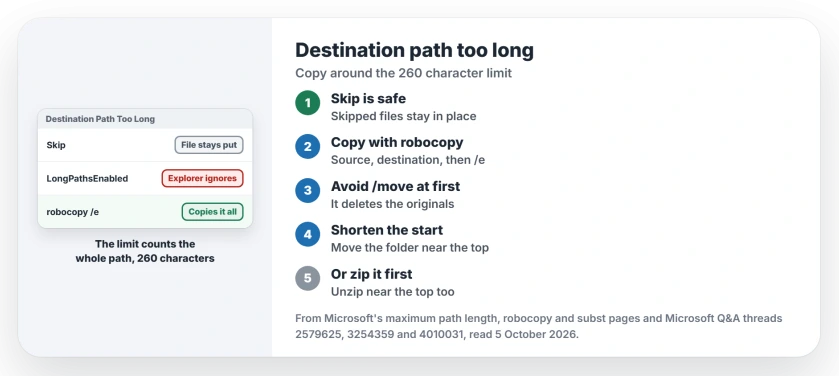
- Skip leaves files where they were.
- The limit counts the full path, at the destination.
- The long paths switch does not change File Explorer.
- Copy with robocopy and /e; avoid /move until you check.
- Or move the folder near the top of the drive first.
- Zipping works, but unzip near the top too.
Where to Next
Try robocopy first. Open Command Prompt and copy the folder with /e. Compare the file counts in both folders before you delete anything.
Did robocopy carry it across, or did you need the zip route? A comment with the kind of files helps the next reader.

Isaac Smith is the founder and editor of PC Glance, a website that covers computers, laptops, and technology. He is a tech enthusiast and a computer geek who loves to share his insights and help his readers make smart choices when buying tech gadgets or laptops. He is always curious and updated about the latest tech trends.