
Printing email from Outlook starts with the message's own Print command. New Outlook uses Home > Print, while classic Outlook uses File > Print. Select a physical printer, review the pages, then send the job.
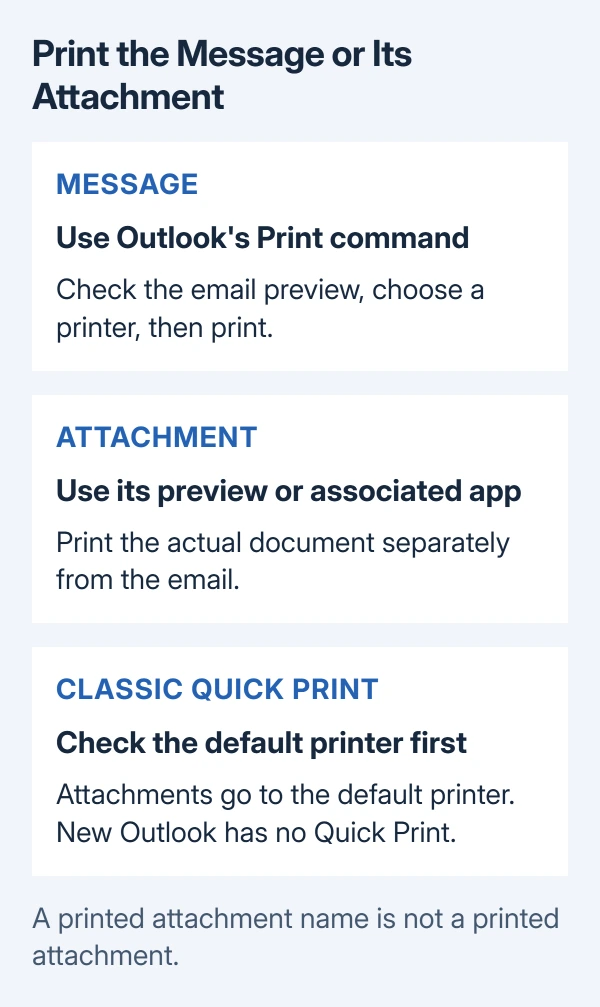
An attached invoice or document needs its own print action unless classic Outlook is explicitly set to include attachments. A printed message does not automatically mean its attached files were printed too.
Open the message and use the right Print command
Select the email you need, then check the sender, subject and date. A long conversation can contain earlier replies inside the message, so inspect the preview for material that does not need paper.
Microsoft documents separate printing controls for the new Windows app, classic Outlook and the browser version.
Status: Microsoft instructions checked October 29, 2026 for new Outlook for Windows, classic Windows Outlook, and the web app. No mailbox was opened or print job sent.
| Outlook version | Start the print job |
|---|---|
| New Outlook for Windows | Select the message, then Home > Print. |
| Classic Outlook for Windows | Open the email, then File > Print, or Ctrl+P. |
| Outlook in a browser | Open the message preview and select Print at the top. |
Choose the intended printer in the print dialog, adjust the layout and page selection, then select Print. For a paper copy, choose the printer itself rather than a PDF destination.
In a browser, check that the preview contains the message. A preview dominated by the inbox or browser page means the wrong content is being printed; return to the email's own Print control.
Limit a long email to the pages that matter
Read the preview before choosing a page range. The page containing a delivery address or confirmation number may not be page 1, particularly when the email starts with a large banner or earlier replies.
For classic Outlook, Microsoft's selected-page instructions use File > Print > Print Options. Under Page Range, enter the required page or pages.
Select Preview first to match the page numbers to the actual content. Then print the selected range. This trims the paper output without deleting any part of the stored message.
Keep any sender, date or reference details needed to identify the printout. That recommendation is ours for receipts and instructions kept apart from the mailbox.
Print an attachment separately when that is the document
Microsoft's attachment printing guide provides separate routes. Only open attachments whose sender and contents you trust.
In new Outlook, open the attachment's dropdown and choose Preview, then Print. Alternatively, choose Open and print from the associated app. If preview is unsupported, save the file and open it in a suitable program.
In Outlook on the web, the attachment dropdown offers Preview or Download. Print from the preview when supported, or download the file and print through its app. Check that the preview contains the attachment, not just its filename.
Classic Outlook has Quick Print in the attachment menu. It sends the attachment to the default printer. To choose another printer, open the attachment and use that app's Print dialog instead.
The classic setting File > Print > Print Options > Print attached files stays enabled until cleared. It prints attachments with the email, using the default printer. Microsoft states that new Outlook does not offer Quick Print.
Separate a paper-printing problem from a PDF problem
A job that reaches the preview but never produces paper needs printer checks. Try a simple document from another app; this comparison tells you whether the failure is limited to Outlook.
If other apps also fail, use the printer troubleshooting steps before changing mail settings. Note whether the printer is unavailable, the job waits in its queue, or an error appears.
For a file instead of paper, a Microsoft Print to PDF failure is a separate problem. It concerns creating a PDF, rather than an attachment missing from a paper printout.
If only Outlook fails, contact Microsoft Support or workplace IT with the Outlook version, printer name and exact error. Include whether the message or only its attachment fails. Those are different printing paths.
The Short Version
Use the email's Print command, check the preview and choose the correct printer. Print attachments through their own menu or app. Classic Quick Print uses the default printer; new Outlook has no Quick Print option.

Isaac Smith is the founder and editor of PC Glance, a website that covers computers, laptops, and technology. He is a tech enthusiast and a computer geek who loves to share his insights and help his readers make smart choices when buying tech gadgets or laptops. He is always curious and updated about the latest tech trends.