

An Exchange disclaimer rule can turn a signed email into an attachment when it can't change the signed contents. Ask IT to check the Wrap fallback, which puts the original inside a new message.
An email forwarded as an attachment or a winmail.dat attachment needs a different explanation. Start by checking what the attachment contains, especially if this began after your organization moved to Microsoft 365.
In this guide
1. Check whether the attachment is the original email
Open an affected email from a familiar sender. Look at the attachment's name and type. If opening it reveals the actual email, including its text and signing information, you're dealing with a message inside another message.
Compare it with a normal email from the same sender if one is available. Note whether only digitally signed messages arrive this way or whether every message is affected.
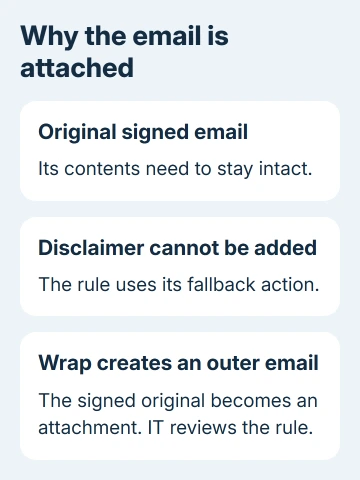
A digital signature helps verify who sent a message and whether its signed contents changed. A rule on the mail server has to respect that protection when adding text.
Changing Outlook's display preferences may do nothing because the server has already wrapped the message.
Microsoft describes Wrap as creating an outer email that holds the original as an attachment. The disclaimer goes on that outer email.
That behavior fits an attached signed email, but the attachment alone doesn't identify which organization wrapped it. Have IT inspect the delivery route and its rules before changing anything.
If the file is an ordinary PDF or image and only its preview fails, use the attachment viewing checks. If the attachment opens the full original email, keep going with the rule check.
2. Read the attached message without changing its contents
Open the attached email to read it while IT checks the delivery behavior. In classic Outlook, double-click the attachment to open it. Check the sender and any signature warning inside the original message.
The extra click is inconvenient, but it gives you access to the original contents. Don't copy the body into a new message and treat that copy as the signed original; copying text doesn't carry the original signature with it.
If the attachment won't open or Outlook displays a security warning, record the exact wording for IT. A blocked attachment, an untrusted signing certificate and a wrapped message aren't the same fault.
Keep the original delivered email available. The complete message and its headers, which record delivery details, give IT more to check than a screenshot of an empty reading pane.
For personal records, the Outlook email download instructions explain the available message-saving routes. Follow your workplace's handling rules before saving business mail outside the mailbox.
3. Ask the administrator to inspect disclaimer rules
Send your mail administrator an affected message's subject, sender, recipient and arrival time. Say that the attachment contains the signed original, so IT can distinguish it from an empty body.
Your mail administrator can open Exchange admin center > Mail flow > Rules. They should inspect rules that add a disclaimer, organization signature or external-sender notice along this message's route.
Check the action that adds the text and its fallback choice. Wrap means another message is created around the original when the disclaimer can't be applied. If a rule that handles your message uses Wrap, IT has a specific setting to check.
Compare an affected signed email with an unsigned email following the same route. If only the signed one is wrapped, that difference helps the administrator check whether the rule's fallback explains what you're receiving.
The original Outlook report involved signed messages after a Microsoft 365 move. The asker said safe mode wasn't the answer and colleagues had the same behavior.
The reply marked as accepted suggested checking disclaimer rules, but the asker never said a change worked. Check Wrap because Exchange can create this wrapper, rather than assuming the accepted reply fixed that case.
4. Choose a fallback that matches the mail policy
The rule owner must decide what should happen when a disclaimer can't be inserted. Your organization sets that mail policy. It isn't a switch you can change in your own Outlook Inbox.
Ignore delivers the original without the disclaimer when that action can't be applied. It can keep the original message layout, but the required added text will be missing in that situation.
Reject returns the original to the sender in a nondelivery report, a message explaining that delivery failed. It stops mail that can't receive the required text; it won't make the signed email appear normally in your Inbox.
For incoming external mail, the documentation directs administrators to use Reject instead of Wrap because wrapping interferes with Safe Attachments scanning. IT should follow that guidance when reviewing those rules.
Keep the sender's signing protection. Have the rule owner choose a supported way to handle protected mail that fits your organization's delivery policy.
After an approved change, send a fresh signed test message through the same route. Old messages already wrapped in the Inbox won't automatically turn into ordinary messages when a rule changes.
5. Check the sender's mail system when local rules don't match
If your administrator finds no applicable wrapping rule, ask them to check whether the message arrived already wrapped. A sender's organization or a mail-processing service may have applied the disclaimer earlier in delivery.
Ask the sender's administrator to review the rule on their side using the same subject and sending time. Changing a recipient's Outlook settings won't undo a wrapper that was created before the email reached their mailbox.
For a message deliberately forwarded as an attachment, ask the sender to forward it normally if that's what you need. Don't change organization rules to fix a one-off choice in the sender's compose window.
If an attachment is winmail.dat, report that filename separately. Rich Text formatting is a different route from an original signed email attached by a disclaimer rule, so the Wrap setting may not explain that case.
Ask IT for an Exchange mail-flow support case if the problem remains. Include a fresh affected message and the applicable rule settings so support can check where wrapping occurs.
The Short Version
If the attachment holds the signed original, ask IT to check disclaimer rules and Wrap. Read the attached original while the rule owner reviews how protected mail should be delivered.
Checked November 17, 2026.
 If you have any business, I can build it online






